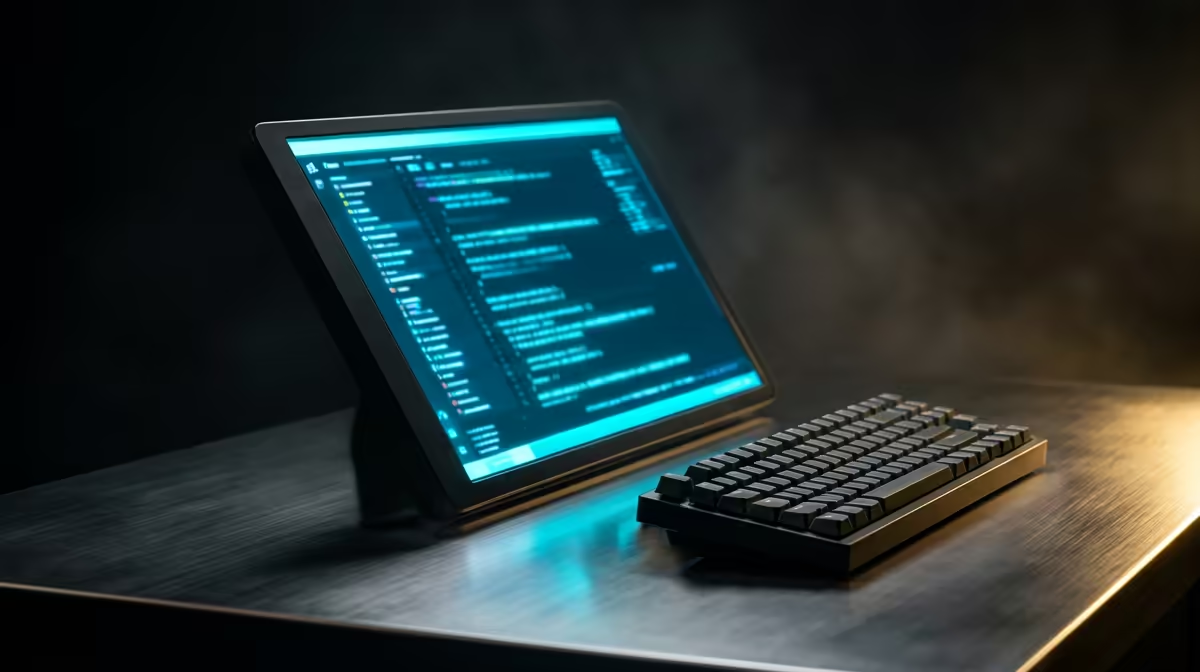
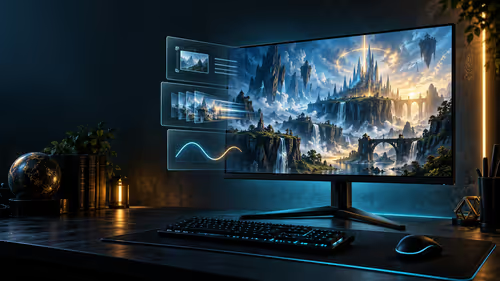
A laptop and a flat panel that slips into the same bag turns any coffee shop table into a two-screen workstation. Running a dual-screen trading or coding setup with a portable monitor means extending your laptop onto a second 15.6 to 17.3-inch display so you can watch charts on one panel and place orders on the other, or keep an IDE open beside a terminal. The whole rig packs flat and travels with you.
Quick Answer
Connect a portable monitor to your laptop over a single USB-C cable, set Windows or macOS to extend (not mirror) the display, and you have a true dual-screen rig that fits in a standard laptop bag. Budget around R2,500 to R5,000 for a decent 15.6-inch USB-C portable monitor, and make sure your laptop's USB-C port supports video output.
Step 1: Check your laptop can drive a second screen
Before buying anything, confirm your laptop's USB-C port carries a video signal. Look for a connector that has the DisplayPort or Thunderbolt logo stamped next to it, since plain USB-C data ports cannot output video. If your laptop only has older USB-A and HDMI, you can still run a portable monitor, you just need one that accepts HDMI plus a separate USB cable for power, or a powered USB-C adapter.
Most laptops from the last few years support USB-C DisplayPort Alt Mode, which carries both video and power down one cable. That single-cable setup is what makes this rig so clean. The current portable monitor range at Evetech lists the connection type for each model so you can match it to your machine.
Step 2: Pick the right panel size and resolution
For trading, screen real estate beats everything. A 15.6-inch 1080p panel is the sweet spot for portability and price, while a 17.3-inch model gives you more room for multiple chart windows at the cost of bulk. Coders often prefer a 1440p portable monitor because the extra vertical pixels show more lines of code and a full terminal at once.
Aim for an IPS panel so colours and viewing angles stay consistent when the screen sits at an angle on a small table. A matte finish helps if you work near windows, which is common in SA co-working spaces and home setups with plenty of natural light.
Step 3: Connect and set the display to extend
Plug the portable monitor into the video-capable USB-C port. If it is a single-cable model, it powers up immediately. On Windows, open Display settings, find the second screen, and choose "Extend these displays." On macOS, navigate to System Settings, open the Displays section, and drag the screen arrangement to reflect the physical position of each panel.
Drag a window across to confirm the extension works. If the second screen only mirrors your laptop, you have the wrong setting selected, so switch from "Duplicate" to "Extend." Set the resolution to the panel's native value for the sharpest text.
Step 4: Arrange your trading or coding layout
Now build the layout that suits your work. Traders typically put live charts and watchlists on the portable monitor and keep the order ticket, news feed, or platform dashboard on the laptop screen. The second panel becomes your "glance" display, the laptop your "action" display.
Coders usually run the IDE on the laptop and push the terminal, documentation, or a browser preview onto the portable monitor. Splitting your editor from your output means you stop alt-tabbing constantly, which is the single biggest productivity gain of going dual-screen.
Stabilise the panel for daily use
Most portable monitors ship with a folding cover that doubles as a kickstand, but those are flimsy on a wobbly table. A small adjustable stand keeps the panel upright and at eye level, which saves your neck on long sessions. To round out a mobile workstation with a stand, a compact keyboard, or a travel mouse, checking the monitor best sellers at Evetech helps you spot what other buyers pair with their portable panels.
Step 5: Pack it flat and go
The payoff is portability. A slim portable monitor fits into the secondary sleeve of most laptop bags, the single USB-C cable coils into a side pocket, and the whole second-screen rig adds barely any weight. You can set up the same dual-screen workspace at home, in the office, or on the road in under a minute.
Frequently Asked Questions
Do I need a power adapter for a portable monitor?
If your laptop's USB-C port supports DisplayPort Alt Mode, a single cable carries both video and power, so no separate adapter is needed. Older laptops using HDMI may need a second USB cable or a small power bank to feed the panel.
Can any laptop run a portable monitor?
Most modern laptops can, but the USB-C port must support video output. Laptops with only HDMI can still drive a portable monitor that accepts HDMI input plus a separate power source.
Is 1080p enough for trading and coding?
For trading, 1080p on a 15.6-inch panel is comfortable for charts and watchlists. Coders who want more lines of text visible at once often prefer a 1440p portable monitor for the extra vertical space.
Will a portable monitor slow my laptop down?
Driving a second screen adds a small load on the GPU, but for trading platforms and code editors the impact is negligible. Only heavy graphics or video work might notice the extra draw.
How do I stop the screen wobbling on a small table?
The bundled cover-stands are often unstable, so a small adjustable monitor stand keeps the panel steady and at a healthier viewing height for long sessions.
Ready to build a workstation that packs flat? Browse the portable monitors at Evetech to find a USB-C panel that matches your laptop, then check the monitor best sellers for a stand and travel peripherals to complete the rig.