


Stuck Pixel Checks for a Mechanical Keyboard Setup
Stuck pixel on a Mechanical Keyboard is likely a display symptom around that setup, not the part itself. Check the monitor, cable, GPU output, drivers, and warranty path first.
Read moreRun virtual machines on an x86 NAS using Synology Virtual Machine Manager or QNAP Virtualization Station to host a guest OS alongside storage duties - ARM NAS units cannot run VMs at all. A VM guest on DSM needs at least 4GB RAM allocated.
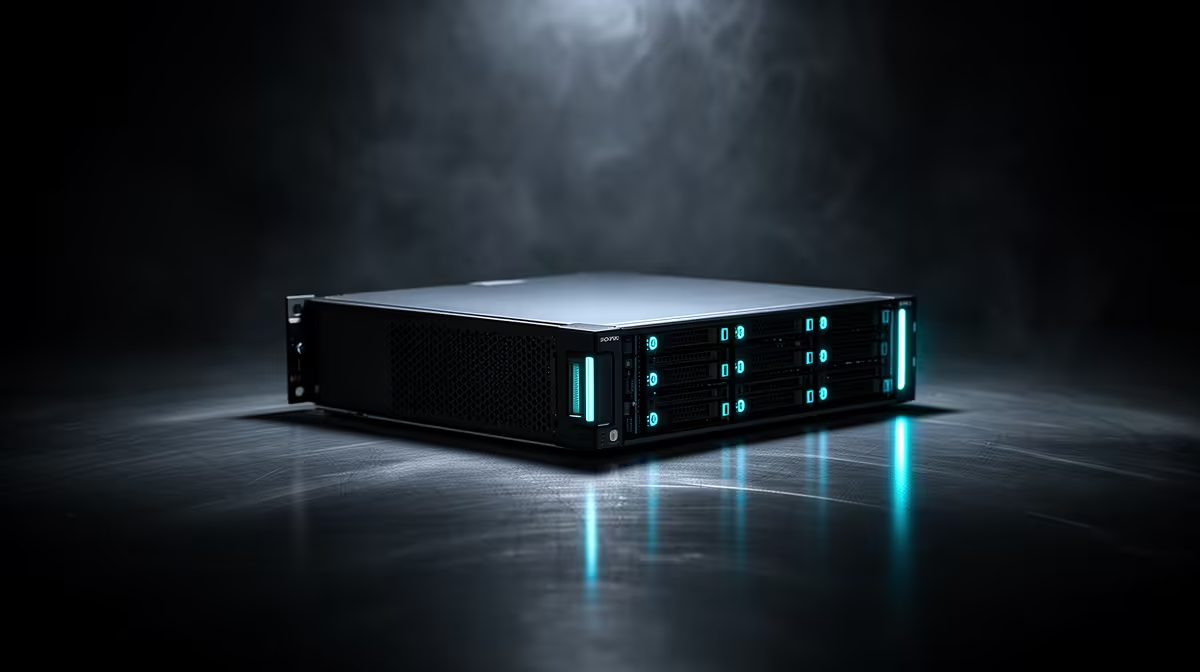
A NAS that only stores files is doing half the job it is capable of, because an x86 model can also run a full second computer inside itself. Learning to run virtual machines on an x86 NAS turns a storage box into a small server that hosts a Windows or Linux guest alongside your data, with no extra hardware. That lets one quiet, always-on machine handle backups, files, and a virtual computer for testing, light services, or a home project, all at once.
You run virtual machines on an x86 NAS using Synology's Virtual Machine Manager or QNAP's Virtualization Station, which host a guest operating system next to the NAS's storage duties. This works only on x86 NAS units with Intel VT or AMD-V virtualisation support, never on ARM models. Plan for at least 4GB of RAM allocated to a guest, on top of what the NAS itself needs to run.
This is the hard gate, so confirm it first. Virtual machines need an x86 processor with hardware virtualisation extensions, Intel VT or AMD-V, which the NAS software uses to run a guest. An ARM-based NAS cannot run virtual machines at all, no matter the settings, because the architecture lacks the right virtualisation support. Check your NAS model's processor before anything else. If it is ARM, virtual machines are off the table, though lighter containers may still be an option.
Look up your exact model and verify it runs an x86 chip with VT or AMD-V, and that it is supported by the relevant app. On Synology, Virtual Machine Manager runs on the Plus series and higher; on QNAP, Virtualization Station targets x86 models. Entry-level ARM units are excluded. The NAS and storage range at Evetech lists x86 units suited to this kind of duty if you are still choosing hardware.
A virtual machine needs its own memory carved out of the NAS, and this is where people get caught short. Budget at least 4GB of RAM for a single guest, plus whatever the NAS reserves for its own operating system and storage tasks. A NAS with only the base amount of memory will struggle to run a VM and serve files at the same time. If your unit supports a memory upgrade, adding more before you start makes the whole experience smoother, especially if you intend to run more than one guest.
From your NAS package centre or app store, install Synology Virtual Machine Manager or QNAP Virtualization Station, depending on your brand. Both are built on the open-source KVM hypervisor and integrate cleanly with the NAS interface, so once installed you manage your virtual machines from the same dashboard you use for everything else.
Download the installation image, an ISO file, for the operating system you want to run, whether that is a Windows version or a Linux distribution. Upload that ISO into the virtualisation app's image library so it is ready to install from. Make sure you have a legitimate licence for any operating system that requires one, the same as you would for a physical computer.
In the app, create a new virtual machine and assign its resources: CPU cores, the RAM you set aside earlier, and a virtual disk sized for the guest. Point the VM at the ISO you uploaded as its boot source, attach a virtual network adapter so it can reach your network, and review the settings. Allocate generously enough that the guest runs comfortably, but leave the NAS itself enough headroom to keep serving files without slowing down. Fast storage helps here, and the SSD best sellers are a quick way to see current drives that keep a VM responsive.
Start the virtual machine and open its console from the app. The guest boots from the ISO and you walk through a normal operating system installation, exactly as you would on a physical PC. Once it is installed, install any guest tools the platform offers for better performance and easier management, then set the VM to boot from its virtual disk rather than the ISO. From here you have a working virtual computer running inside your NAS, ready for whatever you built it to do.
A VM on a NAS suits light, always-on jobs: a small Linux server for a home service, a test environment you can break and rebuild without risk, a sandbox for trying software, or a lightweight Windows instance for a specific task. It is not meant for heavy workloads or gaming, since a NAS processor is modest, but for a quiet machine that never sleeps, running a small virtual server alongside your storage is a genuinely useful way to get more from hardware you already own.
No. Virtual machines require an x86 processor with hardware virtualisation support such as Intel VT or AMD-V, which ARM NAS units lack. ARM models cannot run VMs at all, though some can run lighter containers instead.
Plan for at least 4GB allocated to a single guest, on top of the memory the NAS reserves for itself. A unit with only base memory will struggle to run a VM and serve files at once, so a memory upgrade beforehand is often worthwhile.
Synology uses Virtual Machine Manager and QNAP uses Virtualization Station, both built on the KVM hypervisor. They differ in interface but do the same job, hosting a guest operating system from within the NAS dashboard.
Light, always-on workloads suit it best: a small Linux server, a test or sandbox environment, or a lightweight Windows instance for a specific task. Heavy applications and gaming are beyond a typical NAS processor, so keep the guest's job modest.
It can if you over-allocate resources. The key is leaving the NAS enough CPU and RAM headroom to keep serving files while the VM runs. Sizing the guest sensibly and adding memory where possible keeps both jobs smooth.
Get more from your storage by turning an x86 NAS into a quiet little server. Browse the NAS and storage range at Evetech to find a unit with the power and memory to host virtual machines alongside your files.
No. Virtual machines require an x86 processor with hardware virtualisation support such as Intel VT or AMD-V, which ARM NAS units lack. ARM models cannot run VMs at all, though some can run lighter containers instead.
Plan for at least 4GB allocated to a single guest, on top of the memory the NAS reserves for itself. A unit with only base memory will struggle to run a VM and serve files at once, so a memory upgrade beforehand is often worthwhile.
Synology uses Virtual Machine Manager and QNAP uses Virtualization Station, both built on the KVM hypervisor. They differ in interface but do the same job, hosting a guest operating system from within the NAS dashboard.
Light, always-on workloads suit it best: a small Linux server, a test or sandbox environment, or a lightweight Windows instance for a specific task. Heavy applications and gaming are beyond a typical NAS processor, so keep the guest's job modest.
It can if you over-allocate resources. The key is leaving the NAS enough CPU and RAM headroom to keep serving files while the VM runs. Sizing the guest sensibly and adding memory where possible keeps both jobs smooth.
Stuck pixel on a Mechanical Keyboard is likely a display symptom around that setup, not the part itself. Check the monitor, cable, GPU output, drivers, and warranty path first.
Read more
How to fix stuck pixel Windows 11 USB DAC issues starts with display-only tests. Check HDR, scaling, monitor input, USB cable movement, and safe South African support options before connecting the pixel issue to audio hardware.
Read more
Windows 11 Steam Deck monitor issues often start with display mode, USB-C output, drivers, or dock power. Use this how to fix monitor not detected windows 11 steam deck checklist for SA handheld PC setups.
Read more
Stalker 2 Heart of Chornobyl PC build planning at R100,000 should stay cautious about parts and settings. Balance GPU, CPU, RAM, storage, cooling, and upgrade room before picking a South African gaming PC.
Read more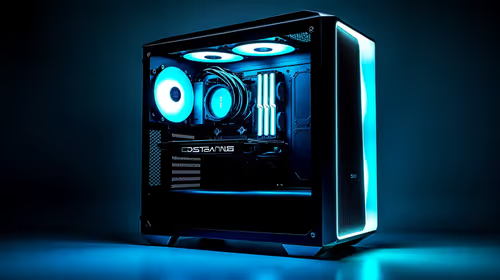
RX 9070 XT build stuttering needs a step-by-step check before replacing parts. Review drivers, settings, thermals, power, background apps, display limits, cables, and game options before changing hardware.
Read more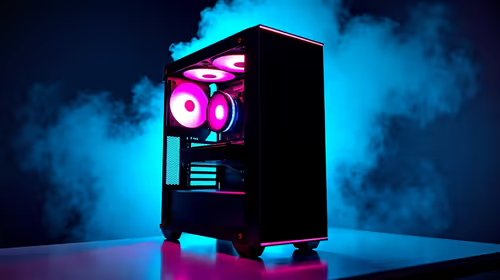
GTA 6 on R15,000 needs careful part balance. This SA build guide frames CPU, GPU, RAM, SSD, cooling, and upgrade trade-offs without promising live prices, stock, or exact FPS.
Read more
The smallest ATX case 2026 buyers should choose is the smallest chassis that still fits their exact graphics card, cooler, power supply and airflow plan. ATX support alone does not prove a case has the smallest footprint or volume.

The UGREEN LinkStation Pro eGPU dock combines Thunderbolt 5 and OCuLink connections with an integrated 850W ATX 3.1 power supply and up to 140W laptop charging. South African availability is unconfirmed.

The MSI PRO MAX 341QPXW14G is a 34-inch 3440 x 1440 ultrawide QD-OLED monitor with a 144Hz refresh rate and Mac-focused controls. A South African price and release date are still unknown.

NVIDIA lists 550W required system power for the RTX 5060 reference specification, based on a high-end test system. A quality 550W unit can be enough, but CPU draw, transient load, connectors and ageing decide real headroom.
The smallest ATX case 2026 buyers should choose is the smallest chassis that still fits their exact graphics card, cooler, power supply and airflow plan. ATX support alone does not prove a case has the smallest footprint or volume.
NVIDIA lists 550W required system power for the RTX 5060 reference specification, based on a high-end test system. A quality 550W unit can be enough, but CPU draw, transient load, connectors and ageing decide real headroom.

OpenRGB's master branch now carries changes labelled for 1.0 final, including translation and platform work, but the official tags page still lists 1.0rc3.1 as the newest packaged release. Stable users should wait for the signed release channel.

A motherboard can remain useful for many years when power, cooling and connectors stay healthy. Replace it for confirmed faults, damaged power delivery or a blocked platform need, not simply because the calendar reaches a fixed age.
The smallest ATX case 2026 buyers should choose is the smallest chassis that still fits their exact graphics card, cooler, power supply and airflow plan. ATX support alone does not prove a case has the smallest footprint or volume.
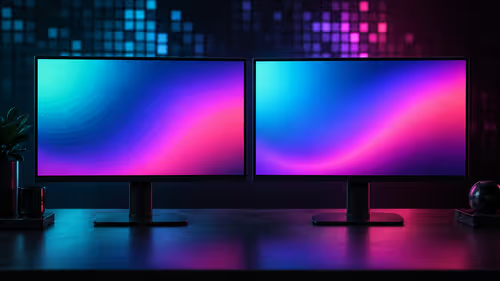
In a 6 bit + FRC vs 8 bit comparison, native 8-bit panels can produce 256 levels per colour channel directly, while 6-bit plus FRC rapidly alternates nearby values to approximate the wider palette. Panel quality still depends on more than bit depth.
The UGREEN LinkStation Pro eGPU dock combines Thunderbolt 5 and OCuLink connections with an integrated 850W ATX 3.1 power supply and up to 140W laptop charging. South African availability is unconfirmed.
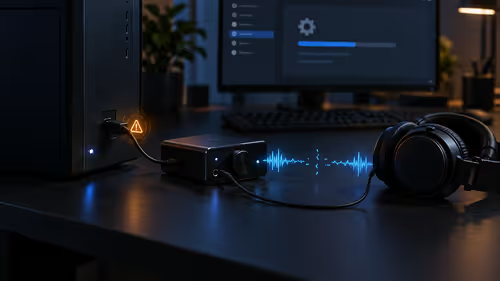
Windows 11 KB5124008 can leave some USB Audio Class 1.0 devices with no sound, Code 10 or failed multichannel output. Microsoft confirms the issue and says switching to two-channel stereo can restore audio for some users.