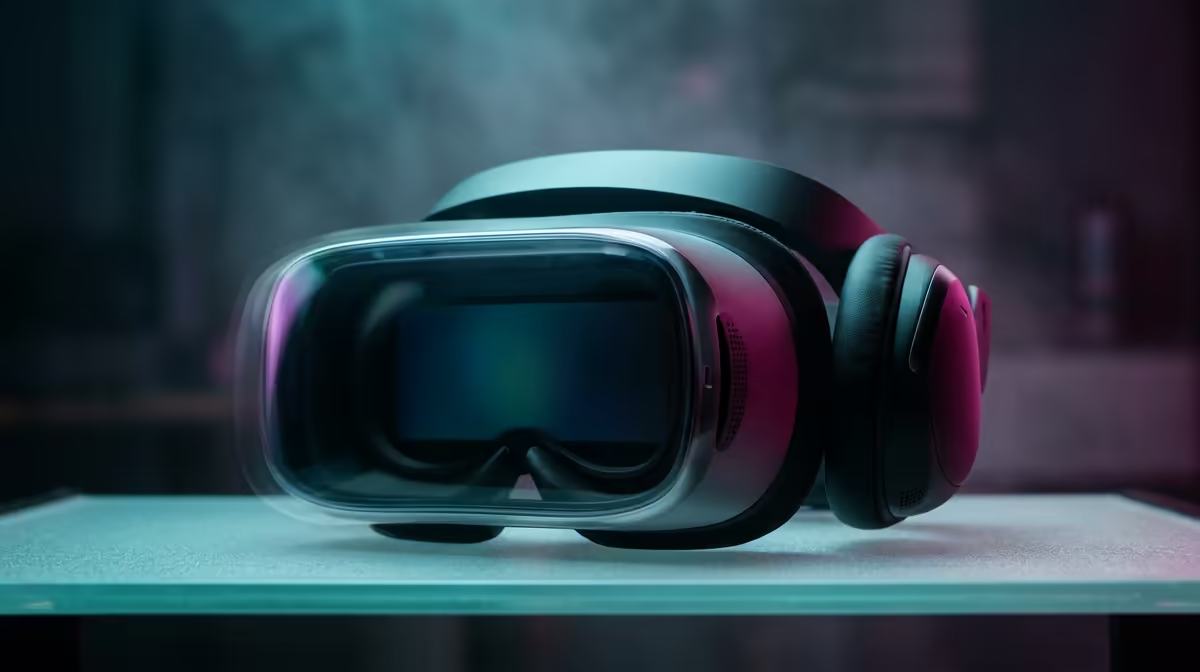
Cutting the cable on PC VR is one of the best upgrades a Meta Quest owner can make, and Air Link is the built-in feature that does it. It streams your PC's VR rendering to the headset over Wi-Fi, with no third-party software required. The result lives or dies on your network, so the setup below is as much about your router as it is about the headset.
Quick Answer
Air Link is in the Quest's Quick Settings panel under Wi-Fi. For smooth wireless PCVR you want a dedicated 5GHz Wi-Fi 6 or 6E router with your PC connected to it by Ethernet cable. A fixed bitrate of around 200 Mbps is the widely recommended starting point for image quality without stutter.
Get the network right first
This is the part people skip and then blame the headset. Wireless PCVR pushes a huge, constant stream of data, and the connection has to be both fast and stable.
The ideal layout is simple: your PC plugged into the router with an Ethernet cable, and the headset on the router's 5GHz band. Wi-Fi 6 (and 6E, which adds the cleaner 6GHz band) handles the bandwidth far better than older standards and keeps latency low. Ideally the router should be in the same room as you, with clear line of sight, and not shared with a house full of streaming devices fighting for airtime. If your current router is the one your fibre provider handed you, a dedicated gaming router is often the single biggest improvement. The VR and AR hardware range at Evetech is a good place to see what the headset side of the equation looks like.
Turn Air Link on, step by step
With the network sorted, the actual setup takes a couple of minutes.
- Update both ends. Make sure the Meta Quest software and the Meta Quest Link app on your PC are both current. Mismatched versions cause connection failures.
- Enable Air Link on the PC. Open the Meta Quest Link app, go to Settings, then the Beta tab, and switch on Air Link if it is not already.
- Put on the headset and open Quick Settings. Tap the clock or battery area to open the panel.
- Select Wi-Fi, then Air Link. Your PC should appear in the list of available computers. Choose it and confirm the pairing on the PC.
- Launch into the PC VR space. You will drop into the Link environment, from where you can start SteamVR or the Meta library and run your games wirelessly.
Dial in the bitrate
Default Air Link can look soft or stutter because it is guessing at your network's capacity. Setting a fixed bitrate gives you control.
Around 200 Mbps is the commonly recommended sweet spot for most Wi-Fi 6 setups: sharp enough to look good, conservative enough to stay stable. You can adjust the encode bitrate through the Oculus Debug Tool on the PC, nudging it up if your network is rock solid and your image still looks soft, or down if you see stutter and frame drops. Make one change at a time and test in a game you know well so you can actually judge the difference.
When Air Link misbehaves
A few quick checks fix most problems. If the headset cannot see the PC, confirm both are on the same network and that the PC is wired in rather than also on Wi-Fi. If the picture stutters, drop the bitrate and move closer to the router. If latency feels high, close bandwidth-hungry apps on the PC and check nothing else on the house network is saturating the connection. For controllers, cables and mounts that complete a VR corner, the accessories best-sellers at Evetech list the extras that buyers pair with their headsets most often.
Frequently Asked Questions
Do I need a special router for Air Link?
You do not strictly need a dedicated router, but a 5GHz Wi-Fi 6 or 6E router gives by far the best result. Connecting your PC to that router by Ethernet, rather than Wi-Fi, is the other half of a stable wireless PCVR setup.
What bitrate should I use for Air Link?
About 200 Mbps is the widely suggested starting point. If your image looks soft and your network is solid, raise it gradually; if you see stutter, lower it. Adjust in small steps and test each change.
Is Air Link as good as a wired Link cable?
A wired Link cable is still the most consistent option with the lowest latency. Air Link on a strong Wi-Fi 6 network gets close enough that many players prefer the freedom of going cable-free for most games.
Why does my PC not show up in Air Link?
The most common cause is the PC and headset being on different networks, or the PC being on Wi-Fi instead of Ethernet. Confirm both are on the same router, the Quest Link app is running, and Air Link is enabled in its Beta settings.