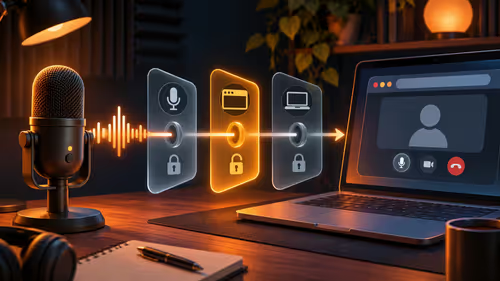
When your hp all in one pc camera not working message appears, the cause is usually one of three things: a privacy switch or shutter, a Windows permission, or a driver that has gone missing after an update. Check them in that sequence and most cameras return within ten minutes, with no tools needed.
Quick Answer
Open the Windows Camera app first. If you see a picture there, the camera is fine and the problem is a permission inside the app you wanted. If the Camera app shows black or an error, look for a physical privacy switch or a stuck pop-up lens, then reinstall the driver from HP. If none of that works, a USB webcam in the R300 to R1,200 range gets you into your meeting today.
🔍 Start With the Physical Side
HP all-in-one models are not identical. Some have a fixed camera above the screen, some have a pop-up module, and some have a small sliding shutter. Before touching software, look closely at the frame.
- Pop-up camera: if it sits half out or does not rise, do not force it. Power the PC off, wipe the area with a dry microfibre cloth, and try again. Highveld dust is a regular cause of sticky modules.
- Shutter or slider: push it fully across until you feel it click.
- Privacy key or button: look along the function row or the lower edge of the screen for a small camera icon and press it once.
A camera that appears in the Camera app only after one of these steps simply had its hardware switch turned on by accident.
⚙️ Check Windows Permissions and the Camera App
In Windows 11, open Settings, Privacy and security, Camera. Three switches matter: Camera access, Let apps access your camera, and the individual app entry for Teams, Zoom or your browser. Any one of them off blocks the picture.
Then open the Camera app from the Start menu. A live picture means the hardware and driver work, and the fault sits inside your video app. Open that app's video settings and pick the integrated HP camera from the device list by name, since some apps latch onto a virtual camera left over from earlier software.
If you use a browser, check the padlock beside the address bar and confirm the site is allowed to use the camera.
🛠️ Fix the Driver
A yellow warning icon in Device Manager under Cameras or Imaging devices points to a driver fault. The tidy fix runs like this:
- Right-click the camera entry and choose Uninstall device. Tick the box to remove the driver software if offered.
- Restart the all-in-one so Windows rebuilds the entry.
- Open HP Support Assistant, or search your exact product number on HP's support site, and install the camera driver listed for your model.
- Restart once more and test in the Camera app.
The product number is on a label at the back or underside, and it matters because the same HP range can use different camera modules between production runs. A driver picked for the wrong module installs happily and still shows no picture.
If the camera vanished right after a Windows update, check Windows Update's optional updates list as well, since a roll-back of the driver from the camera's Properties, Driver tab is sometimes the quickest repair.
🎥 A Plan B for Meetings
When you have a presentation in the next hour and the built-in camera will not respond, an external webcam is the fastest fix. A USB webcam plugs in without drivers on Windows 10 and 11, and 1080p models commonly sit in the R300 to R1,200 band. For a working-from-home desk in a small Pretoria flat, a clip-on model sits above the monitor and costs less than a repair visit.
Calls over shared fibre also run better when the audio is clear, so a desk microphone or headset from the streaming essentials range is a sensible companion if your all-in-one's built-in mic is weak.
Frequently Asked Questions
Does every HP all-in-one have the same camera?
No. Some have a fixed webcam, others a pop-up or shuttered one, and the module differs between ranges. Your user guide or the product label tells you which you have.
What should I test first?
Open the Windows Camera app. A live picture there proves the camera works, so the setting to change sits inside the meeting or browser app.
Is there a privacy key or switch on the keyboard or frame?
Some models include a camera key, a slider or a button. Look for a small camera icon on the function row or along the lower frame and toggle it once.
How do I get the correct HP driver?
Use HP Support Assistant, or enter your exact product number on HP's support page. A model-specific driver is safer than a generic one chosen automatically.
Why does Device Manager show a warning icon?
A yellow icon means Windows could not load a working driver. Uninstall the device, restart so Windows rebuilds it, then install the HP version over the top.
Does this help with other all-in-one brands?
Mostly yes. The privacy toggle, the Camera app test and the driver reinstall apply to other brands as well, though the key labels differ.
Ready to get a camera that just works?
Browse the Evetech webcam range for a plug-in replacement while you sort out the built-in camera. Pick a 1080p model for meetings and add a microphone if your call audio needs help.