



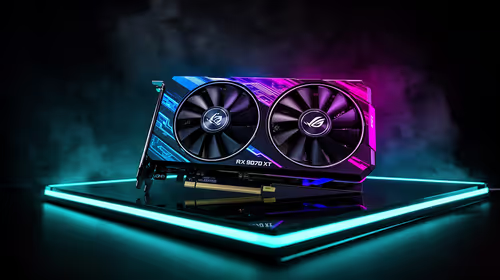
Fix Dead pixel checks on RX 9070 XT build
Dead pixel on RX 9070 XT build needs careful display-chain checks, not a single-part blame. Test the screen, cable, port, scaling, drivers, and setup context before replacing hardware.
Read more• Check compatibility • Install & secure the drive • Tune BIOS, drivers, and thermals. Install PCIe 5.0 NVMe drive for maximum speed with step-by-step setup, benchmarking tips, and troubleshooting. ⚡️🔧

So, you’ve got your hands on a blazing-fast PCIe 5.0 NVMe SSD. Lekker! But just plugging it in won't guarantee you those face-melting speeds you see in benchmarks. To truly unleash its power, you need a proper setup. This guide will walk you through how to install a PCIe 5.0 NVMe drive correctly, ensuring you get every last drop of performance for your rig, right here in South Africa. Let's get building. 🔧
Before you even open your PC case, let's make sure your system is ready for this serious upgrade. A successful PCIe 5.0 NVMe installation depends on having the right supporting hardware.
If you're still planning your build, it's the perfect time to browse the latest solid-state drives to find one that matches your new motherboard.
Got all the right gear? Awesome. Now for the easy part. Follow these steps carefully to install your PCIe 5.0 NVMe drive without any hassles.
Safety first! Shut down your PC completely, switch off the power supply unit (PSU) at the back, and unplug it from the wall. Press the power button on your case a few times to discharge any remaining electricity. It's also a good idea to use an anti-static wrist strap to protect your components.
Open your PC case and find the primary M.2 slot on your motherboard. As mentioned, this is typically the one located above your main graphics card slot, closest to the CPU, and is often covered by a metal heatsink.
Unscrew and remove the M.2 heatsink. You'll see the M.2 connector and a small standoff screw at the other end. Take your NVMe drive—whether it's a quality drive from ADATA or one of the other excellent brands—and slide it into the M.2 slot at a slight upward angle (about 30 degrees). It should click in firmly.
Gently press the drive down so the semi-circular notch at the end lines up with the standoff. Use the tiny screw you removed earlier (or the one that came with your motherboard) to secure it in place. Don't overtighten it! Now, peel the protective plastic film off the thermal pad on the underside of your heatsink and screw the heatsink back into place.
Your drive is physically installed, but the job isn't done. You need to tell your system how to use it for maximum performance.
Re-connect your PC and boot straight into the BIOS (usually by pressing 'DEL' or 'F2' on startup). Navigate to the storage or advanced settings. You're looking for an option that controls the PCIe speed for your M.2 slot. Make sure it's set specifically to "Gen 5" and not "Auto". This forces the system to use the highest possible speed.
Once you save and boot into Windows, you'll need to initialise the drive.
For the absolute best performance, we recommend a fresh installation of Windows on your new PCIe 5.0 drive. While cloning your old drive is convenient, a fresh install ensures there are no leftover driver conflicts or legacy settings slowing you down. It's the best way to give your OS a clean, lightning-fast foundation.
With modern games easily topping 100GB, choosing a spacious 2TB NVMe drive is a smart move for any serious gamer. When you're looking for raw throughput for editing 8K video or handling massive datasets, high-performance CORSAIR SSDs are built to deliver. Similarly, you can find other top-tier options from Kingston that offer a fantastic balance of speed and reliability.
That's it! Your PC is now equipped with some of the fastest storage on the planet. Enjoy those non-existent loading screens. ✨
Ready to Unleash Next-Gen Speed? A PCIe 5.0 NVMe drive is the ultimate upgrade for any serious PC enthusiast in South Africa. Explore our massive range of solid-state drives and find the perfect speed demon to conquer your load times.
Power down, unplug, fit the M.2 drive into the PCIe 5.0 slot at a 30° angle, secure the screw, then boot to configure BIOS and drivers. (pcie 5.0 nvme drive installation guide)
Check your motherboard specs and M.2 slot mapping; the manual lists PCIe generation and lane support for M.2 slots. (m.2 slot pcie 5.0 compatibility)
Enable PCIe Gen5 or Auto, set x4 M.2 lane configuration, disable legacy boot where needed, and enable NVMe controller support. (pcie 5.0 nvme bios settings)
Install a heatsink or active cooling, apply thermal pads, and monitor temps during benchmarks to prevent thermal throttling. (nvme thermal management pcie 5.0)
Yes. Update the NVMe firmware and the latest controller and chipset drivers to unlock stability and peak throughput. (pcie 5.0 nvme driver update)
Use tools like CrystalDiskMark or ATTO, run multiple sequential and random tests, and compare results to rated speeds. (benchmark pcie 5.0 nvme speeds)
Enable write caching, ensure proper power plan, disable unnecessary background tasks, and use NVMe-aware drivers for best results. (tune windows for nvme performance)
Dead pixel on RX 9070 XT build needs careful display-chain checks, not a single-part blame. Test the screen, cable, port, scaling, drivers, and setup context before replacing hardware.
Read more
Genshin Impact anti-cheat error on RTX 4090 usually needs service, permissions, overlay, and file integrity checks. Use this SA-focused fix path to isolate launch blockers before reinstalling or changing security settings.
Read more
Mass Effect launch trouble on RX 7800 XT needs focused driver, settings, launcher, and heat checks. Use this SA-friendly guide to isolate the likely cause, protect saves, and return to smoother play without unsupported hardware claims.
Read more
144Hz 1440p setup for video editing in 1080p - what SA needs a balanced, cautious look before buying. Compare fit, budget, workload, warranty support, and upgrade room so the choice makes sense for South African buyers.
Read more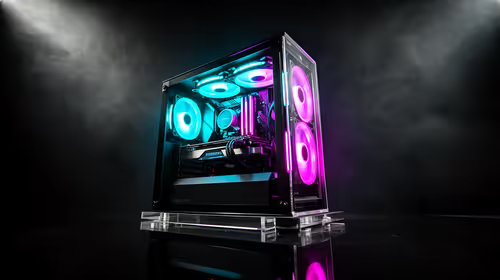
R8,000 gaming PC build in KwaZulu-Natal needs a practical check before you shortlist anything. Compare fit, compatibility, warranty support, timing, and total setup balance for South African buyers.
Read more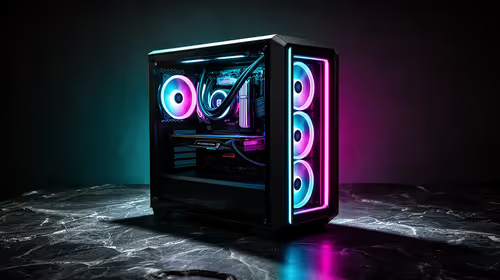
Brits video editing in 4K build under R20,000 needs a balanced parts plan, not a random basket. Map the CPU, GPU, RAM, SSD, cooling, and monitor target to the budget so SA builders know where to spend first.
Read more
Windows never combine taskbar shows separate labelled buttons for open windows. Choose it in Taskbar behaviours, then review space and other-display settings; labels and grouping are linked in the available options.

8BitDo Ultimate 3C+ brings adjustable stick tension to the C Series. Windows uses wired USB or the 2.4 GHz adapter; Android uses Bluetooth. Confirm those modes and local pricing before buying.
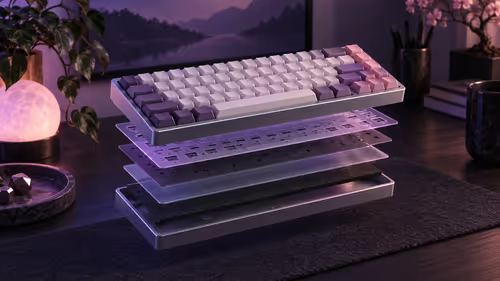
EPOMAKER Galaxy75 previews an aluminium 75% keyboard with wireless modes and HUB/VIA customisation. It is still marked coming soon; final pricing and South African supply are not confirmed.

Windows Delivery Optimisation can share update files with other PCs. Review its activity, choose local-only sharing or turn peer sharing off, and use bandwidth controls; those choices do not disable Windows Update.
Windows never combine taskbar shows separate labelled buttons for open windows. Choose it in Taskbar behaviours, then review space and other-display settings; labels and grouping are linked in the available options.
Windows Delivery Optimisation can share update files with other PCs. Review its activity, choose local-only sharing or turn peer sharing off, and use bandwidth controls; those choices do not disable Windows Update.

Windows touch indicator adds visual feedback where you touch a screen. Change it in Accessibility, Mouse pointer and touch; a feedback circle is different from inaccurate input, ghost touches or a damaged panel.

Windows underline access keys makes supported menu letters easier to see. Enable the keyboard accessibility option, then follow the app's displayed Alt cues; this does not remap keys or create missing app shortcuts.

Windows Task View button visibility is a taskbar preference. Hide it in Taskbar settings if you prefer Windows plus Tab, and keep virtual desktop switching separate from closing your applications.

Windows taskbar search box display options can free space without removing search. Choose Hide, an icon or a box in Taskbar settings, then use Windows plus S when you need to search.

Windows text suggestions can offer word choices while you type with a physical keyboard. Enable the setting under Typing, test a supported app, and keep suggestions separate from automatic corrections.

Windows autocorrect settings and application spelling tools are separate controls. Change one at a time, test a harmless sentence, and keep useful spelling highlights if automatic replacements get in your way.