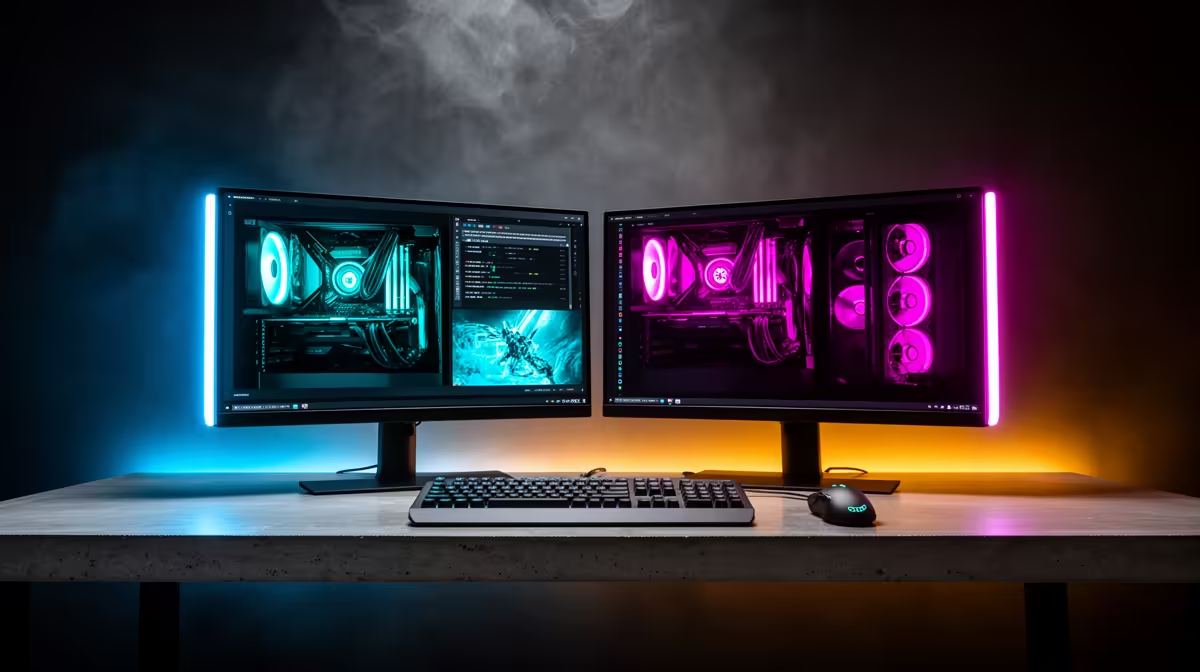
A 27-inch 1440p display and a 24-inch 1080p display can work well together, but Windows has to bridge different pixel densities and scaling factors. Set each screen independently, align their virtual positions and give older applications a chance to redraw after crossing the boundary.
Quick Answer
Set both monitors to native resolution. In Windows Display settings, choose the 1440p screen and select the recommended scale, then do the same for 1080p. Adjust one step at a time until text has a similar physical size. Arrange the display rectangles so the edges match where your cursor crosses.
Use Evetech's monitor range to compare screen size with resolution, then check the display best-seller page for current popular pairings. Similar physical pixel density reduces compromises, but it is not required for a useful setup.
Start at Native Resolution
Keep a 2560 x 1440 monitor at 1440p and a 1920 x 1080 monitor at 1080p. Lowering the high-resolution display to match the other one introduces panel scaling and soft text. Windows scaling enlarges interface elements while retaining native pixels.
Select each display in System, Display and use its Scale control. A common starting point might be 125 per cent on a 27-inch 1440p panel and 100 per cent on a 24-inch 1080p panel, but viewing distance and eyesight decide the useful values.
Sign out and back in when a legacy application does not update cleanly. Modern per-monitor-DPI-aware apps can redraw as they move, while older ones may become blurry or change size.
Match Physical Size, Not Percentage
Scaling percentage has meaning only beside pixel density. Two monitors both set to 100 per cent can show text at different physical sizes. Measure a browser line or interface button with a ruler if consistency matters.
Windows offers recommended values based on the display information it receives. Treat that as a starting point. Custom scaling applies more broadly and can create awkward legacy behaviour, so prefer the normal per-display steps first.
Text clarity also depends on subpixel layout and panel coating. Run ClearType tuning with both monitors connected and place the text window on the display being judged.
Align the Virtual Desktops
In Display settings, drag the numbered rectangles to match the physical desk layout. Align the top edges if you move windows across the top, or align the vertical centres if that feels more natural.
Windows represents logical desktop coordinates after scaling, so cursor crossing may not line up at every physical millimetre when sizes and scale factors differ. Adjust the rectangles until the most-used crossing area feels predictable.
Use Identify before moving anything. Set the main display to the screen where games and new application windows should open.
Handle Refresh Rate and VRR
Each monitor can use its own refresh rate. Open Advanced display, select each screen and choose the intended value. A 144Hz main panel can coexist with a 60Hz secondary, though some GPU, browser and video combinations can show stutter or high idle clocks.
Connect the gaming monitor through the port and cable that support its full refresh and VRR range. Leave the secondary screen on a stable supported mode. Test hardware acceleration in the affected application if mixed-refresh playback causes a repeatable fault.
Full-screen exclusive games may minimise or move windows when resolutions change. Borderless mode often makes a two-screen desktop easier, with a small performance or latency tradeoff depending on the game and Windows path.
Manage App Blurriness
If one app looks sharp on one monitor and blurry on the other, update it first. Right-click its executable, open Compatibility and inspect High DPI settings only when the developer or Windows guidance calls for an override.
An application-controlled override can make the interface tiny. A system override can bitmap-scale it and blur text. Record the original choice and apply the change to that app alone.
Remote desktop, screen capture and virtual machines add another scaling layer. Judge the local desktop first before changing the monitor configuration to fix a remote session.
Place the Hardware Well
Match the top bezel or visual centre according to how you work. A monitor arm can compensate for different stand heights. Keep viewing distance similar enough that matched text sizes remain matched to your eyes.
Colour and brightness differences are often more distracting than DPI. Set both displays to a comfortable white point and brightness. Use colour-managed workflows and individual profiles when accuracy matters; do not force one panel's ICC profile onto the other.
FAQ
Should both monitors use the same Windows scale percentage?
No. Choose each value around its resolution, physical size and viewing distance.
Why does an app blur when I drag it between screens?
It may not support per-monitor DPI changes well. Update it or use a targeted compatibility setting.
Can mixed refresh rates work on one GPU?
Yes. If a repeatable stutter or idle-power issue appears, test application hardware acceleration, ports and driver updates.
Run both panels at native resolution, tune scale by physical text size and align the Windows display rectangles around the edge you cross most.