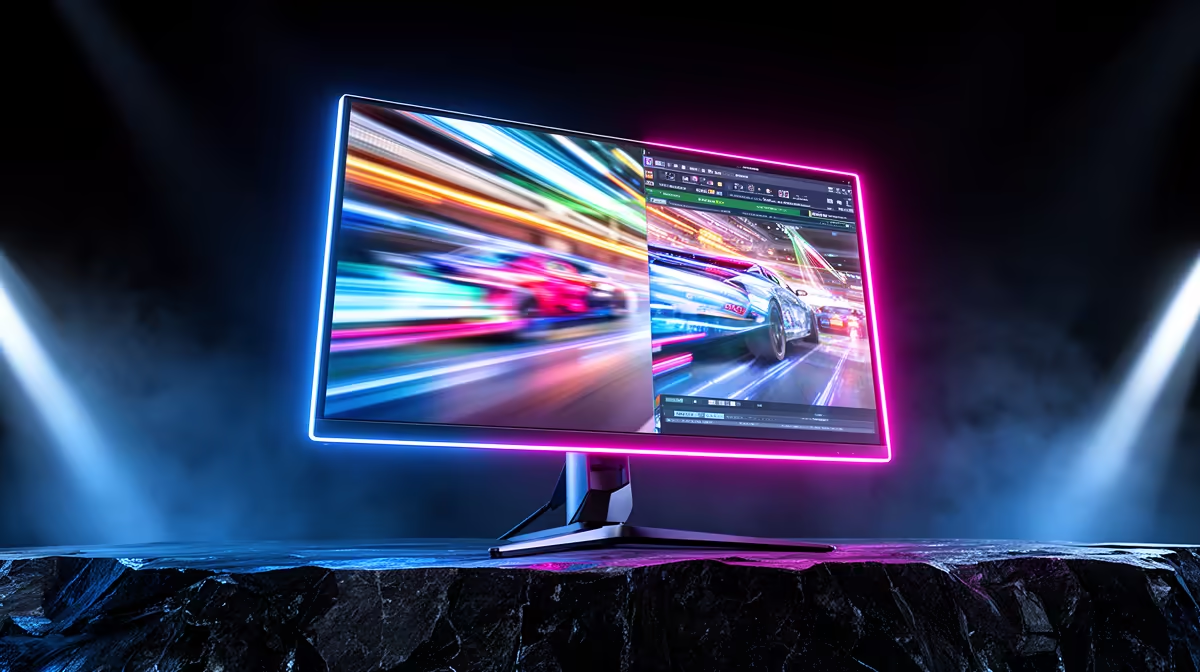
More refreshes help only when pixels change fast enough to show each new frame cleanly. Motion clarity vs refresh rate makes sense once response behaviour, persistence and overdrive are tested together.
Quick Answer
Refresh rate tells you how often a monitor can update. Motion clarity also depends on pixel response, sample-and-hold persistence, frame delivery, overdrive, blur reduction, eye tracking, and the content. A well-tuned 100Hz panel can show cleaner transitions than a poorly tuned 144Hz model, though the higher refresh has a shorter display interval.
Compare exact refresh and response behaviour in the PC monitor range, then inspect current favourites among monitor best sellers. The printed "1ms" figure is not a complete motion test.
Refresh rate sets the update window
At 60Hz, a refresh arrives about every 16.7 milliseconds. At 100Hz it is 10 milliseconds, at 144Hz about 6.9 milliseconds, and at 240Hz about 4.2 milliseconds.
Shorter intervals can reduce the age of the newest displayed frame and create more motion samples. The PC must produce useful frames, and the connection must carry the chosen resolution and refresh.
Refresh rate does not guarantee that pixels finish changing before the next update. Slow transitions can trail moving objects across several frames.
Pixel response shapes ghosting
LCD pixels change between colour and brightness states at different speeds. A quoted best-case grey-to-grey result can hide slower transitions. Look for model-level response distributions across refresh rates.
When transitions are too slow for the refresh window, the previous image remains partly visible as the next appears. This can look like blur or dark smearing.
OLED pixels can transition quickly and still show sample-and-hold blur while your eyes track motion. Fast pixel response removes one limit, not persistence from holding each frame until the next.
Overdrive can fix or create trails
LCD overdrive pushes pixels harder to reach the target faster. Too little leaves conventional ghosting. Too much overshoots the target and creates bright or coloured inverse trails.
Test the monitor's overdrive modes at maximum refresh and lower variable-refresh points. A mode tuned for 180Hz may look worse at 60Hz. Variable overdrive can adjust with refresh on supported models.
Use pursuit photos and instrumented reviews for comparison, then confirm with the games you play. The fastest named mode is often not the cleanest.
Persistence links frame time to clarity
Sample-and-hold displays keep a frame visible until the next one. During eye tracking, that hold contributes to perceived blur. Higher refresh shortens the hold when new frames arrive.
Backlight strobing or black-frame insertion can reduce visible persistence by showing each frame for a shorter pulse. It often lowers brightness, can introduce flicker or double images, and may not work with variable refresh or HDR.
Strobing needs frame rate close to its operating refresh for clean results. Use it only when comfort and game delivery suit it. Some users are sensitive to flicker.
Frame delivery belongs in the monitor test
Uneven frame times create stutter even when the average frame rate is high. Test a real game scene and inspect the frame-time graph. CPU spikes, shader compilation, storage, and background tasks can interrupt motion.
Variable refresh lets the monitor align updates with frames inside a supported range. Below the range, low-framerate compensation may repeat frames according to the display and GPU path.
Choose a frame cap and sync route that avoids unnecessary tearing or queueing for the game. Avoid stacking driver, game, and third-party caps without a reason.
Connection and processing can limit the result
Confirm DisplayPort or HDMI version, GPU output, monitor input, cable, colour format, bit depth, DSC use, and resolution support for the target refresh.
Enable the monitor's low-latency or gaming mode when it reduces processing without harming required image features. Motion interpolation used on televisions can add delay and artefacts; do not confuse generated motion with new game frames.
Select the target hertz value in Windows or the relevant system display menu. Use the monitor information panel to confirm the active signal. A high-refresh monitor can remain at 60Hz after first connection.
Compare monitors with two motion tests
First, use a controlled moving pattern to inspect ghosting and overshoot at several refresh rates. Keep camera and settings consistent. Second, play a familiar game with panning, text, and high-contrast edges.
Note transition clarity, flicker, brightness, tearing, stutter, and eye comfort. Change one overdrive or sync setting at a time.
Keep image quality in view. A monitor that wins one motion pattern can have poor black levels, colour, viewing angles, text clarity, or stand adjustment for your other work.
FAQ
Is higher refresh always clearer?
It shortens the refresh interval and persistence when frames arrive. Slow pixel response, overshoot, uneven frame delivery, and poor settings can still make motion messy.
What is monitor response time?
It is how long pixels take to transition between states under defined measurement. Real panels have many transition speeds, so one best-case number is incomplete.
Does blur reduction work with variable refresh?
Support varies. Many strobing modes require fixed refresh and stable matching frame rate. Check the exact model and accept possible brightness or flicker trade-offs.
Compare pixel response and overdrive across the refresh range, then test the monitor with your real frame-time pattern before calling it smooth.