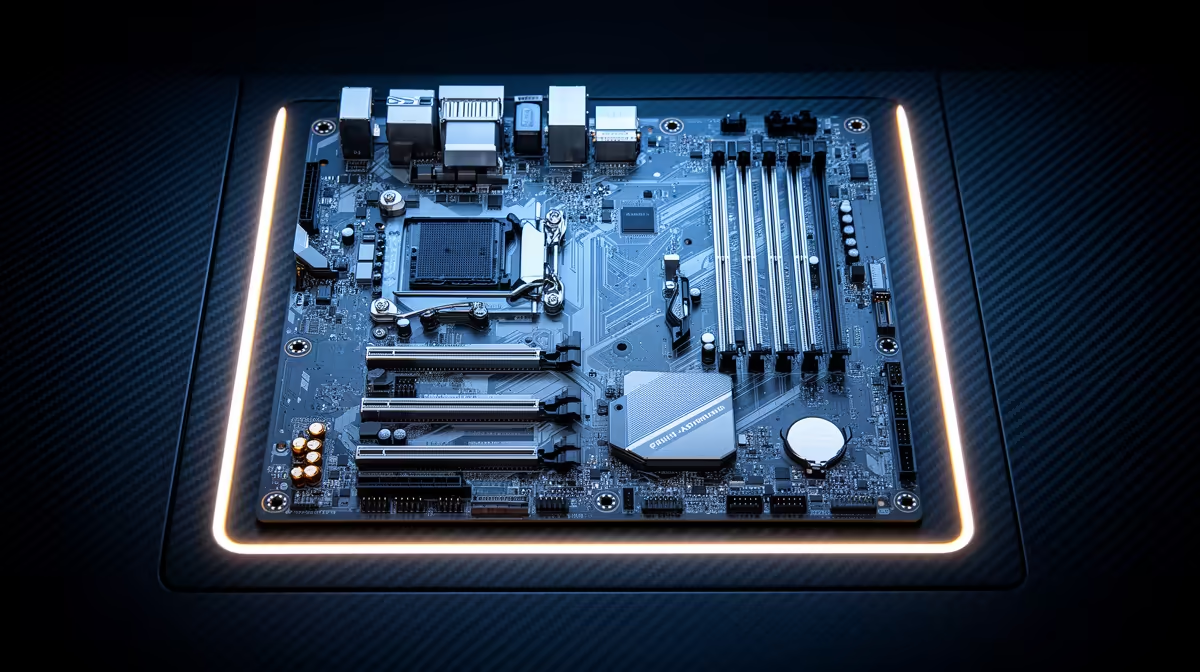
So, you’ve just unboxed your shiny new AMD Ryzen 9000 series CPU. Awesome. But pairing it with a stock-standard motherboard setup is like putting retreads on a Ferrari. To truly unleash its power, you need the right board and the knowledge to push it. This MSI X870E overclocking guide is your key to unlocking that hidden performance, giving you a real edge in competitive gaming and content creation right here in South Africa. 🚀
Why Overclock Your New MSI X870E Board?
Let’s be honest… overclocking isn't just about bigger numbers on a benchmark screen. It’s about getting more value for your hard-earned Rands. The principles of tuning apply whether you're on a new flagship or starting with more affordable Intel & AMD based motherboards. A successful overclock translates to tangible benefits:
- Higher FPS in Games: Squeeze out those extra frames in titles like Apex Legends or Warzone for smoother, more responsive gameplay.
- Faster Creative Workflows: Shave precious minutes off video renders, code compilation, and 3D modelling.
- The Enthusiast's Edge: There's a unique satisfaction in knowing you’ve perfectly optimised your hardware for maximum performance.
Mastering the BIOS and tuning tools on your MSI X870E motherboard empowers you to get the absolute most from your investment.
The Pre-Overclocking Checklist 🔧
Before you even think about touching a single setting, preparation is key. Jumping in blind is a recipe for instability and frustration. Whether you're coming from an older AMD platform or even the latest Intel motherboards, the principles of a stable system remain the same.
- Cooling is King: Overclocking generates more heat. Your stock cooler is unlikely to be up to the task. Ensure you have a capable air cooler or an All-in-One (AIO) liquid cooler installed.
- Power Supply Unit (PSU): A stable, high-quality PSU with enough wattage headroom is non-negotiable. Pushing your CPU demands more power, and a weak PSU can lead to system crashes.
- Update Your BIOS: Manufacturers often release updates that improve stability and memory compatibility. Grab the latest version from MSI's official website for your specific motherboard model before you start.
Your Step-by-Step MSI X870E Overclocking Guide
Ready to dive in? We'll walk you through the essential steps inside the MSI Click BIOS. Remember to press the Delete key during startup to enter the BIOS. For this guide, we recommend switching to "Advanced Mode" (usually by pressing F7) for full access.
Step 1: Enable A-XMP for Your RAM
Before touching the CPU, let's get your memory running at its advertised speed. This is the easiest performance win you'll get.
- Navigate to the "OC" (OverClocking) section.
- Find the "A-XMP" (AMD EXPO) setting.
- Click it and select one of the pre-configured profiles for your RAM kit.
- Save and exit (F10). Your PC will restart.
This simple step ensures your RAM isn't bottlenecking your system.
Step 2: Basic CPU Core Ratio Tuning
This is where we manually set the CPU's speed. We'll start with a conservative all-core overclock.
- Go back to the "OC" section in the BIOS.
- Find the "CPU Ratio" setting. It might be set to "Auto".
- Change it to a specific number. For example, if your CPU's base is 4.8GHz, try starting with
50 to target 5.0GHz on all cores.
Step 3: Voltage Control… The Balancing Act ⚡
More speed requires more stable power. This is the most critical part of our MSI X870E overclocking guide. Incorrect voltage can damage your components, so proceed with caution.
- Find the "CPU Core Voltage" setting.
- Change it from "Auto" to "Override Mode".
- Start with a safe voltage. A value like
1.25V is often a conservative starting point for a mild overclock. Do not exceed 1.35V for daily use unless you are an experienced overclocker with high-end cooling.
Pro Tip: The Golden Rule ✨
Always change one thing at a time. Increase your CPU Ratio by 1 (e.g., from 50 to 51), then boot into Windows and test for stability. If it's stable, go back and try the next step. If it crashes, you may need to slightly increase the CPU Core Voltage (e.g., from 1.25V to 1.26V). This slow, methodical process is the secret to a perfect overclock.
Step 4: Save, Reboot, and Stress Test
Once you've set your initial ratio and voltage, press F10 to save and exit. If your PC boots into Windows, congratulations! But you're not done yet.
You need to verify stability using software like Cinebench R23 (run it for 10-30 minutes) or Prime95. If your system doesn't crash and your CPU temperatures stay below 95°C, you have a stable overclock. If it fails, you may need to either increase the voltage slightly or decrease the CPU Ratio. It's this fine-tuning that separates a good build from a great one, especially on high-end platforms like these premium AMD motherboards.
Final Thoughts on Tuning Your Rig
This MSI X870E overclocking guide provides the fundamentals to get you started. Every single CPU is different—some will overclock like a dream, while others might hit a wall sooner. The key is patience and methodical testing. Take your time, monitor your temperatures, and enjoy the free performance you’ve just unlocked from your top-tier hardware.
Ready to Build Your Overclocking Beast?
A powerful motherboard is the foundation of any high-performance PC. It dictates your connectivity, stability, and tuning potential. Explore our massive range of AMD motherboards and find the perfect board to conquer your next build.