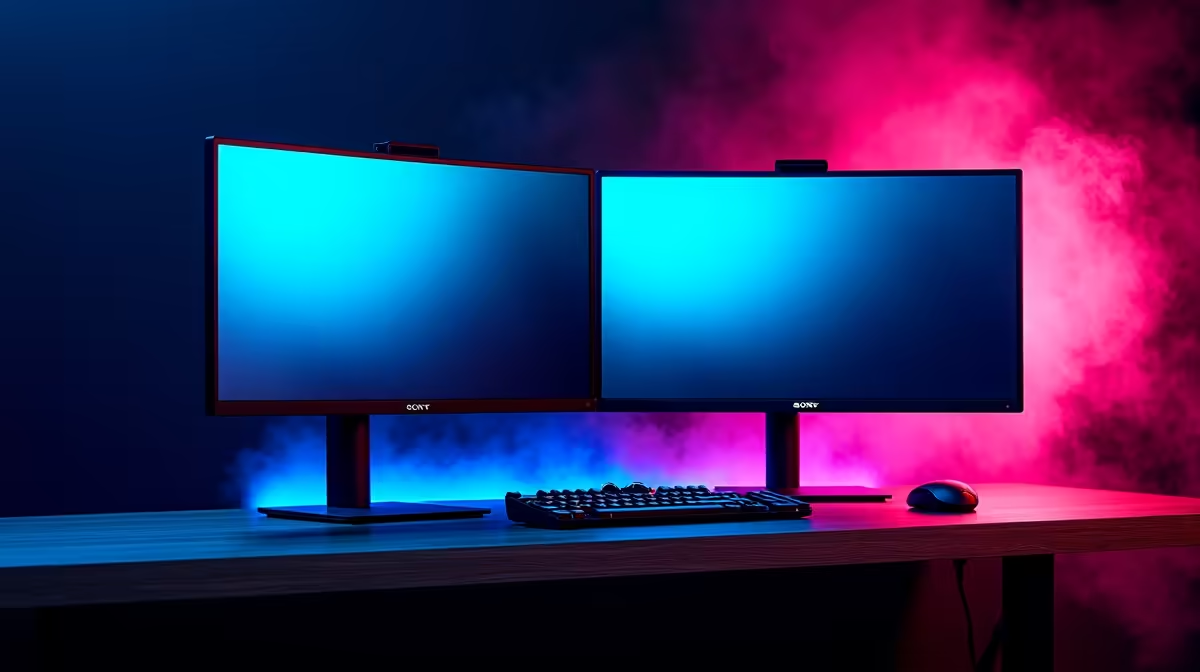
Tired of alt-tabbing like a maniac during a tense Warzone match? Or trying to squash your code, a browser, and a team chat onto one small screen? You're not alone. For South African gamers and professionals, a single monitor is a bottleneck. Upgrading to a multiple monitor setup isn't just a luxury; it's a massive leap in immersion and productivity. Let's dive into how to build the perfect multi-display command centre right here in SA. 🚀
Why a Multi-Monitor Setup is Essential
Think about your daily workflow or gaming session. On a single screen, you're constantly juggling windows. For streamers, it's the game, OBS, and your chat. For developers, it's the IDE, the local server, and documentation. A multiple monitor setup eliminates this digital clutter instantly.
You can dedicate one screen for your primary task—the game, the code, the video timeline—and use the second (or third!) for auxiliary information like Discord, Spotify, or reference materials. This isn't just about convenience; it's about focus and efficiency. You reduce costly context-switching, keeping you in the zone for longer.
The Heart of the Matter: Your Graphics Card
Before you even think about buying new screens, you need to check what your PC can handle. The number and type of displays you can run are determined entirely by your graphics card (GPU).
GPU Ports and Power
Your GPU will have a combination of outputs, typically HDMI and DisplayPort. For the best experience, especially with high refresh rates (144Hz and above), DisplayPort is the modern standard.
When planning your multiple monitor setup in South Africa, ensure your PC's graphics card has enough ports for the screens you want. More importantly, it needs the horsepower to drive them. Running two 1440p monitors requires significantly more graphical power than running one. For a seamless experience, our range of powerful NVIDIA GeForce gaming PCs are built for exactly this kind of demanding task. Alternatively, you'll find many capable AMD Radeon gaming rigs that offer excellent performance and value for multi-display gaming.
Beyond Gaming: The Productivity Powerhouse 🔧
A multi-display rig isn't just for gamers. For professionals working from home in South Africa, it's a huge productivity boost. Video editors, graphic designers, and financial analysts can spread their complex interfaces across multiple screens, creating a tailored and efficient workspace.
This is where the line between a gaming PC and a workstation blurs, but for heavy, sustained workloads like rendering or complex data modelling, dedicated professional workstation PCs shine. They are optimised for stability and performance in professional applications, making them ideal for a high-powered multiple monitor setup.
Productivity Pro Tip ⚡
On Windows, use the PowerToys FancyZones utility to create custom snap layouts for your windows. It's a lifesaver for managing multiple apps, letting you perfectly organise your code editor, browser, and terminal on one screen, while keeping your team chat visible on another. It makes any multi-monitor setup feel more organised.
Practical Tips for Your Setup ✨
Getting your dual-monitor dream running is easier than you think. Here are a few quick tips:
- Mix and Match: You don't need two identical, expensive monitors. A common and cost-effective strategy is to have one high-refresh-rate primary monitor for gaming and a standard 60Hz secondary monitor for Discord or web browsing.
- Get Your Bearings: Invest in a good dual-monitor stand. It saves precious desk space and allows you to perfectly align your screens for better ergonomics. Look for VESA-compatible mounts.
- Easy Configuration: Once plugged in, right-click your desktop, go to "Display settings," and Windows will detect both monitors. From there, you can choose to "Extend these displays" (the most common option) and drag the screen icons to match their physical position on your desk.
A well-planned multiple monitor setup truly transforms your computing experience, making you wonder how you ever managed with just one screen.
Ready to Expand Your Horizons? 🚀
A multiple monitor setup transforms your PC from a simple device into a true command centre. Whether for gaming, streaming, or productivity, the right PC is the foundation. Explore our range of powerful gaming PCs and find a rig ready to power your multi-screen dream.