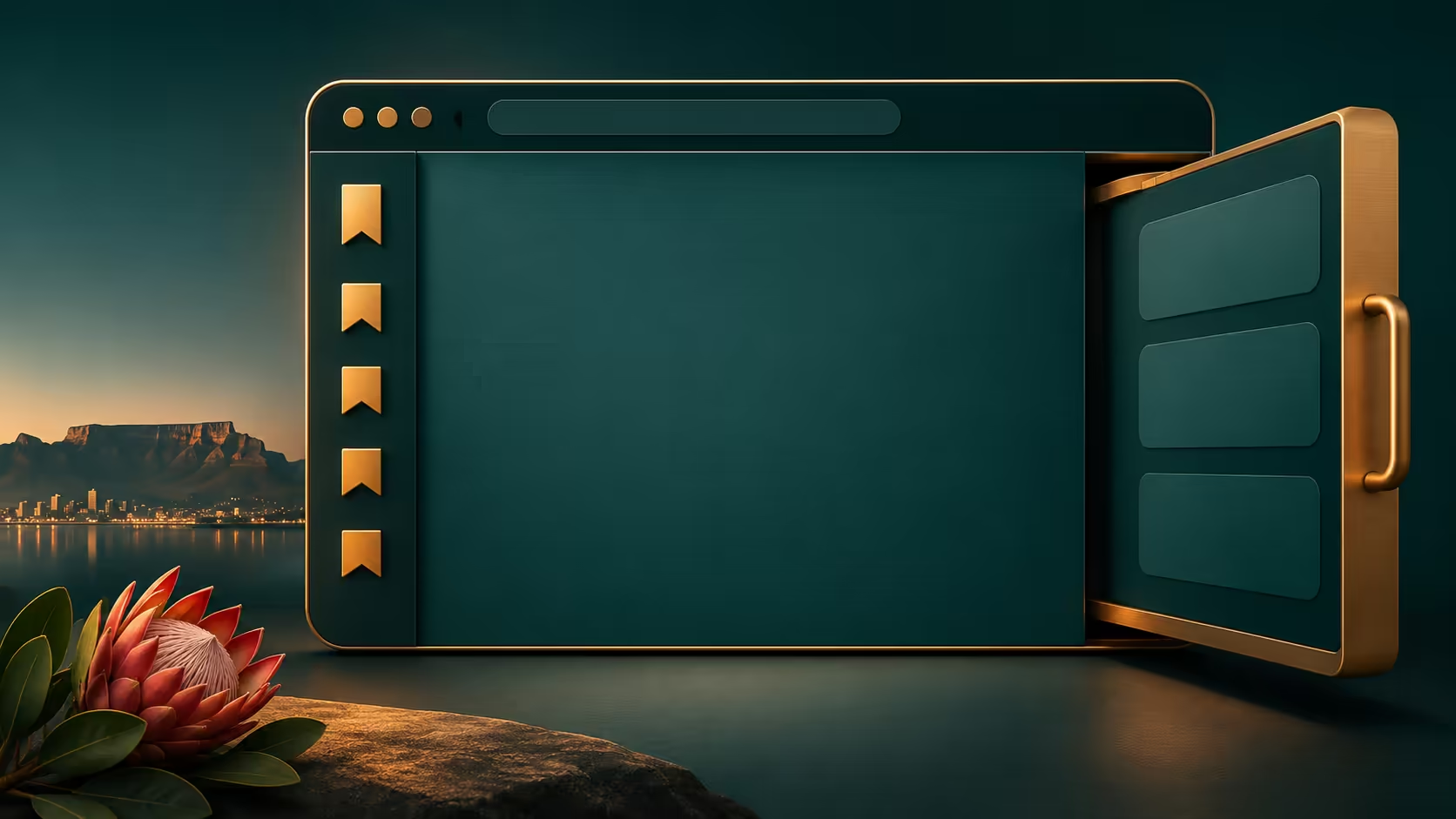
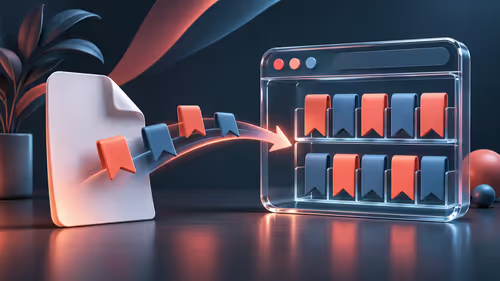
The Firefox bookmarks sidebar makes saved links available without leaving the page you are reading. It is useful when comparing several reference sites, but it should not force a wholesale tab-layout change. Start by opening the bookmark tool itself, then decide how much of your screen it deserves.
Quick Answer
On Windows, try Ctrl + B to open the bookmarks sidebar. Use its customisation controls to choose the tools and position you want; vertical tabs are a separate option. Checking this costs R0, and hiding the panel does not by itself remove the saved bookmarks.
🔖 Open the right collection
Distinguish saved bookmarks from currently open tabs and browsing history. A page you visited once is not necessarily bookmarked, while a saved site does not need to remain open in a tab. Check the expected folder rather than assuming every browser list should contain the same entries.
If Ctrl + B is intercepted by a web editor, leave the text field and try again or use the browser's bookmarks controls. Avoid repeatedly pressing a shortcut while typing something important. First confirm which part of the window has focus.
🪟 Keep the tab arrangement deliberate
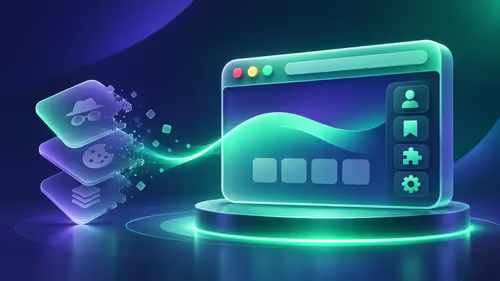
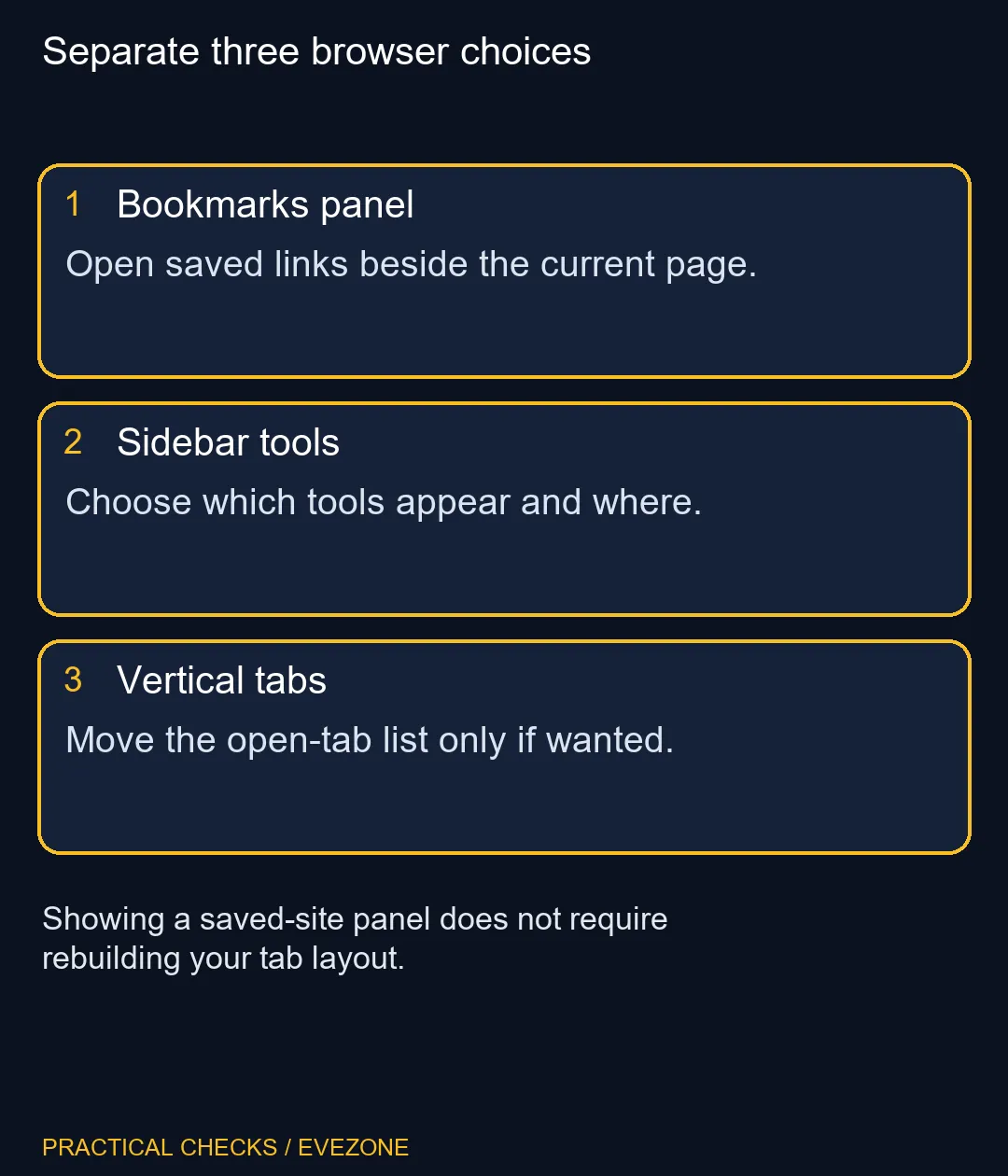
The current sidebar provides several tools and has customisation controls for their visibility. Enable the bookmark tool you actually need. There is no reason to add another service or change the tab orientation merely to reach saved links.
Test the panel on both sides if the position affects your reading. On a narrow laptop display, open it only while selecting a link, then close it for the article or document. On a larger screen, keeping the list visible may suit a repeated research task better.
Compare gaming monitors only after trying that workflow. A wider monitor can be a desk choice, but the existence of a sidebar does not establish a need to buy one. Evaluate readable text, desk distance and the applications you use together.
🗂️ Find before reorganising
Search the saved collection or inspect likely folders before moving items. Changing folder names and deleting apparently duplicated links during a search can make a familiar collection harder to understand. Recover the page you need first, then tidy deliberately.
If you use more than one computer, identify which local browser profile holds the expected collection before assuming data was lost. This is a different question from whether a panel is visible. Keep a clear record of which machine and profile you are checking.
Options in all laptops on special matter when you need a more portable workspace, not when one bookmark view is hidden. Finish the R0 view check on the existing computer, confirm a known saved site opens, and only then decide whether your desk layout needs changing.
Frequently Asked Questions
What is the Windows shortcut for the bookmarks sidebar?
Ctrl + B opens the bookmarks sidebar in Firefox. Move focus out of a page editor if that editor intercepts the key combination.
Must I enable vertical tabs to see bookmarks?
No. The bookmarks tool and the vertical-tab layout are separate choices. Keep horizontal tabs if that is your preferred arrangement.
Can the sidebar be moved?
The sidebar customisation options include its position on the left or right. Choose the side that leaves your page easiest to read.
Does closing the sidebar delete saved sites?
No. Closing a browser view differs from deleting a bookmark. Reopen the tool or use the bookmarks menu to check the saved links.
Why does a bookmarked page no longer open?
A saved bookmark points to an address; the site itself may have moved or changed. Check the destination before deleting an entire folder.
Should I buy a wider display immediately?
Try the panel open and closed on your current screen first. That R0 comparison shows whether width is a real constraint in your work.
Keep saved links within reach
Try a practical browser layout before changing your screen or computer.