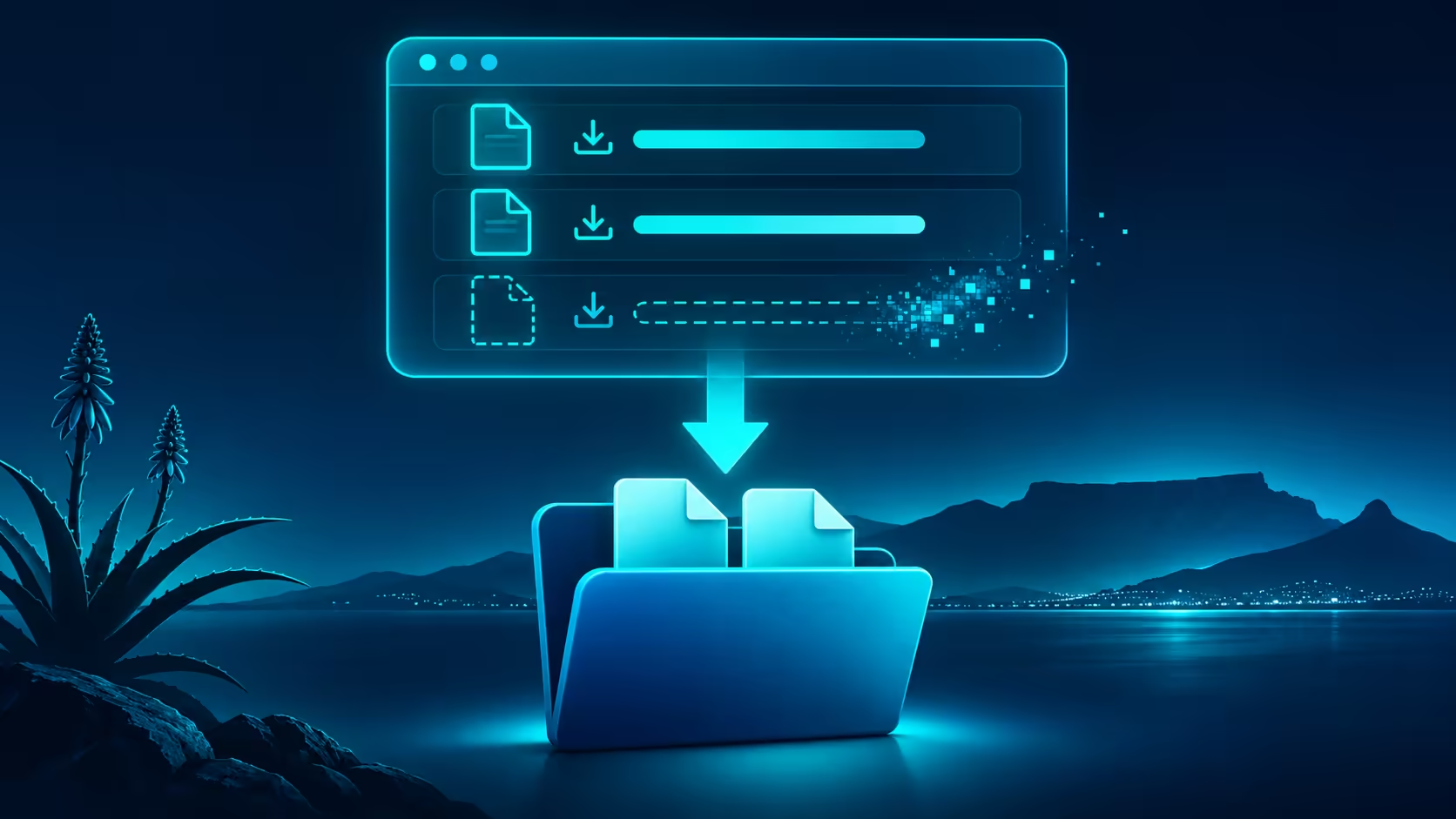
Firefox clear download history is a housekeeping task with two easily confused outcomes: an empty browser list and fewer files on the drive. Decide which one you need before clicking a removal option. For an SA user on a limited data plan, keeping an already downloaded installer can also avoid paying to fetch the same bytes again.
Quick Answer
Clearing the browser's download history removes records of downloads; it does not itself delete the downloaded files. Check their real folder if you need disk space or want a document removed. The first inspection costs R0 and can prevent both an unnecessary repeat download and an accidental file deletion.
📥 Locate the file before tidying
Open Downloads from Firefox's menu and inspect the Library rather than relying only on the short toolbar panel. Find the item you recognise and establish where its saved file lives. A familiar name in the browser is useful context, but it is not a substitute for checking the folder.
Open a harmless retained document from that folder before removing its record if you need proof of the distinction. Do not experiment with the only copy of something important. Keep file-management decisions separate from browser-list cleanup.
🧹 Match the action to the goal
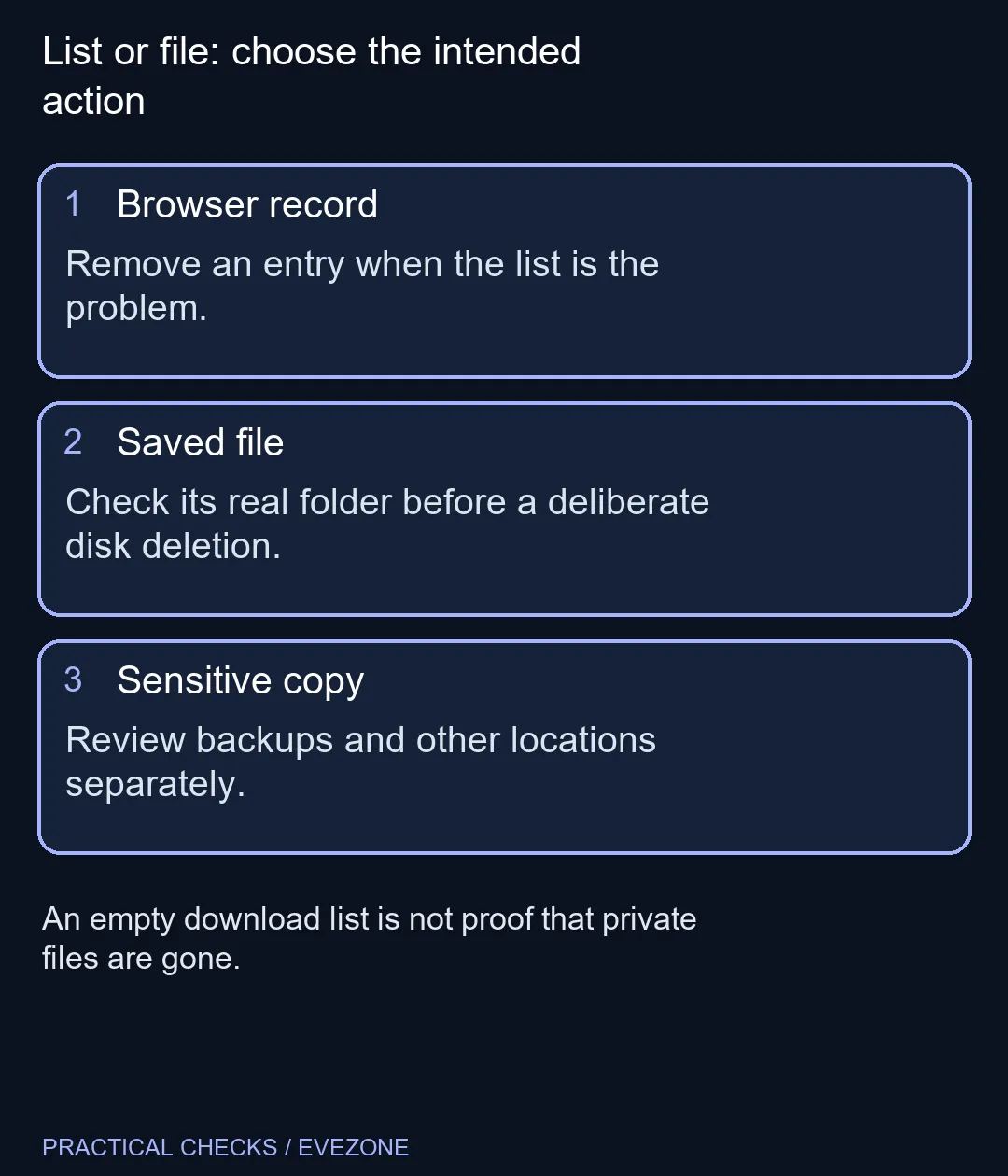
For a shorter list, remove the intended browser records. For more storage space, inspect actual file sizes and decide which files can be deleted or moved. Read menu labels carefully because the interface can offer actions that affect the file as well as actions that affect its record.
If a file was moved after download, the browser's old location may no longer be useful. Search your known storage folders before fetching another copy. Date and size can help distinguish a duplicate from a newer document with a similar name.
Consider all ssds only after identifying what consumes your drive space. An SSD upgrade is a capacity decision; it will not resolve confusion about where downloads are stored. Conversely, a clean browser list does not prove that space has been recovered.
🔐 Treat privacy as a separate check
On a shared PC, sensitive files may remain accessible after their browser entries disappear. Review the saved location, other copies and any synchronised folders deliberately. Do not describe clearing download history as secure erasure or as a complete privacy measure.
Changing computers through all laptops on special does not automatically move or remove old downloads either. Make an inventory of documents you need and those you intend to discard before handing over a device. That is a file-handling decision, not a browser appearance preference.
Finish by checking the original goal: is the list tidier, is the wanted file still accessible, or has the intended disk space changed? One clear outcome is easier to verify than deleting several kinds of browser data together. Leave cookies and saved logins alone when the task is only the download list.
Frequently Asked Questions
Does Clear Downloads free disk space?
Clearing history alone does not remove the downloaded objects. Inspect the actual saved files if storage space is the problem.
Where can I inspect earlier downloads?
Open Firefox Downloads from the menu to reach its Library. The small toolbar panel is a shorter recent list, not the whole collection.
Can I keep a file after removing its history entry?
Yes. Browser download records and saved file objects are separate. Locate the file first if you want to keep using it.
Is deleting a downloaded file the same as clearing history?
No. Read the action carefully. Removing a local file has a different purpose from tidying a browser list.
Does this erase copies from backups?
Do not assume that. Other folders, synchronised storage and backups must be considered separately when dealing with sensitive material.
Should I download everything again after clearing the list?
Check the original folder first. Re-downloading an existing file can use unnecessary data and create confusing duplicates.
Keep files and history distinct
Understand the saved folder before changing storage or clearing browser records.