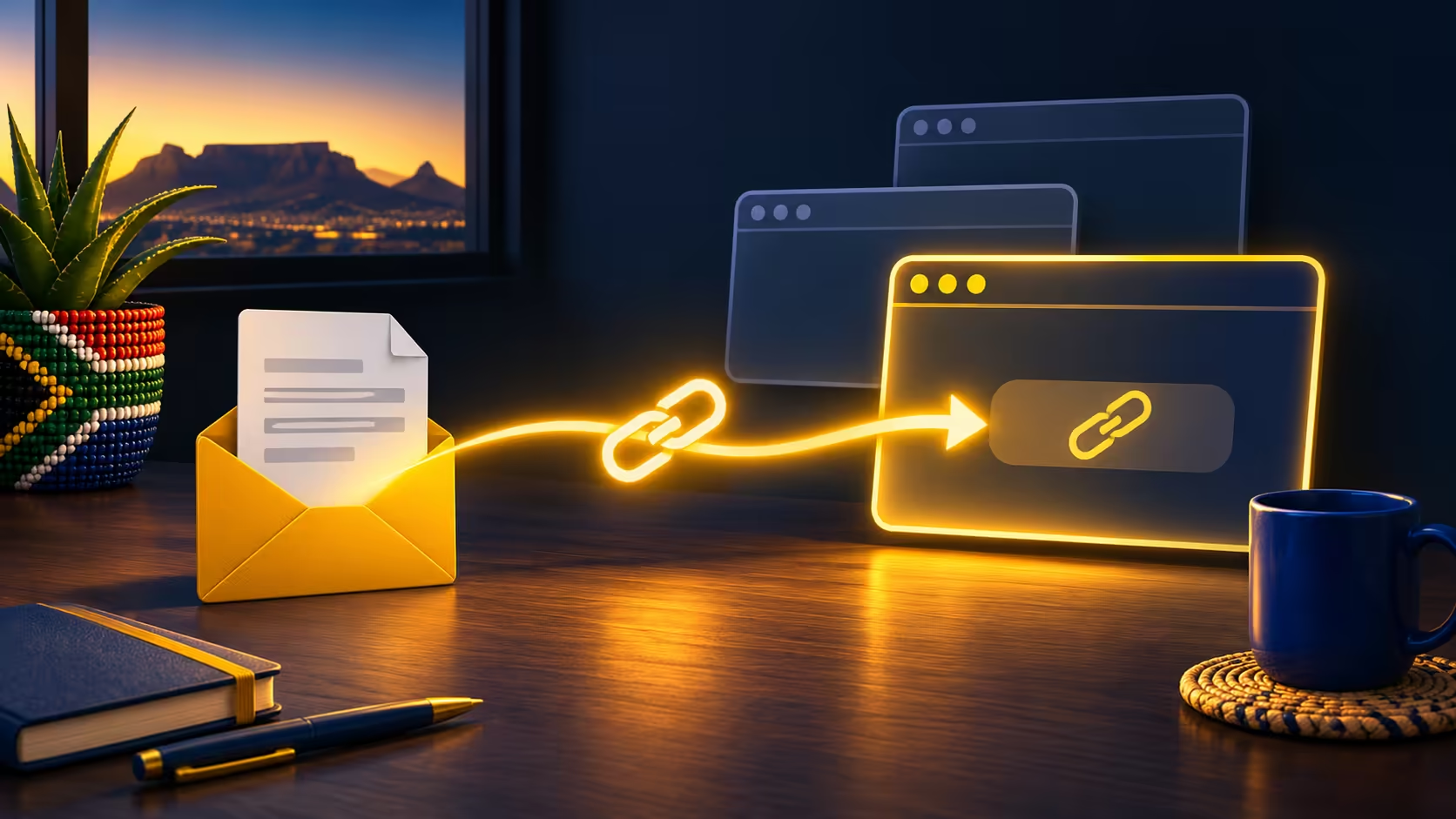
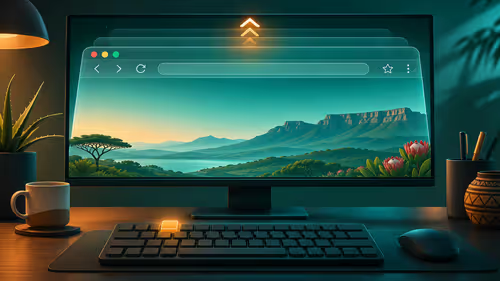
The Firefox default browser setting matters when a link starts outside the browser. You may use Firefox all day through its taskbar icon yet still find that an email opens a different application. Test that outside-link route directly before reinstalling software or assuming bookmarks have been moved.
Quick Answer
Use Make Default in Firefox Settings or select Firefox through Windows Default apps, then open a harmless normal web link from another application. The check costs R0. Starting Firefox manually or testing a link already inside it does not establish which browser Windows will choose for an outside link.
🔗 Choose a meaningful test
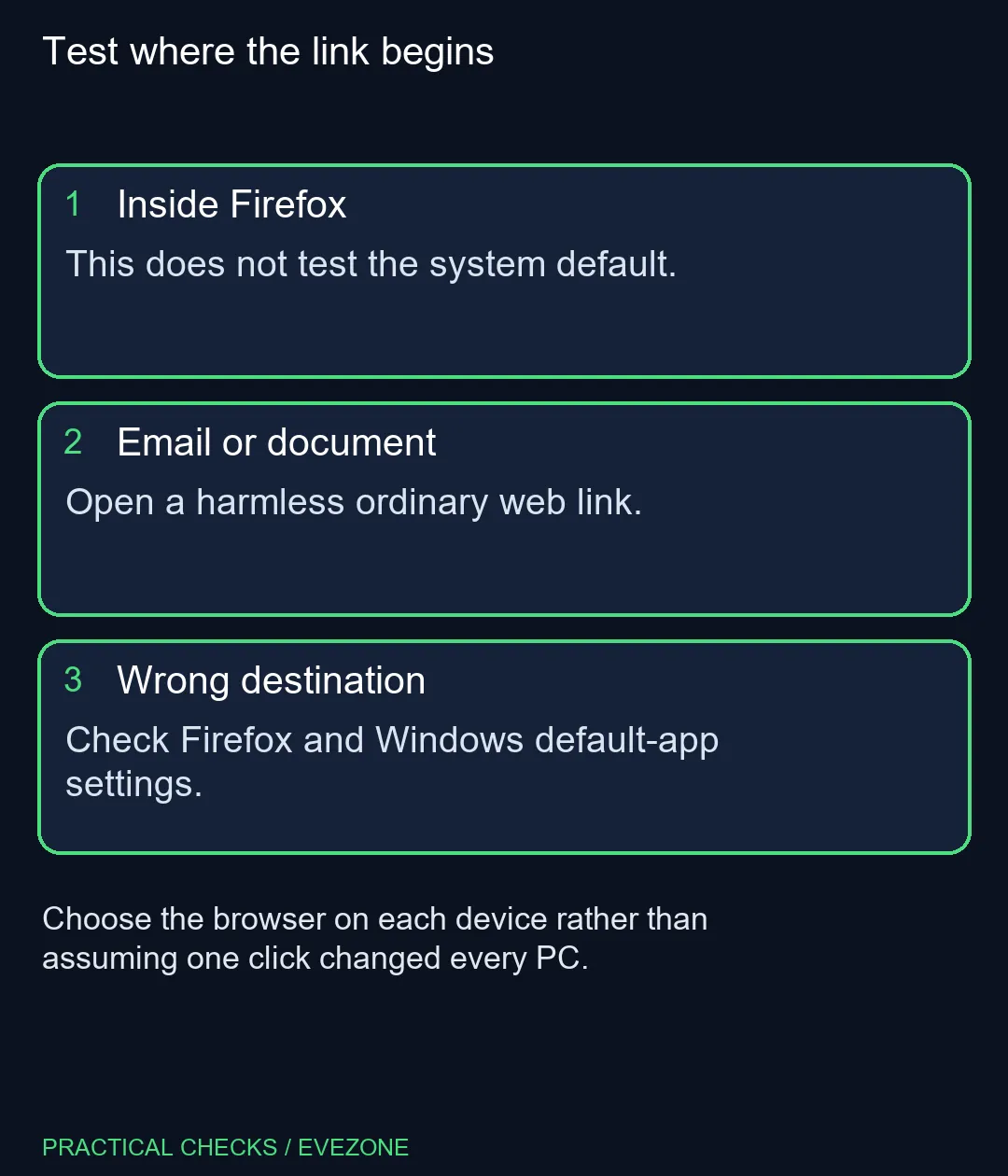
Use a link you recognise in an email or document, taking care not to select a downloaded file or a special application action. Notice which browser opens. Keep the original app and destination in your notes so the result can be repeated after the setting changes.
Avoid signing into an unfamiliar page merely to test routing. A simple public information page is enough. The aim is to see which program receives an ordinary web address, not to test your account or transfer saved passwords.
⚙️ Check both available routes
Firefox provides a default-browser section in Settings and a Make Default control when it is not already the chosen browser. Menu placement can differ between versions, so use the option's name rather than assuming every computer has the same panel arrangement.
If the browser cannot complete the change, open Windows Settings, then Apps and Default apps, and select Firefox. Use the available Set default action. Return to the same outside-link test afterwards; a successful click on a settings button is less useful than observing the intended result.
Changing the default does not uninstall other browsers. Keep any application you need for a particular site or workflow, opening it deliberately when appropriate. The default should reflect the usual route, without forcing every task into the same choice.
💻 Keep the device boundary clear
On a family or study setup, check the Windows account and computer you are actually using. A result on one machine does not certify another. If a managed device prevents the change, record the restriction and ask its administrator rather than trying to bypass controls.
When choosing a portable system from all laptops on special or a desk machine from mini pcs, default-app setup remains a separate task. There is no need to replace hardware simply because links are routed to the wrong installed browser. Complete the software check first.
A document such as a PDF may use its own file association. If ordinary web links now open correctly but a file does not, describe that narrower problem separately. Leave unrelated file defaults unchanged until you know which format needs attention, then confirm the finished route with the same harmless test.
Frequently Asked Questions
Where is the Firefox Make Default button?
Open Firefox Settings and locate the default-browser section. Layout and wording can vary; the button is absent when Firefox already reports itself as default.
What should I do if that button does not work?
Open Windows Settings, Apps, Default apps and select Firefox. Use the available Set default control, then test a normal web link from another app.
Does opening Firefox from its taskbar icon prove it is default?
No. That launches the program directly. Test a normal web link from email or a document to check the outside-link route.
Will choosing Firefox uninstall other browsers?
No. The default decides which app handles ordinary web links; other installed browsers remain available for deliberate use.
Will the setting change every computer I own?
Check each device separately. A successful test on one Windows computer is not evidence that another machine has the same default-app settings.
Does a PDF opening elsewhere mean the web default failed?
Not necessarily. File-type associations are distinct from ordinary web-link handling. Identify the item you clicked before changing more defaults.
Set up the computer you have
Choose the intended app route before planning a replacement system.