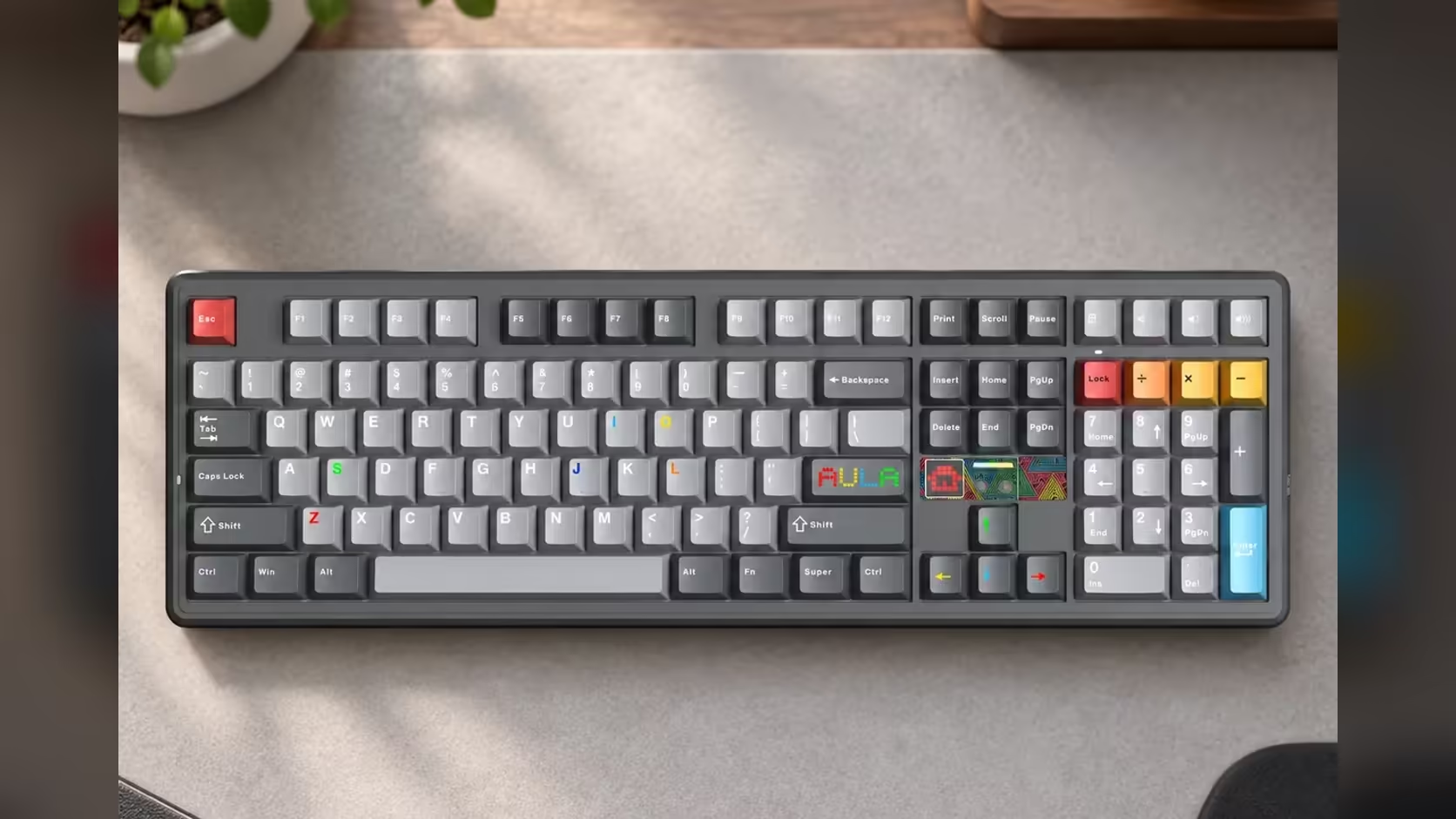
A panel that dances along to every notification sound is fun at home. At an office desk it can be a distraction you keep catching out of the corner of your eye. The AULA F108 PRO V2's dot-matrix display is audio-reactive by default, but it also takes GIFs you upload yourself. That opens a simple trick worth trying: give it a picture that never moves. This guide walks through how to set a still image on a keyboard display and calm the rest of the board to match.
Quick Answer
The F108 PRO V2's display normally reacts to audio and plays animations, and Evetech sells the board for R949 in Black/Grey/White or R1,099 in Dark/Light Grey. custom GIFs go onto it through AULA's driver software. Give it a single-frame GIF and there is no motion to play back, so it should rest on the panel like a photograph. Keep the image simple and high-contrast, upload it through the driver, then tone down the per-key RGB, spacebar LEDs and light bar if you want the whole board quieter.
🧭 Step 1: Know what you are changing
The panel occupies the space beside the arrow cluster, under the navigation six-pack, close to your right hand and inside your field of view while you type. Out of the box it has two behaviours:
- Audio reaction, where the dots move with whatever sound your computer plays.
- Animations, preset motion that runs without audio.
Both are designed to catch the eye. In an office, where calls, alerts and background music come and go all day, an audio-reactive panel is almost never still. Replacing it with your own image is the most direct way to stop that.
🖼️ Step 2: Prepare a one-frame GIF
A GIF can hold many frames, which is how it animates. Save one with a single frame and there is nothing to cycle through, so the result behaves like a still picture. Most image editors can export a GIF, including free ones, so you do not need special software to make one.
Design for dots, not pixels
A dot-matrix panel draws with individual dots rather than a dense, full-colour screen. AULA does not publish the panel's resolution on the product page, so start simple and adjust from there:
- Use bold shapes. A company initial, a simple icon or a thick geometric pattern reads far better than a photo.
- Keep contrast high. Clear separation between the lit shape and the dark background matters more than fine detail.
- Avoid thin lines and small text. They tend to break up or disappear on a dot grid.
- Test and refine. Upload a first version, look at it from your normal seating position, and simplify if details are getting lost.
If you want your company's branding on the desk, a single-letter monogram or a basic logo outline is usually the most legible option.
💾 Step 3: Upload it through AULA's driver
The route in is AULA's driver software, which is where the product page says custom GIF uploads happen. Install the driver, connect the keyboard, and look for the display section that handles GIFs. Menus and labels can change between driver versions, so follow the prompts in the version you have rather than a fixed list of clicks.
Once the image is uploaded, check that it holds steady on the panel. If it still seems to move or flicker, open the file in your editor and confirm it really has just one frame.
🌙 Step 4: Calm the rest of the lighting
A still display next to a rainbow wave of RGB will not feel much calmer. The F108 PRO V2 has three other lighting elements to consider:
- Per-key RGB under each cap, which can be set to a single soft colour.
- Three separately programmable LEDs beneath the spacebar, which you can match to the keys.
- A linear light bar, which adds glow beyond the keycaps.
Keep everything in one or two colours that match your image, and choose steady rather than cycling effects. How far you can dim or switch off each element depends on the driver, so explore its lighting options while you are already in the software for the display.
A quick office preset to aim for
- Display: your one-frame logo or icon.
- Keys: a single neutral tone, or off if your office is bright.
- Spacebar LEDs and light bar: matched to the keys or switched off.
Choosing the edition for an office
The two editions differ in look and switch. The dark grey and light grey board with LEOBOG Sea Dome linears blends easily into a grey office setup, and its 32gf actuation keeps long typing sessions light. If you would rather feel a firmer start, the Panda edition's 38gf linears come in a black, grey and white shell. Both have the same display and lighting, a gasket mount with seven dampening layers, plus the complete 100% key set, numpad and all.
Whichever you pick, Evetech's 1 Year Local Warranty applies. Other office-friendly options sit in the gaming keyboards category too, and the keyboard best sellers list is a quick read on what other desks are running.
Frequently Asked Questions
Why does a one-frame GIF stay still?
A GIF animates by cycling through its frames. With a single frame there is nothing to cycle, so it should display as a fixed image.
What kind of picture works best?
Simple, bold, high-contrast shapes such as an initial or icon. Photos and fine text rarely survive on a dot grid.
Where do I upload the image?
Through AULA's driver software, which the product page names as the way to put your own GIFs on the display.
Will this stop the display reacting to audio?
The product page does not spell that out, so test it: upload your image in the driver, then play some audio and see whether the panel holds still.
Can I turn the light bar off?
Check AULA's driver software. The product page lists the spacebar LEDs as programmable but does not detail settings for the light bar.
Which edition looks more at home in an office?
The dark grey and light grey Sea Dome edition tends to suit neutral office setups best.
Want a desk that stays calm between meetings?
Browse Evetech's keyboard range and find a board whose display and lighting you can set to suit a working day.