


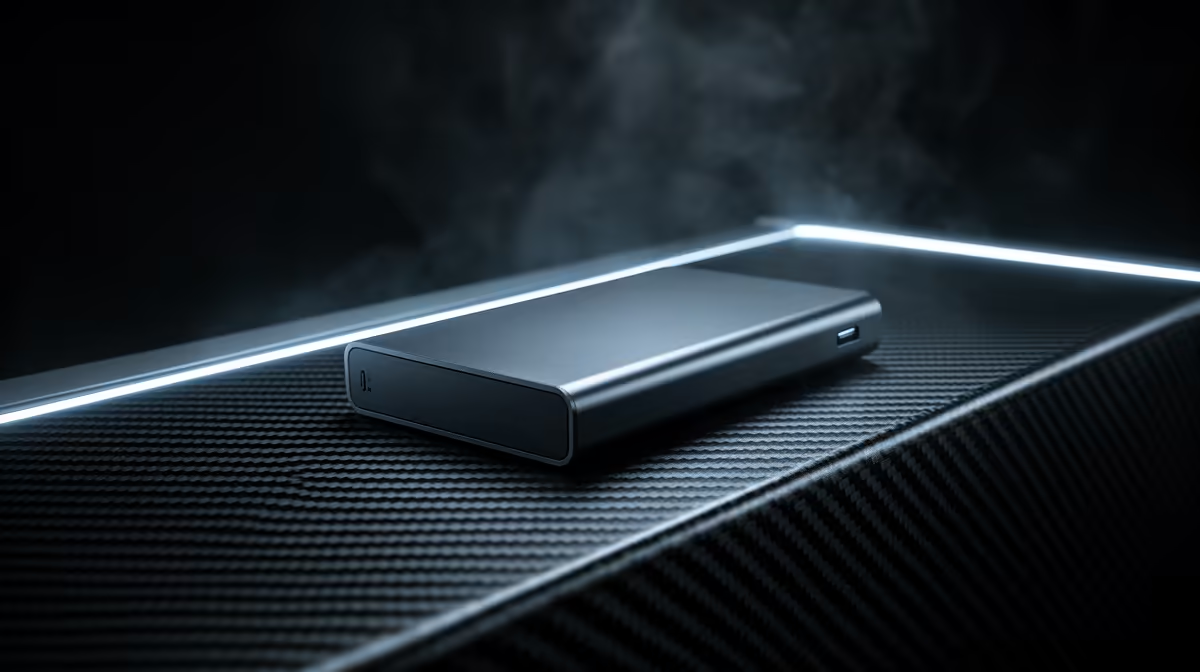
Store Steam library on an external drive for portable gaming
South African gamers: want to take your Steam collection to a LAN or weekend away without clogging your laptop? Learn how to Store Steam library on external drive for gaming on the go — a fast, safe move that frees internal space and keeps your settings intact. This guide uses locally relevant tips and Evetech options so you can get playing quickly. 🚀
Store Steam library on external drives: what to pick before you buy
Pick an SSD if you value load times and durability; HDDs give more capacity per rand. For a compact build, an NVMe in a USB 3.2 Gen 2 or Thunderbolt enclosure is ideal. Evetech stocks a wide selection of enclosures, including Orico models that suit laptops and compact PCs — helpful when you want portable speed with a tidy chassis. See Orico enclosure options here: Orico enclosures on Evetech.
Store Steam library on external drives: prepare the drive and Steam
Format the drive to NTFS (Windows) or exFAT if you need cross-platform use. In Steam: Settings > Downloads > Steam Library Folders > Add Library Folder. Then right-click any installed game > Properties > Local Files > Move Install Folder. That transfers files safely without reinstalling. If you rely on a magnetic HDD, use a powered enclosure to avoid power-drop disconnects.
Store Steam library on external drives: speed, cables and habits
Use USB 3.2 Gen 2 or Thunderbolt for SSD-like performance; avoid USB 2.0 for modern libraries. If you’re on a budget, there are enclosures and compatible units from Evetech from about ZAR 499 — a practical start for big libraries without breaking the bank. Browse budget and mid-range enclosures: Enclosures at Evetech. For a broader category view, consider the full enclosure range on Evetech to match your drive type and port: Evetech enclosures category.
Storage Pro Tip ⚡
When adding a Steam Library folder on an external drive, create one folder per device and use Steam's "Move Install Folder" rather than copying files manually. If you need a seamless experience, maintain the same drive letter on Windows and always eject safely to avoid corrupted game files.
Store Steam library on external drives: troubleshooting and best practice
If Steam fails to recognise a moved game, verify the library path and run "Verify integrity of game files." For slow transfers, check cable quality and port generation. For LAN nights, carry a compact enclosure with an SSD — it’s lighter, quieter and withstands travel bumps better. Keep backups for irreplaceable saves or mods.
Ready to Find Your Perfect Match? The Mac vs Windows debate is complex, but for maximum power, choice, and value in South Africa, Windows is hard to beat. Explore our massive range of laptop specials and find the perfect machine to conquer your world.











