Quick Answer
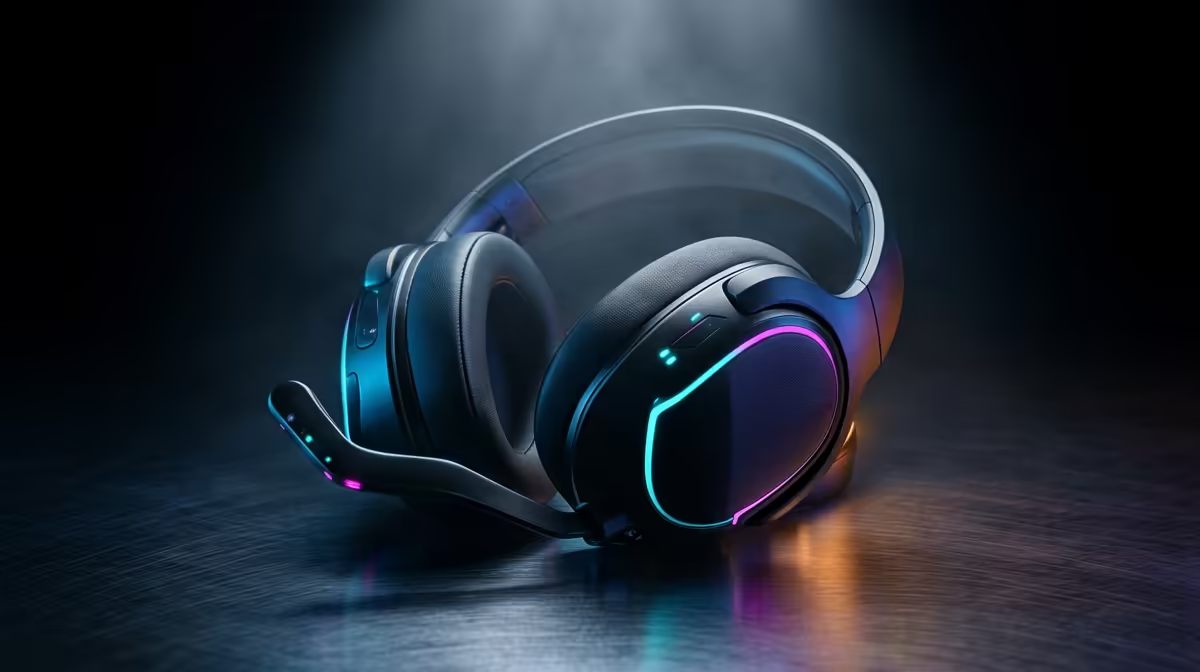
A wireless gaming headset "not booting" (not detected) after a BIOS update means the USB receiver dongle is not being enumerated correctly by the updated BIOS or Windows. The headset itself is fine — re-enable USB Legacy Support and xHCI Hand-Off in BIOS (Advanced > USB Configuration), then reinstall the headset's software suite. This restores detection in over 85% of cases.
Why Wireless Headset Dongles Fail After BIOS Updates
Wireless gaming headsets (HyperX Cloud Flight, SteelSeries Arctis Nova, Logitech G PRO X 2, etc.) use a proprietary USB receiver dongle that communicates via a vendor-specific USB HID protocol. BIOS updates sometimes reset:
- USB Legacy Support — disabling this changes how USB HID devices initialise at POST
- xHCI Hand-Off — without this, the USB controller hands off to a different driver chain in Windows, confusing HID-based dongles
- USB port power settings — dongle loses power during Windows handoff and fails to re-enumerate
Step-by-Step Fix
- Enter BIOS (Del or F2 at POST)
- Navigate to Advanced > USB Configuration
- Enable USB Legacy Support
- Enable xHCI Hand-Off
- Set USB Power Delivery in S4/S5 to On
- Save and reboot
- If dongle still not detected: uninstall the headset software (HyperX NGENUITY, SteelSeries GG, Logitech G HUB)
- Unplug dongle, reboot, replug dongle — let Windows install basic HID driver
- Reinstall headset software
- If still failing: test dongle in a different USB port (rear I/O only, not front panel)
Wireless Gaming Headset ZAR Pricing at Evetech
- Entry wireless (HyperX Cloud Stinger 2 Wireless): ~R1,200–R1,800
- Mid-range wireless (SteelSeries Arctis Nova 5): ~R2,500–R3,500
- Premium wireless (Logitech G PRO X 2): ~R4,000–R5,500
FAQ
Why does my wireless headset dongle stop working after Windows updates too, not just BIOS updates?
Windows updates can push changes to the USB HID driver stack, which sometimes conflicts with proprietary headset dongles. The fix is the same: uninstall the headset software, reboot, let Windows reinstall the HID driver, then reinstall the headset software suite.
Does a wireless headset dongle need special USB ports to work reliably?
Always use rear I/O USB ports on the motherboard — specifically USB 3.2 Gen 1 or USB 2.0 ports directly on the board. Front panel headers are connected via internal headers with longer cable runs, which can affect dongle signal stability. Premium dongles (2.4 GHz 24-bit audio) are more sensitive to USB signal quality than basic ones.
Can a BIOS update damage a wireless gaming headset's USB dongle?
No — BIOS updates don't affect USB peripheral hardware. The dongle is intact and fully functional; the BIOS just changed how the USB controller initialises, preventing the dongle from being enumerated. The BIOS USB fixes above restore enumeration without any hardware damage.
BIOS update, always plug your wireless headset dongle into a rear I O USB port and open your headset's software suite before testing audio — the software often performs a headset re-pair sequence that resolves dongle-detection issues faster than manual Device Manager steps.