




Firefox HTTPS-Only Mode: handle an old HTTP site
Turn on Firefox HTTPS-Only Mode and understand what to do when an old device page has no encrypted connection.
Read moreAdjust Firefox smooth scrolling on desktop and isolate whether uncomfortable page movement comes from the browser or just one site.

To change Firefox smooth scrolling on desktop, open Settings, find Accessibility and toggle the smooth scrolling option. Compare the same wheel gesture on the same page before and after. If only one website still animates or jumps, its own scrolling behaviour may be the cause. You can make the browser comparison without changing hardware.
There are two useful observations: whether the page moves in gradual steps and whether the movement feels uneven. Start on a long article with plain text rather than a page that changes panels while scrolling. Use the same pointing device and repeat a short wheel movement, then try a larger movement. That gives you a reference for judging the effect of the browser setting.
Find the smooth scrolling control in Firefox's accessibility preferences. If the headings differ on your version, use the search box in Settings and type smooth scrolling. Change that option once and go back to the same article. Give the page the same amount of time to load. Decide which movement is more comfortable before changing a second setting.
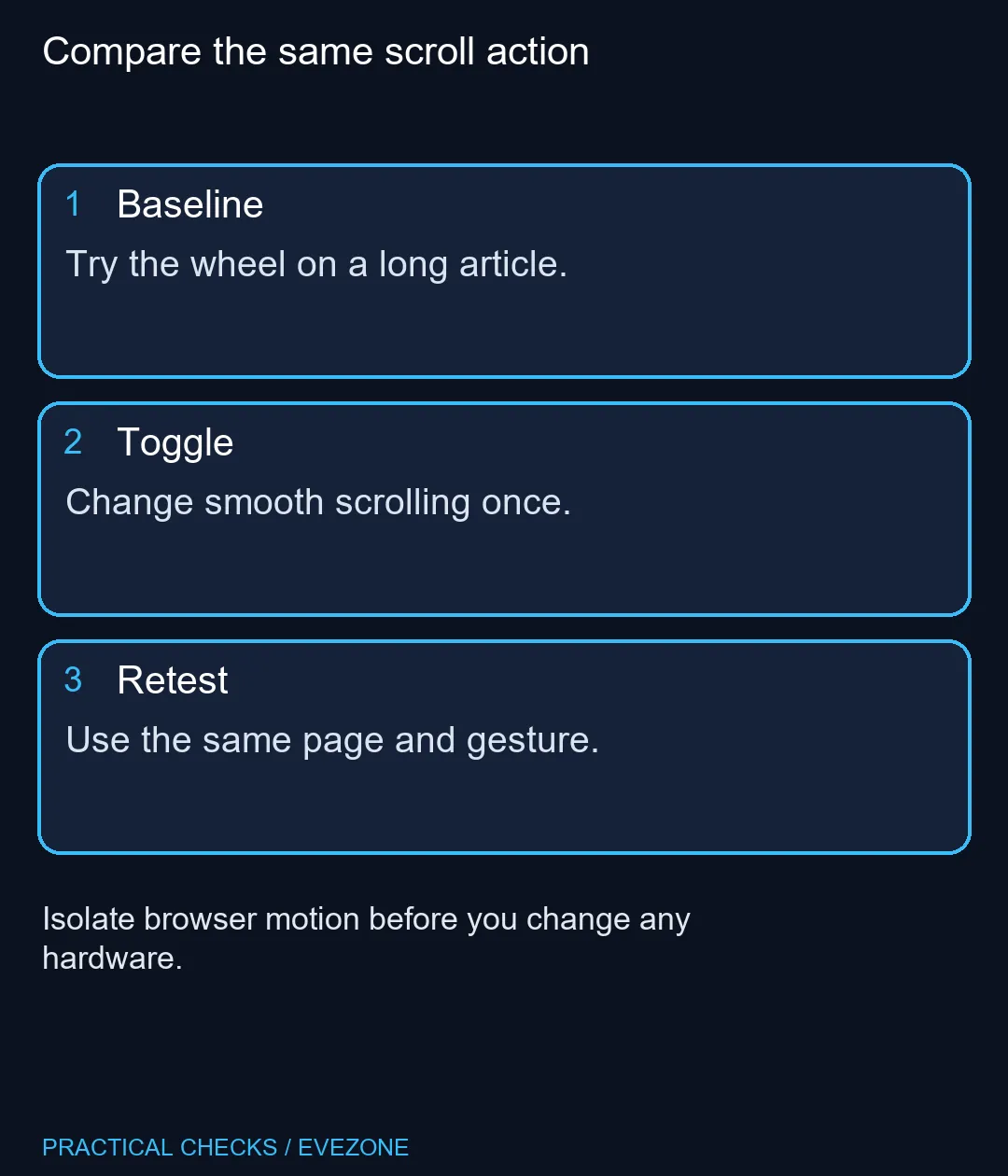
If one article moves comfortably but a site with a large banner or animated sections still moves oddly, test a second ordinary page. A website may implement motion that differs from Firefox's normal scroll action. Compare the mouse wheel with keyboard navigation or the scrollbar. An effect that appears with one gesture but not another is a clue about how to narrow the problem, rather than a reason to reinstall the browser.
The system can also have a reduced-motion preference. If a change seems to revert after restarting, record the current browser setting and check the system preference before assuming the two are unrelated. Mozilla's issue tracker contains an example of that interaction. Use that as a troubleshooting clue; it does not establish that every Firefox version behaves identically.
Run the same short test in another application. If the wheel jumps unexpectedly in more than one app, check the device or system input settings before concentrating on Firefox. If desktop movement looks fine and only a single site is uncomfortable, the gaming monitors shelf is not the first place to look for a fix.
The setting costs R0. A monitor's refresh rate and a browser's choice to animate scrolling are separate things. If you are already comparing all laptops on special for a replacement, test the existing machine first so the scroll issue does not get mistaken for a purchase requirement. Leave the browser on the option that feels more comfortable in a normal reading session, and return to the original setting if the change makes no useful difference.
Find the option in Firefox desktop Settings under Accessibility, or search for its name in Settings.
Yes. Toggle smooth scrolling and compare the same page again.
No. It changes how Firefox animates supported scrolling, not the screen's refresh setting.
Compare it with a plain article. The site may use its own animation or scrolling behaviour.
It can be relevant. Check the system setting if the preference seems to behave unexpectedly.
Start with the browser toggle and repeatable comparison before taking larger steps.
Compare the same scroll gesture Use a plain page to isolate motion before changing the rest of your setup.
Find the option in Firefox desktop Settings under Accessibility, or search for its name in Settings.
Yes. Toggle smooth scrolling and compare the same page again.
No. It changes how Firefox animates supported scrolling, not the screen's refresh setting.
Compare it with a plain article. The site may use its own animation or scrolling behaviour.
It can be relevant. Check the system setting if the preference seems to behave unexpectedly.
Start with the browser toggle and repeatable comparison before taking larger steps.
Turn on Firefox HTTPS-Only Mode and understand what to do when an old device page has no encrypted connection.
Read more
Find the Firefox address autofill controls if available, and tell saved addresses apart from regular form-history suggestions.
Read more
Create Firefox tab groups, tell collapse apart from save and close, and recover a named group without searching through every open tab.
Read more
Restore Firefox camera permissions for one trusted website without changing permission defaults for every site.
Read more
Use Firefox containers to keep two accounts signed in to the same site and understand where that separation stops.
Read more
Set Firefox as the default browser to open normal web links from other apps in it. Use Firefox Settings or Windows Default apps, then test an outside link; opening Firefox manually does not prove the default changed.
Read more
Firefox can mute one noisy tab using its speaker button or context menu. Check the tab control before changing Windows volume or replacing a working headset.

ASUS PA329CDV combines a 4K 120Hz QD-OLED panel with USB-C charging and Auto KVM. Compare colour work, laptop power and desk connections before treating overseas availability as an SA offer.
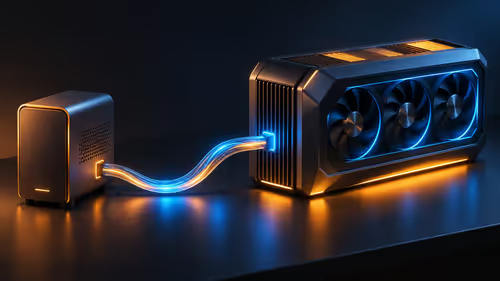
Teclast N30 Pro pairs Core 3 304 with 12GB memory and USB4. Its expansion connection is useful, but an external graphics plan needs a complete cost and compatibility check.

Firefox private browsing separates a temporary session from normal browsing history. It does not make you anonymous online, and files or bookmarks you deliberately save can remain after the last private window closes.
Set Firefox as the default browser to open normal web links from other apps in it. Use Firefox Settings or Windows Default apps, then test an outside link; opening Firefox manually does not prove the default changed.
Firefox can mute one noisy tab using its speaker button or context menu. Check the tab control before changing Windows volume or replacing a working headset.

Firefox has a startup-cache control on its Troubleshooting Information page. Use it for a focused interface test and keep it separate from clearing website data or refreshing the profile.

Firefox Primary Password protects access to locally saved logins. It is separate from a website or Mozilla account password, and forgetting it can put saved credentials at risk during reset.
The Outlast Trials PC build planning should match the game, R30,000 target, and SA parts market. Check GPU tier, CPU balance, RAM, SSD space, cooling, and upgrade room before choosing parts.
RTX 5070 Ti vs RX 9070 XT at 1440p in Mass needs a workload-first comparison. For SA buyers, judge real performance, platform fit, warranty path, power needs, and upgrade timing before choosing either side.

Best gaming setup for running local AI should be shortlisted around the job it must do. South African buyers should compare fit, performance, compatibility, and upgrade room, warranty path, and upgrade room before treating any pick as best.

What WITS Architecture Students in Menlo Park Actually Buy needs a cautious look at fit, budget, workload, support, and timing. Use the title as a planning prompt, then compare practical specs, setup limits, and South African buying context before deciding.