




Firefox HTTPS-Only Mode: handle an old HTTP site
Turn on Firefox HTTPS-Only Mode and understand what to do when an old device page has no encrypted connection.
Read moreRestore Firefox camera permissions for one trusted website without changing permission defaults for every site.

To reset Firefox camera permissions for one site, open the site and clear its saved camera decision from the permissions icon beside the address bar. Reload and grant access only if you recognise the page. If Firefox never asks, inspect that site's Page Info and check whether the operating system lets Firefox use the camera.
Open the exact page that cannot start your camera. A conference invite may lead from a calendar to a different web address, so check the address after the room opens. If Firefox shows the permissions icon, open it and clear the camera entry. Firefox can then ask again when you start the camera. Clearing an entry does not give the site automatic permission.
If there is no entry to clear, use Firefox's Page Info for that page. In the Permissions panel you can inspect or change the site's camera choice. If you can see a picture but others cannot hear you, check the microphone separately. Opening one permission does not change the other.
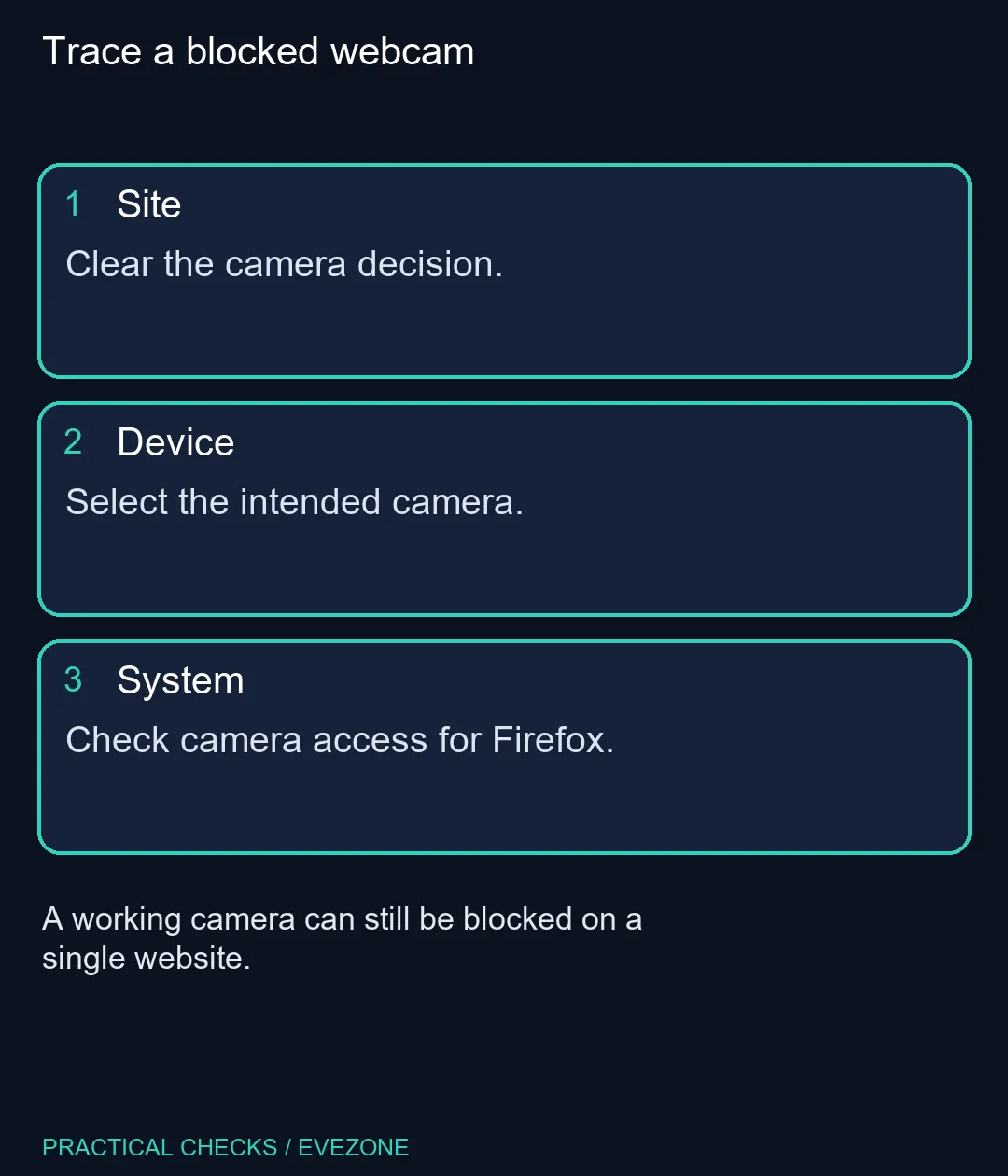
A laptop can have an internal camera and an external one connected at the same time. Open the call's preview and choose the device you want to use. If a second meeting application is open, close its camera preview before repeating the test. For a USB camera, try a direct port as a separate test. Change one thing at a time so you can tell whether the cause was a permission, a selected device or the physical connection.
A shutter can block the picture while leaving the device visible. A completely absent device is a different clue. Check whether another app can see it before buying a replacement from the webcams range. When a direct connection works and the original one does not, isolate the old cable or look at the usb hubs connection separately.
The operating system can prevent Firefox from reaching the camera even after a site is allowed. Open the system's camera privacy settings and check the access available to desktop apps. If the machine is managed by work or school, ask the administrator when a setting is unavailable. On a shared computer, remove a standing permission you no longer need rather than leaving it enabled for convenience.
Allowing the right site costs R0. If the camera works on a second trusted site, that is a reason to investigate the failing page or its device picker first. It is not evidence that the hardware has to be replaced. Keep any test preview private and close it when the check is finished.
Look to the left of the address bar. It appears when Firefox has a relevant permission status to show.
Firefox can ask again when the site next requests the camera.
Yes. Use the current site's permission controls or its Page Info Permissions panel.
They have separate permission choices. Test each if the meeting needs both.
Check the operating system, the cable or shutter, and whether another application can see the device.
No. Clear the site decision and test the existing device before spending money.
Test the current camera first Reset only the affected site, then test the device and system permissions.
Look to the left of the address bar. It appears when Firefox has a relevant permission status to show.
Firefox can ask again when the site next requests the camera.
Yes. Use the current site's permission controls or its Page Info Permissions panel.
They have separate permission choices. Test each if the meeting needs both.
Check the operating system, the cable or shutter, and whether another application can see the device.
No. Clear the site decision and test the existing device before spending money.
Turn on Firefox HTTPS-Only Mode and understand what to do when an old device page has no encrypted connection.
Read more
Find the Firefox address autofill controls if available, and tell saved addresses apart from regular form-history suggestions.
Read more
Adjust Firefox smooth scrolling on desktop and isolate whether uncomfortable page movement comes from the browser or just one site.
Read more
Create Firefox tab groups, tell collapse apart from save and close, and recover a named group without searching through every open tab.
Read more
Use Firefox containers to keep two accounts signed in to the same site and understand where that separation stops.
Read more
Set Firefox as the default browser to open normal web links from other apps in it. Use Firefox Settings or Windows Default apps, then test an outside link; opening Firefox manually does not prove the default changed.
Read more
Firefox can mute one noisy tab using its speaker button or context menu. Check the tab control before changing Windows volume or replacing a working headset.

ASUS PA329CDV combines a 4K 120Hz QD-OLED panel with USB-C charging and Auto KVM. Compare colour work, laptop power and desk connections before treating overseas availability as an SA offer.
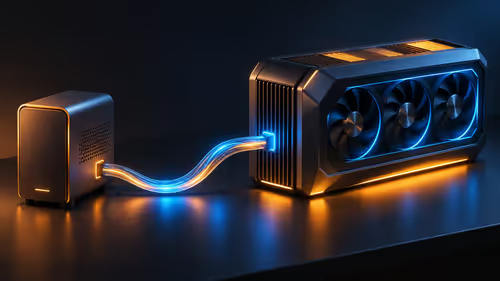
Teclast N30 Pro pairs Core 3 304 with 12GB memory and USB4. Its expansion connection is useful, but an external graphics plan needs a complete cost and compatibility check.

Firefox private browsing separates a temporary session from normal browsing history. It does not make you anonymous online, and files or bookmarks you deliberately save can remain after the last private window closes.
Set Firefox as the default browser to open normal web links from other apps in it. Use Firefox Settings or Windows Default apps, then test an outside link; opening Firefox manually does not prove the default changed.
Firefox can mute one noisy tab using its speaker button or context menu. Check the tab control before changing Windows volume or replacing a working headset.

Firefox has a startup-cache control on its Troubleshooting Information page. Use it for a focused interface test and keep it separate from clearing website data or refreshing the profile.

Firefox Primary Password protects access to locally saved logins. It is separate from a website or Mozilla account password, and forgetting it can put saved credentials at risk during reset.
The Outlast Trials PC build planning should match the game, R30,000 target, and SA parts market. Check GPU tier, CPU balance, RAM, SSD space, cooling, and upgrade room before choosing parts.
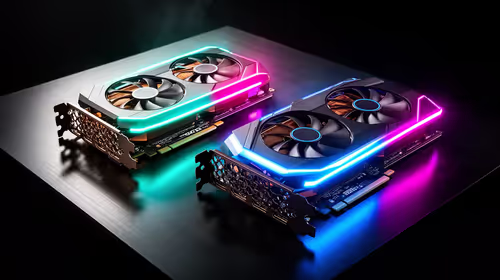
RTX 5070 Ti vs RX 9070 XT at 1440p in Mass needs a workload-first comparison. For SA buyers, judge real performance, platform fit, warranty path, power needs, and upgrade timing before choosing either side.

Best gaming setup for running local AI should be shortlisted around the job it must do. South African buyers should compare fit, performance, compatibility, and upgrade room, warranty path, and upgrade room before treating any pick as best.

What WITS Architecture Students in Menlo Park Actually Buy needs a cautious look at fit, budget, workload, support, and timing. Use the title as a planning prompt, then compare practical specs, setup limits, and South African buying context before deciding.