




Firefox address autofill: why the option may be missing
Find the Firefox address autofill controls if available, and tell saved addresses apart from regular form-history suggestions.
Read moreTurn on Firefox HTTPS-Only Mode and understand what to do when an old device page has no encrypted connection.

Firefox HTTPS-Only Mode tries to open sites with encryption and warns if a secure connection is unavailable. Enable it in desktop Firefox's connection security settings. If an old device only offers HTTP, confirm the address through a trusted source and keep any exception limited to that device. Avoid sending sensitive information over HTTP.
Open Firefox Settings and look for HTTPS-Only Mode under privacy or connection security. Set the mode for the scope you intend to protect. If you land on a warning, check the address for a typing error. Use a trusted bookmark or the service's official address when you can. If the service offers an encrypted route, choose that instead of continuing over HTTP.
The warning does not necessarily mean your internet is down. It can mean Firefox tried a secure address and could not use it. Open a known working HTTPS site in a second tab. If the second site works, test the original address separately before changing any setting that applies to every website. If every site fails, investigate connectivity independently.
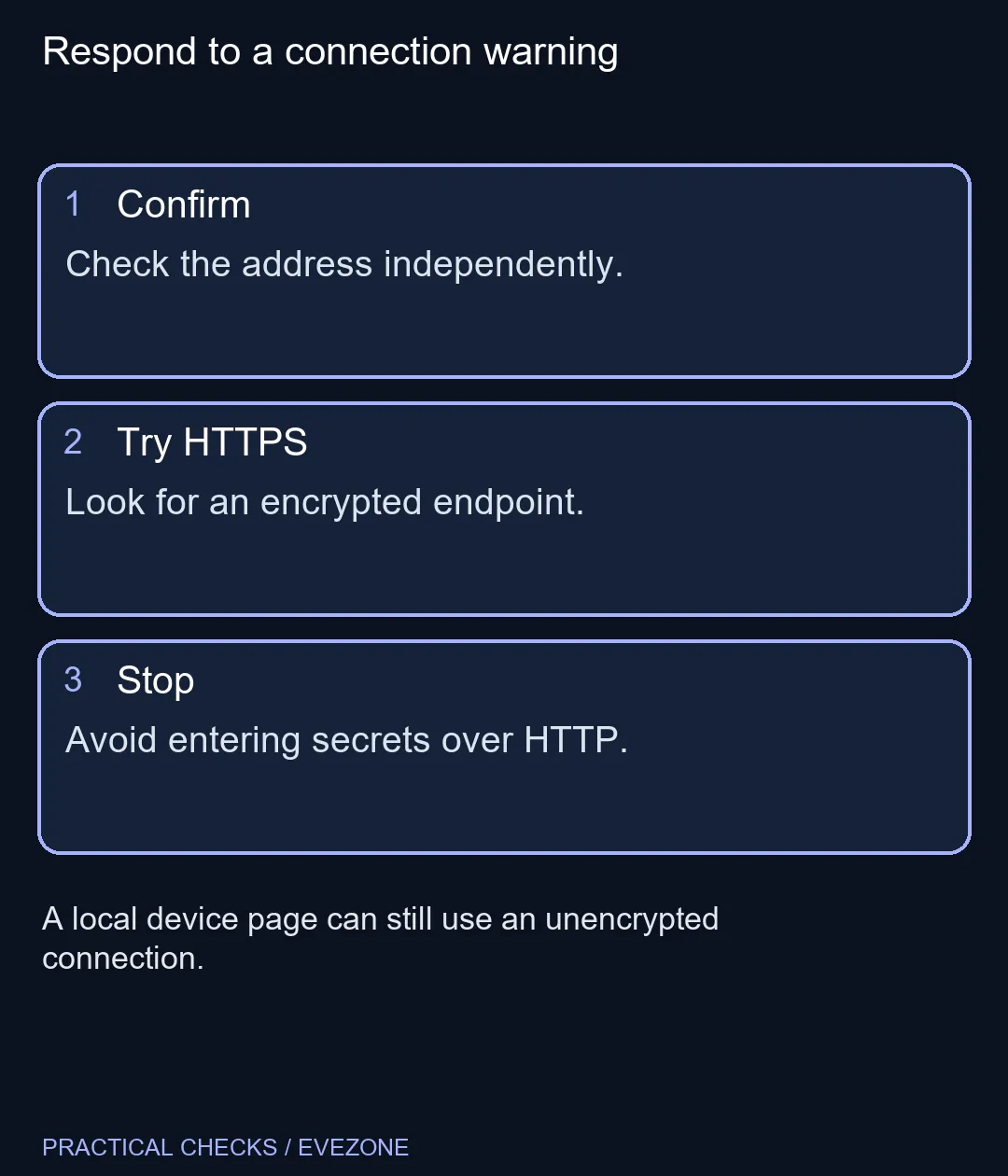
An older device on your own network may publish a setup page over HTTP. Confirm its address from the device documentation or an administrator before continuing. If you decide to add a site exception, keep the scope as narrow as the browser offers and remove it when no longer needed. Do not use this as a way around certificate errors on other services or as a reason to put personal information into a web page whose identity you cannot verify.
A page being reachable from your home or office does not make it encrypted. If it accepts credentials, prefer a secure setup method when one is available. When you cannot confirm whether the device supports one, get its exact model and software version and ask the person who manages it. Avoid guessing from the login screen.
HTTPS-First and HTTPS-Only are different Firefox behaviours. One tries a secure route first under certain conditions, while the stricter mode can stop at a warning before opening an unencrypted page. DNS over HTTPS is a different setting again: it concerns name lookups, not encryption of all traffic to a website. Check the name of the setting you are changing before testing the result.
The browser setting costs R0 and does not need new computer hardware. If you have an unrelated replacement planned, you can compare mini pcs and all laptops on special by their intended use; that will not add HTTPS support to a separate old device. After troubleshooting, revisit the original address once with the intended protection in place so you know which route the page uses.
No. It tries a secure connection and warns when that route is unavailable.
Look in Settings under privacy or connection security for HTTPS-Only Mode.
If you need an exception, keep it limited to the verified site and review it afterwards.
No. Verify the address and prefer a secure management method if available.
No. One concerns website connections; the other concerns domain name lookups.
No. Test a known HTTPS site separately to see whether the failure is limited to one address.
Keep the exception narrow Confirm the device address and leave encryption enabled elsewhere.
No. It tries a secure connection and warns when that route is unavailable.
Look in Settings under privacy or connection security for HTTPS-Only Mode.
If you need an exception, keep it limited to the verified site and review it afterwards.
No. Verify the address and prefer a secure management method if available.
No. One concerns website connections; the other concerns domain name lookups.
No. Test a known HTTPS site separately to see whether the failure is limited to one address.
Find the Firefox address autofill controls if available, and tell saved addresses apart from regular form-history suggestions.
Read more
Adjust Firefox smooth scrolling on desktop and isolate whether uncomfortable page movement comes from the browser or just one site.
Read more
Create Firefox tab groups, tell collapse apart from save and close, and recover a named group without searching through every open tab.
Read more
Restore Firefox camera permissions for one trusted website without changing permission defaults for every site.
Read more
Use Firefox containers to keep two accounts signed in to the same site and understand where that separation stops.
Read more
Set Firefox as the default browser to open normal web links from other apps in it. Use Firefox Settings or Windows Default apps, then test an outside link; opening Firefox manually does not prove the default changed.
Read more
Firefox can mute one noisy tab using its speaker button or context menu. Check the tab control before changing Windows volume or replacing a working headset.

ASUS PA329CDV combines a 4K 120Hz QD-OLED panel with USB-C charging and Auto KVM. Compare colour work, laptop power and desk connections before treating overseas availability as an SA offer.

Teclast N30 Pro pairs Core 3 304 with 12GB memory and USB4. Its expansion connection is useful, but an external graphics plan needs a complete cost and compatibility check.

Firefox private browsing separates a temporary session from normal browsing history. It does not make you anonymous online, and files or bookmarks you deliberately save can remain after the last private window closes.
Set Firefox as the default browser to open normal web links from other apps in it. Use Firefox Settings or Windows Default apps, then test an outside link; opening Firefox manually does not prove the default changed.
Firefox can mute one noisy tab using its speaker button or context menu. Check the tab control before changing Windows volume or replacing a working headset.

Firefox has a startup-cache control on its Troubleshooting Information page. Use it for a focused interface test and keep it separate from clearing website data or refreshing the profile.

Firefox Primary Password protects access to locally saved logins. It is separate from a website or Mozilla account password, and forgetting it can put saved credentials at risk during reset.

Turn on Firefox HTTPS-Only Mode and understand what to do when an old device page has no encrypted connection.
Find the Firefox address autofill controls if available, and tell saved addresses apart from regular form-history suggestions.
Adjust Firefox smooth scrolling on desktop and isolate whether uncomfortable page movement comes from the browser or just one site.
Create Firefox tab groups, tell collapse apart from save and close, and recover a named group without searching through every open tab.