Old screenshots can make a present-day browser feature look as though it vanished. Searches for Edge immersive reader now meet Microsoft instructions using the name Reading mode, so begin with the current toolbar setting rather than hunting for one exact old icon.
Quick Answer
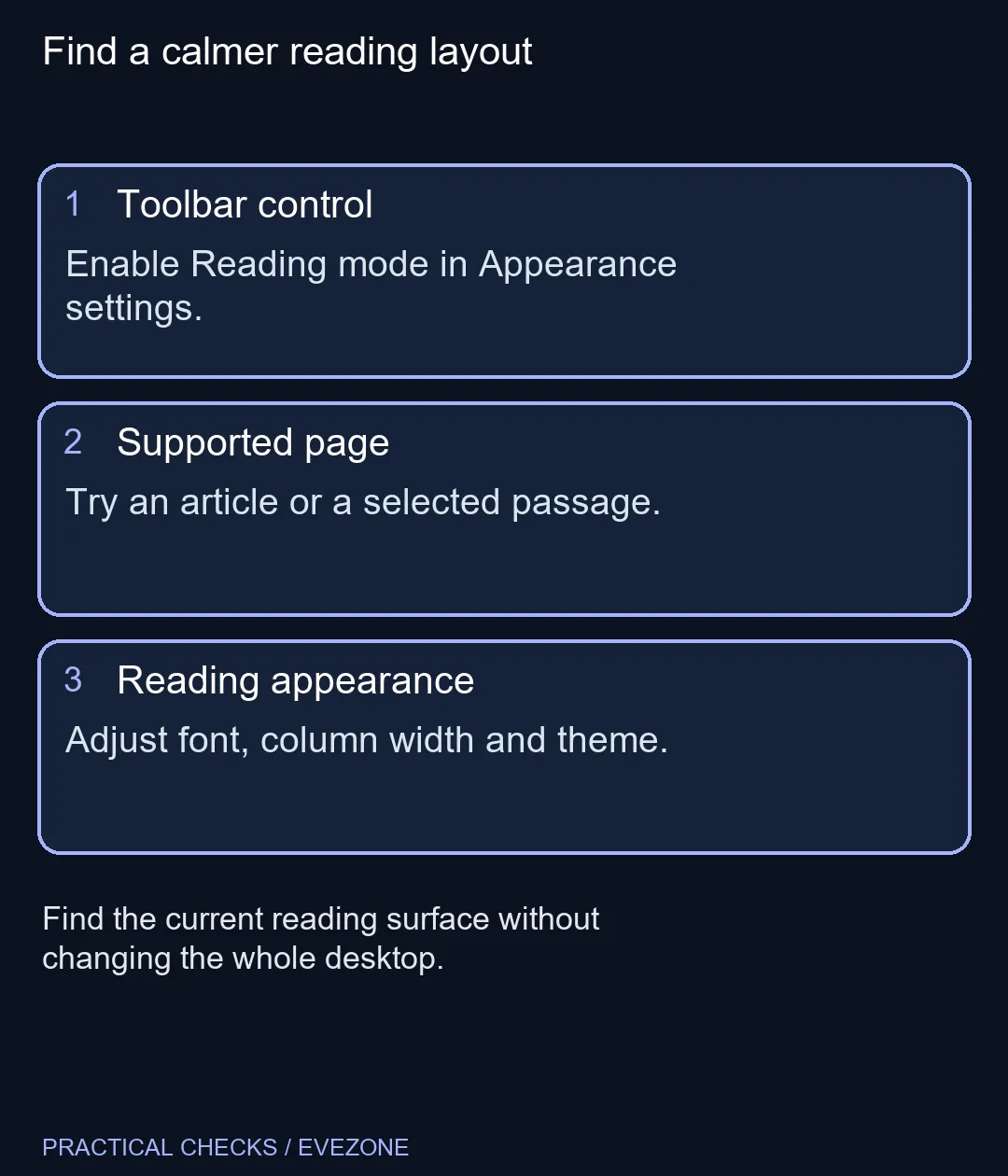
In Edge Settings, open Appearance and Toolbar, then enable Reading mode where available. Use its address-bar control or F9 on a supported article. Trying a focused layout costs R0 in additional hardware; font, theme and column adjustments should come before buying a larger screen.
📚 Find the current reading surface
Microsoft's current support page places the Reading mode switch in the toolbar settings. Once enabled, the control appears on supported pages. Use an ordinary text article as the first test, rather than a web application with a complex set of panels and controls.
There is also a route for a selected passage: select text, open its context menu and look for Open selection in Reading mode. This can be useful when you only need one part of a long page. Availability can vary with the content and browser build, so a missing option on one site is not proof that the feature is absent everywhere.
🔎 Adjust the text before the entire desktop
The focused reading view offers font, text size, column width and theme controls. Start with one paragraph and adjust the width until your eyes can comfortably find the next line. Then change the font size if it still feels too small. This is a reading-view adjustment, so it does not require changing every app through Windows scaling.
Choose a theme for the light in the room, rather than assuming the darkest one must always be easier to read. A good result is the passage remaining clear without constant zoom changes. If the desk setup itself is uncomfortable, monitor accessories provides a separate place to consider placement and accessories; software controls cannot move a screen that is physically in the wrong position.
🧠 Keep optional tools optional
The current reading toolbar also groups Read aloud, translation and interactive features. Those are separate choices from simplifying the layout. You can focus on the appearance controls without treating a conversation or summary as a required part of reading an article.
For important instructions, compare the original page whenever a simplified view seems to omit context. A cleaner presentation is useful, but a table, interactive element or surrounding note may matter to the meaning. Keep the original tab available until you have the detail you need, particularly when checking a product's exact model or compatibility instructions.
🖥️ Decide when screen space is the real issue
A narrow text column can make a large display easier to read, while a larger font can make a small laptop more comfortable. Neither setting turns one monitor into another or increases the physical space for several windows. Test the reading surface first so you know which limitation remains.
If you still need more workspace, compare gaming monitors by size and placement rather than expecting a display purchase to unlock Reading mode. Our 27 October catalogue included the 24-inch Dahua LM24-A221Y at R1,699 as a dated local example, not a requirement for this feature. The useful outcome is a page you can read comfortably with the equipment and layout that suit you.
Frequently Asked Questions
Has Immersive Reader changed its name?
Current Microsoft guidance calls the focused webpage feature Reading mode. Older guides and searches still use Immersive Reader.
How do I enable its icon?
Open Edge Settings, then Appearance and Toolbar, and turn on Reading mode where that control is available.
What is the keyboard route?
Microsoft documents F9 for supported webpages. Some laptop keyboards also require their function-key modifier.
Why does the icon appear only on some pages?
Reading mode is available on supported content; not every interactive page has a suitable reading view.
Can I change only the reading text?
Yes. The reading surface offers font, font-size, column-width and theme choices without changing Windows scaling.
Does a larger monitor enable the feature?
No. Page support and browser settings control it. A larger display is a separate comfort decision.
Want less clutter while reading?
Try Reading mode appearance controls, then compare display space only if the physical screen remains the limit.