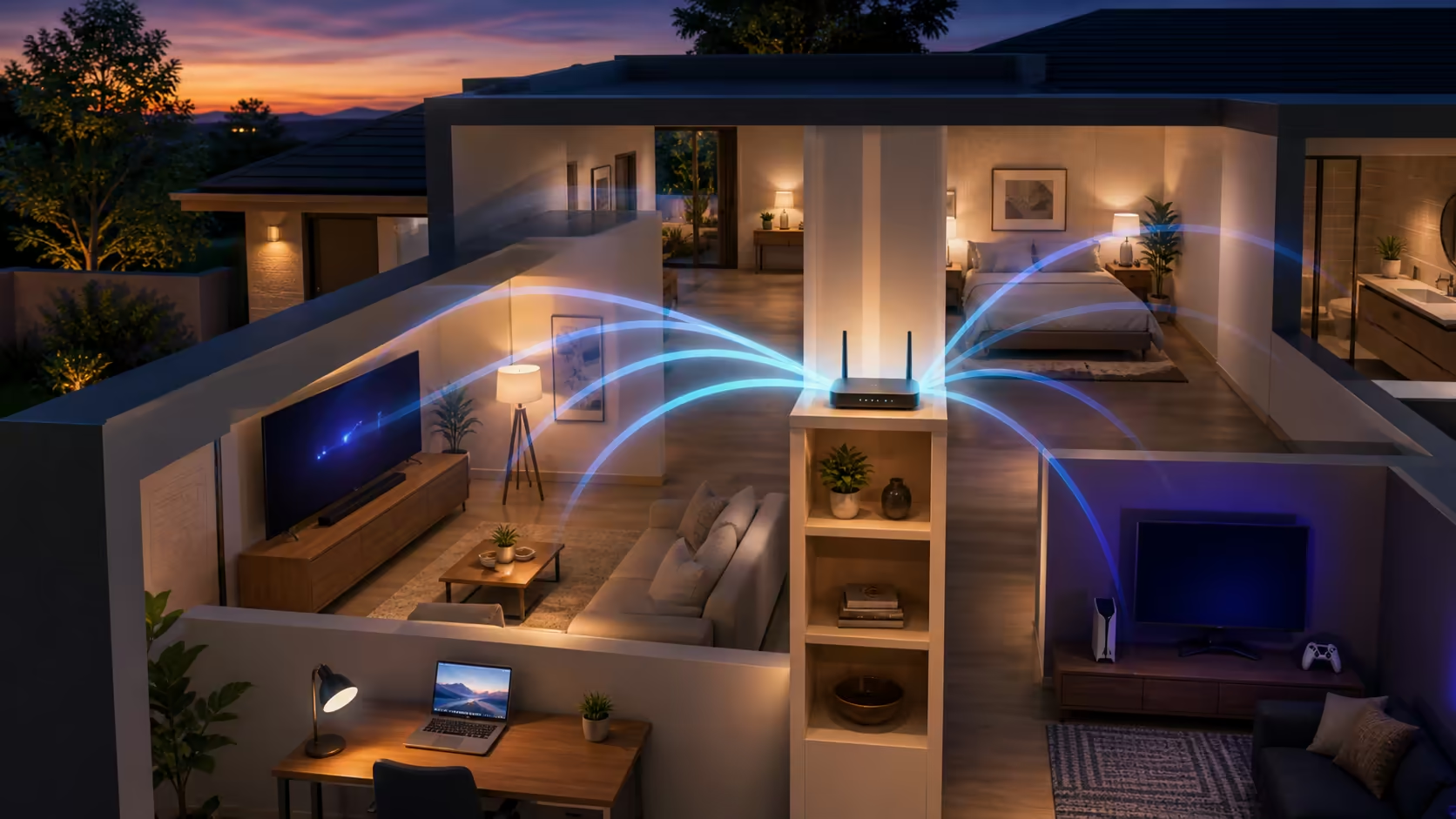
Weak Wi-Fi often starts with the router's position, not the fibre line. A router hidden behind a television, placed on the floor or pushed into an outside corner wastes signal before it reaches the room where you work or play. Moving the equipment and testing methodically costs nothing.
Quick Answer
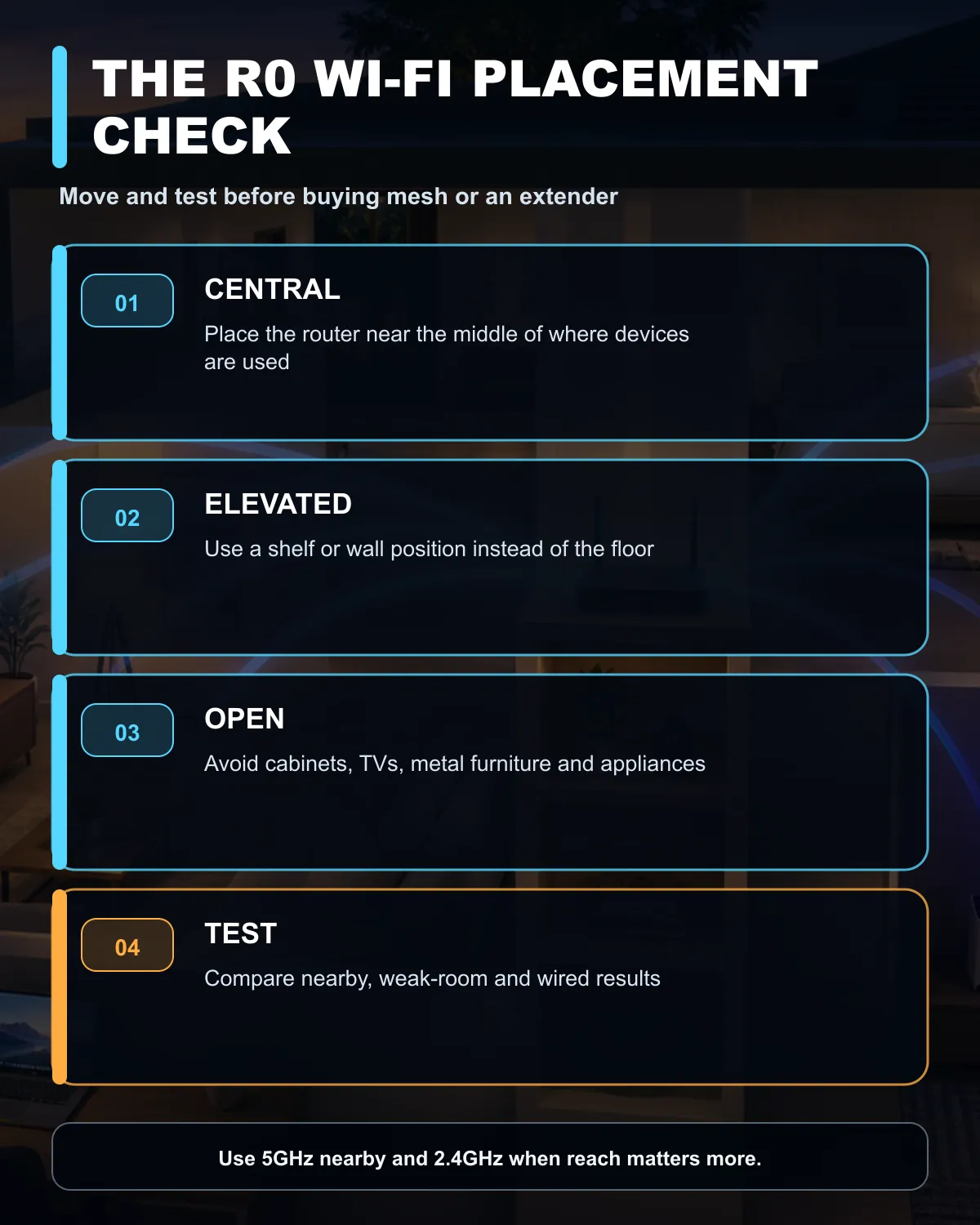
Start with the R0 fix: place the router centrally, high and in the open. Test speed close to the router, then in each problem room. Use 5GHz at short range and 2.4GHz through distance or walls. Change channels only after recording the current setting. Buy mesh or an extender when correct placement still leaves repeatable dead zones.
📍 Move the router before buying hardware
Wi-Fi radiates away from the router. A unit at one edge of the home sends part of its coverage through an exterior wall. A central position shortens the worst distance to the rooms that matter. Central means the middle of your device use, not the exact centre of the building.
Raise the router from the floor and keep it visible. A shelf or wall position gives the signal a clearer path across the room. Closed cabinets trap heat and block radio energy. Televisions, metal furniture, refrigerators, large mirrors and fish tanks can also weaken or reflect the signal.
Keep the router ventilated and away from heat or moisture. Do not stretch a fibre lead around a sharp bend to reach a better shelf. If the cable cannot move safely, ask the service provider whether the termination point or patch lead can be adjusted.
📶 Test 2.4GHz and 5GHz separately
The 5GHz band usually offers more speed over a shorter range. It works well for a nearby laptop, television or console with a clear path to the router. The 2.4GHz band reaches farther and handles some walls better, though it has less bandwidth and often faces more interference.
Give the two networks clear names while testing, if the router allows it. Connect the close devices to 5GHz and the distant or simple devices to 2.4GHz. Some routers combine both bands under one name and steer devices automatically. Keep that feature when it works; split the names only when you need to diagnose a stubborn connection.
Neighbouring routers can compete on the same channel. A router often selects a channel automatically, but the local environment changes as new networks appear. Record the current channel before making a manual change. Test at the same place and time, then restore the original setting if latency or speed gets worse.
🧪 Separate Wi-Fi problems from Internet problems
Run one speed test next to the router and another in the weak room, using the same device and server. A strong result nearby with a sharp fall in the distant room points to Wi-Fi coverage. Slow results in both places may point to the Internet connection, router load or service provider.
Use Ethernet for a comparison when possible. A fast wired result with slow wireless performance narrows the issue to the local Wi-Fi link. Pause large downloads, cloud backups and game updates before testing. Background traffic can make a good connection look broken.
Restarting the router can clear a temporary fault, but repeated restarts are not a long-term fix. Check for approved firmware updates and use a strong Wi-Fi password. Unknown devices can consume capacity and create a security risk.
The networking range is the right place to compare hardware only after these tests. A newer laptop best seller may support a newer Wi-Fi standard, but replacing a computer will not fix poor router placement for the rest of the home.
🏠 When mesh becomes the sensible step
One router may not cover a large, multi-floor or thick-walled home. Mesh uses several nodes to create more coverage points. It works best when the nodes can still communicate over a strong wireless link or use wired backhaul.
Do not place a mesh node inside the dead zone. Put it between the main router and the weak room, where it can receive a good signal and pass it onward. A range extender can fill one targeted gap, while mesh is usually easier to manage across several rooms.
Buy new hardware when the free checks produce the same dead zone on multiple devices. Keep the existing setup when placement and band changes fix the problem. The test result should decide, not the age printed on the router.
Frequently Asked Questions
Where is the best place for a Wi-Fi router?
Use a central, elevated, open spot near the rooms where devices are used, away from large metal objects and enclosed furniture.
When should I use 5GHz Wi-Fi?
Use 5GHz close to the router when higher speed matters and walls or distance do not weaken the link.
When should I use 2.4GHz Wi-Fi?
Use 2.4GHz for greater reach, older devices and rooms where 5GHz becomes unstable through walls.
How can I tell whether fibre or Wi-Fi is slow?
Compare a wired test with a wireless test close to the router. Fast Ethernet and slow Wi-Fi point to the local wireless link.
When should I buy mesh Wi-Fi?
Buy mesh when correct router placement still leaves repeatable dead zones across several rooms or floors.
Still finding dead zones after the R0 checks?
Compare current networking options only after mapping which rooms fail and whether a single extender or a multi-node mesh system fits the layout.