Watching a large game crawl onto your PC is frustrating, especially when the fibre package promises a much bigger number. The Steam download region is one setting worth checking, but start with the units on screen. A speed measured in megabytes cannot be compared directly with a plan advertised in megabits. That mismatch can make a healthy connection look much slower than it is.
Quick Answer
Check Steam Settings, Downloads and the selected download region, then test another nearby region under similar conditions. Compare Mbps with MB/s correctly: 100Mbps equals 12.5MB/s before overhead. These checks cost R0 in new equipment; a CUDY AC1200 travel router was R699 at Evetech on 29 September 2026, but buying one is not a demonstrated fix for a Steam-only slowdown.
📊 Compare matching speed measurements
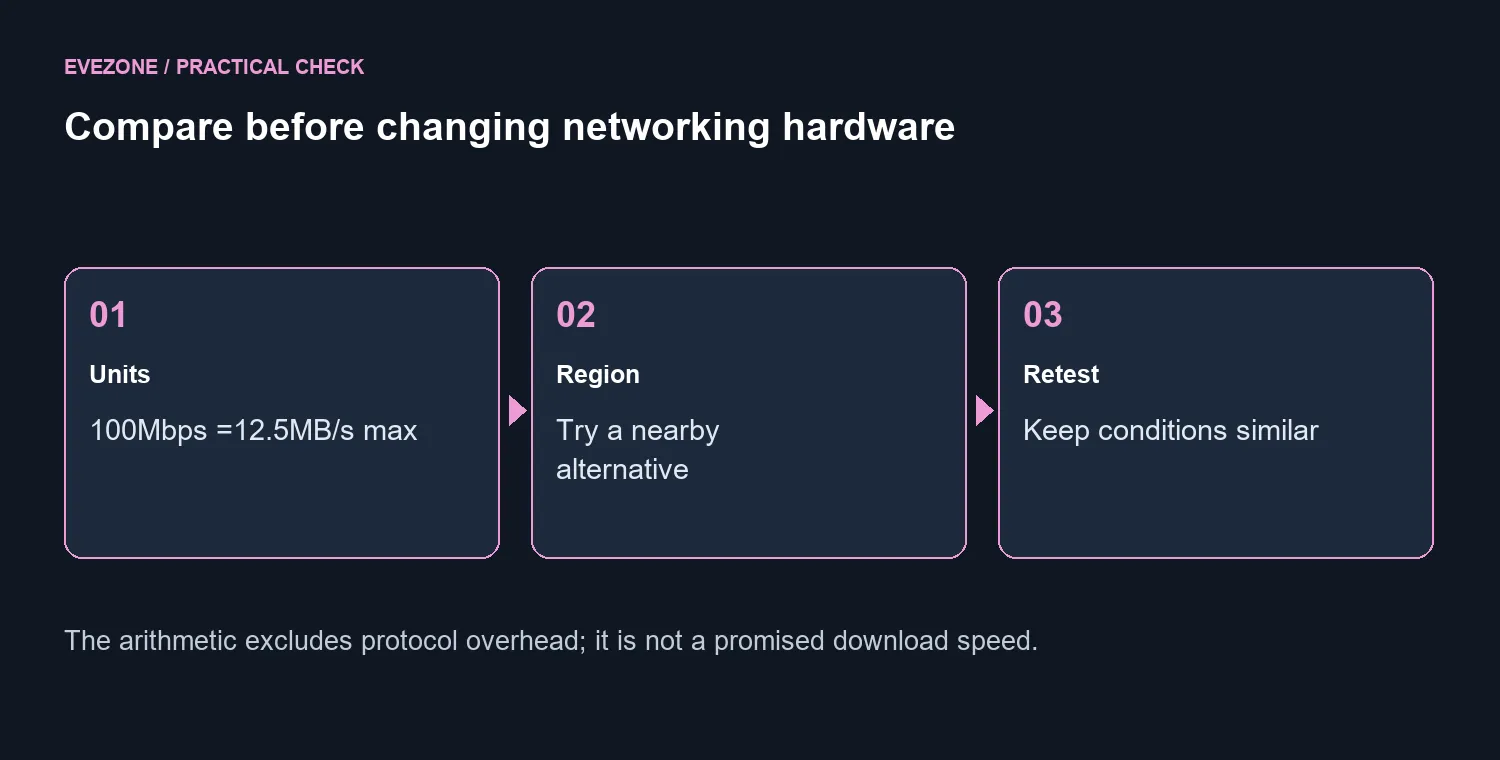
There are eight bits in a byte. Dividing a connection's advertised megabits per second by eight gives a theoretical megabytes-per-second figure before overhead. That arithmetic explains the units; it does not promise that a particular download will sustain the result.
Also distinguish the connection to your local network from the service reaching your home. A fast link between a PC and router does not establish the speed available from an internet content server. Write down what each number represents before deciding which part is underperforming.
Use the same download and similar conditions for a comparison. Pause unrelated large transfers you control, keep the PC in the same position and avoid judging the result from a brief peak. A repeatable pattern is more informative than the highest number you happen to see.
🌍 Test the region without guessing a permanent winner
Valve recommends reviewing the region in the Downloads settings and trying nearby alternatives when performance is poor. Start by noting the current choice so you can return to it. Compare a reasonable alternative rather than changing several network settings at once.
There is no single region established here as fastest for every South African connection. Your route and server conditions can differ from someone else's. A forum recommendation can suggest a test, but your own controlled result should decide whether the change helped.
If every application has connection trouble, broaden the investigation beyond Steam. If the problem is specific to one download service, a new device from the wireless router range may leave the real cause untouched.
🧰 Use the cache step deliberately
Steam's Clear Download Cache control is another supported troubleshooting step. Valve says installed games remain, but you will need to sign in again afterwards. Make sure you can access your account before using it, then repeat the same download test.
Keep security protections in place while investigating. Avoid random registry changes or tools claiming to force maximum speed. A useful support report includes the selected region, time, measured units and whether other downloads behave normally.
Browse fibre routers when you have identified a real networking requirement, such as replacing faulty equipment or meeting a known connection need. The R699 travel-router reference is only a budget comparison, not proof that it fits your fibre installation or removes a content-server limit.
Frequently Asked Questions
Should I multiply or divide to compare the speeds?
Divide Mbps by eight to get MB/s, or multiply MB/s by eight to get Mbps. Remember that protocol overhead lowers practical throughput.
Will clearing the cache uninstall my games?
Valve says it does not affect installed games. It does require another sign-in, so prepare your account access first.
What if changing region makes no difference?
Restore your previous choice and investigate the wider connection and local activity. Keep the observations so you can ask for targeted support rather than buying hardware blindly.
Replace a proven bottleneck, not a disappointing number.
Compare Evetech's networking options once your tests show what the home connection actually needs.