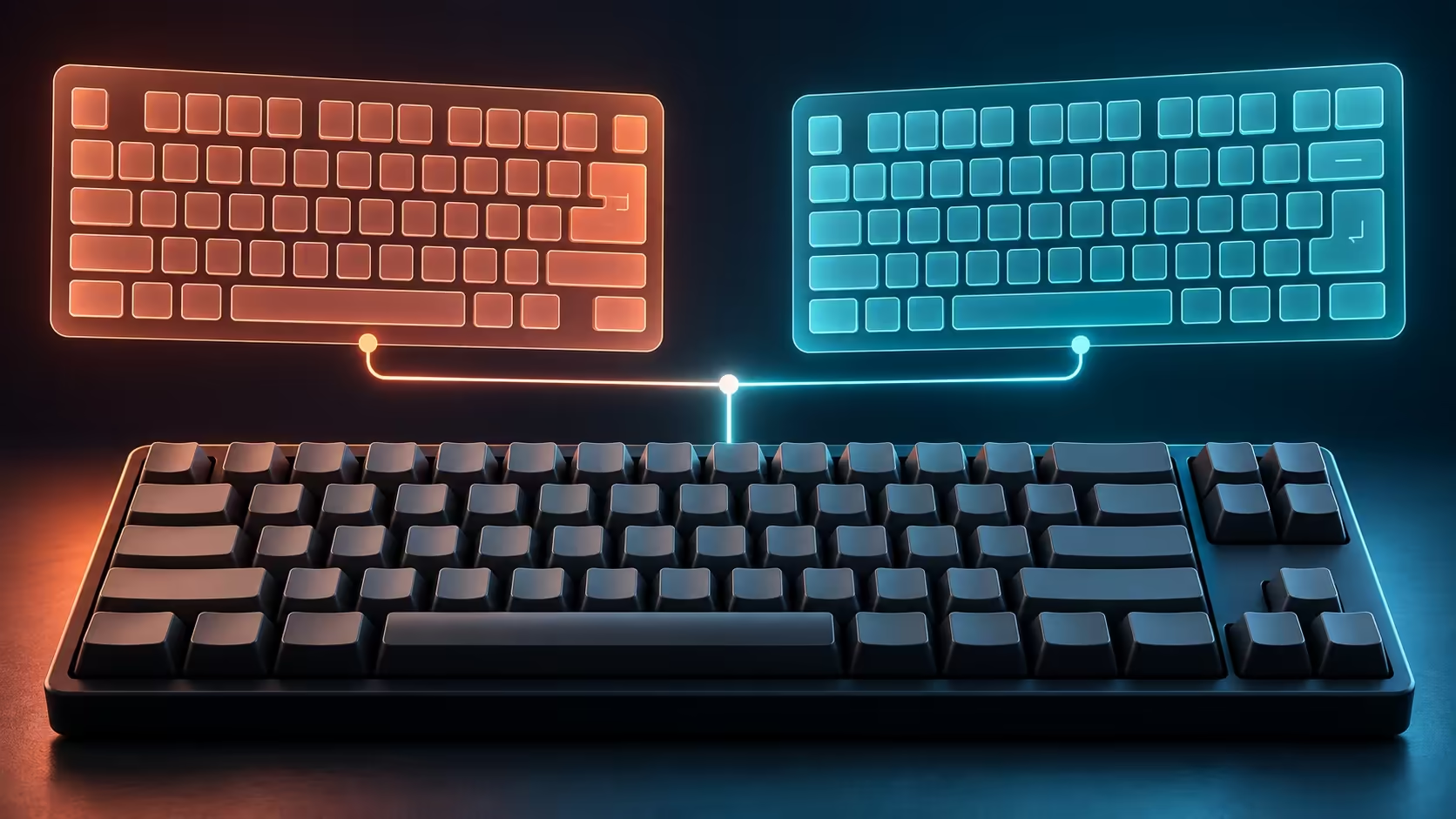
When a key consistently types the wrong symbol, replacing the keyboard can reproduce exactly the same problem. Windows 11 keyboard wrong symbols often comes down to the selected input layout disagreeing with the printed key legends. Start there when the keys respond normally but their characters are unexpected. Missing input or an intermittent connection deserves a different test, so describe the symptom before deciding the keyboard has worn out.
Quick Answer
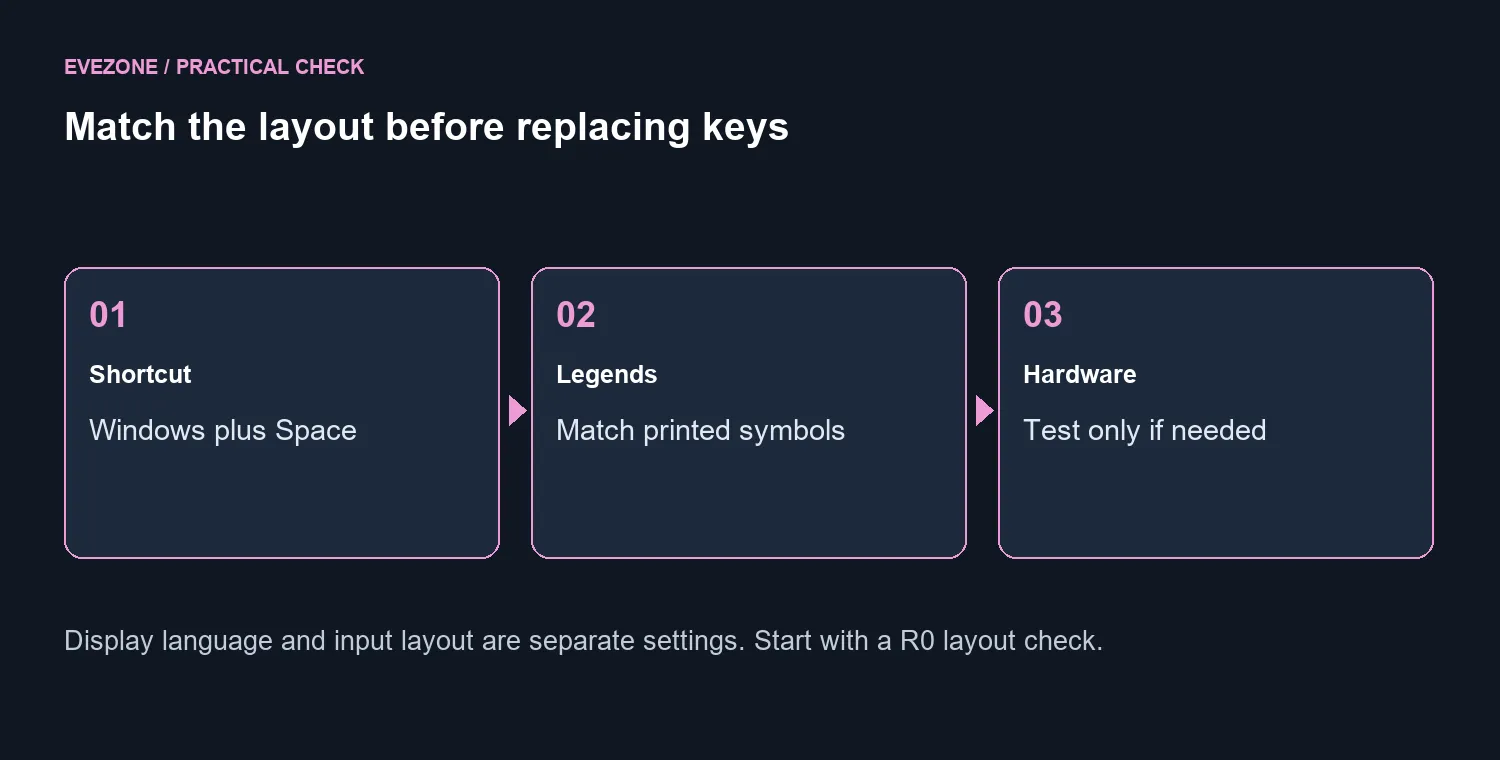
Press Windows plus Space to cycle installed layouts and choose the one matching your key legends. Manage layouts in language options; the input layout is separate from the display language. These checks cost R0 in new hardware, while a basic Logitech K120 was R129 and in stock on 30 September 2026.
⌨️ Match characters in a simple document
Open a plain document and type a few letters and the symbols that are wrong. Then use Windows plus Space and repeat the same keys. A consistent change after switching layouts helps distinguish the mapping from a physically failed key. Keep the application simple so an app-specific shortcut does not confuse the comparison.
Look at the symbols printed on the keyboard, particularly keys used with Shift. Do not choose a layout only because its name resembles your Windows menu language. Layout determines character mapping; the language used for menus is a separate setting. Matching the printed legends is the practical aim of this check.
⚙️ Keep the intended layout available
Open Settings, Time and language, Language and region, then the chosen language's options to manage keyboard layouts. Add the one you need before removing an unwanted option. If removal is unavailable, check whether it is the remaining layout rather than repeatedly clicking a disabled control.
Be especially careful at sign-in. After a display-language change, the sign-in layout can differ from what you expect. Inspect the selected input before entering credentials; repeated failures caused by a symbol mismatch do not establish that the account password changed. Test ordinary characters in a safe document after signing in, never by exposing a password in plain text.
🔧 Test hardware only when the symptom fits
If a key produces nothing, or the device repeatedly disconnects, check the physical connection. Try a direct USB port without the hub, reconnect the device and check batteries for a wireless keyboard. Testing on another computer can help distinguish the device from the first machine's settings.
Changing the layout cannot repair a broken cable, just as a new keyboard cannot automatically correct a wrong input mapping. Follow the branch that matches the observation. A few controlled checks are more informative than replacing parts while changing several Windows settings at the same time.
The Logitech K120 price was R129 on 30 September 2026, with local stock shown. That is a basic replacement reference once hardware failure is established. Start by comparing keyboard best sellers and available keyboard layouts only if you need a replacement or a different physical layout for your work.
Frequently Asked Questions
Must I change Windows display language to fix the mapping?
No. Input layout and display language are separate. Select the layout matching your keyboard without changing the menu language just to test a symbol.
Is Windows plus Space a hardware repair?
No. It switches installed input layouts. It is useful when responding keys produce unexpected characters, while missing or intermittent input needs connection checks.
Should I remove every other layout immediately?
Keep the intended layout available and test it first. Remove unwanted options only after confirming which mapping you need, especially on a computer shared by people using different keyboards.
Fix the character mapping before replacing the keyboard.
Match the legends, repeat a simple typing test and reserve hardware spending for a fault you have isolated.