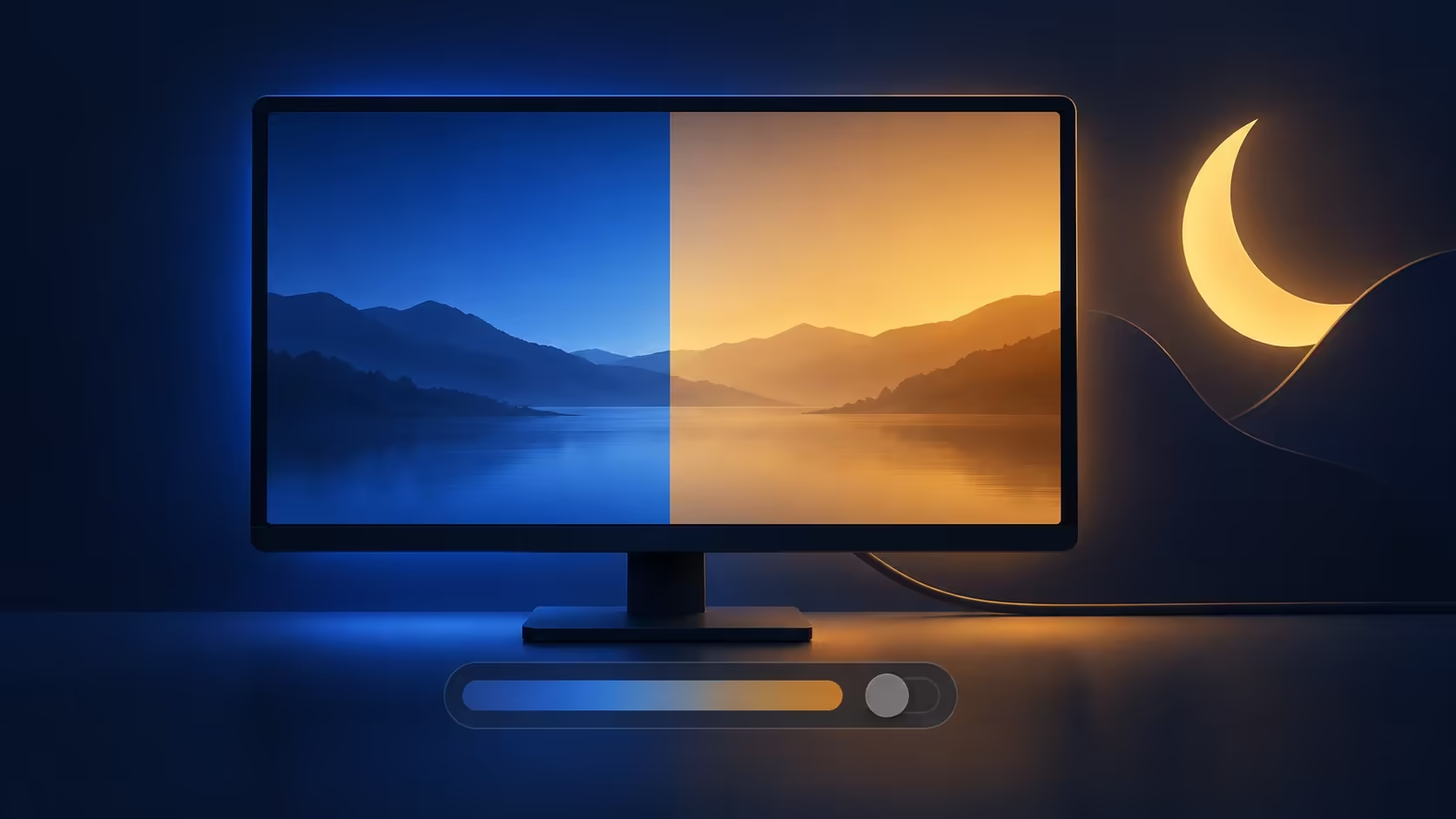
A disabled colour setting can make a working monitor look like the wrong purchase. Windows 11 night light greyed out usually needs a display-driver or support check before it needs a shopping basket. The first useful distinction is between a toggle you cannot use and a toggle that works but gives HDR content an unwanted tint. Those symptoms lead to different checks, and neither establishes on its own that the screen has failed.
Quick Answer
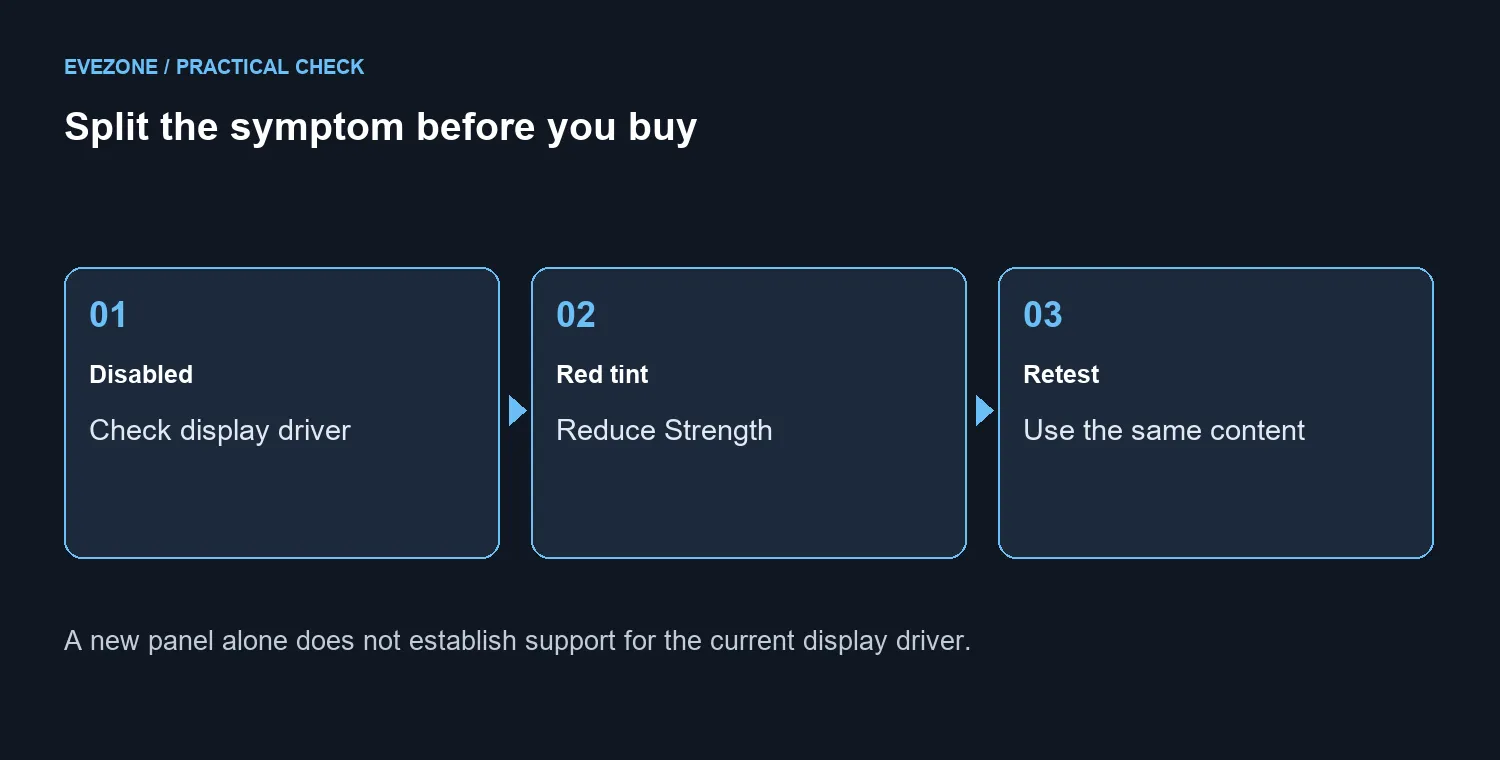
Check the display driver when night light is disabled; certain DisplayLink and Basic Display drivers do not support it. If the control works but HDR looks red, reduce Strength or turn night light off and compare again. Start with R0 hardware checks, rather than replacing a panel to solve a software limitation.
🖥️ Find the control and describe the symptom
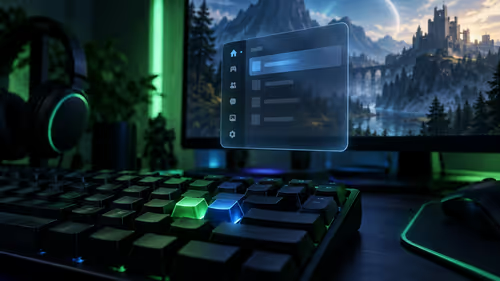
Open Settings, System and Display, then select Night light. Is the switch disabled, does it switch on without the expected change, or is the colour warmer than you wanted? Write down that observation before changing settings. A useful diagnosis describes what happens instead of treating every night-light problem as the same failure.
If the control works, inspect its Strength and scheduling options. Test a manual change before blaming the schedule. Keep the same screen and content in view so you can see whether that change has an effect, rather than comparing two different scenes with different colours.
🔌 Check the driver before the panel
Microsoft points to display-driver updates when the setting is greyed out and notes support limitations with certain DisplayLink and Basic Display drivers. Check which driver and display path are in use. A dock or adapter is part of that path, so changing only the screen may leave the same limitation in place.
Use the supported driver route for your device and note the state before and after the change. When practical, compare a direct display connection with the existing docked arrangement. This is an isolation step, not proof that every dock is incompatible. Keep only one change between tests so the result has a clear explanation.
🎨 Retest HDR colour before buying hardware
For a red tint with HDR, reduce night-light Strength or switch night light off and view the same content again. A colour transform deliberately changes the picture, so its effect must be separated from the question of whether the panel is working. Do not use an enabled warm tint as the only basis for declaring a colour fault.
The Dahua LM24-A221Y was R1,699 and listed in stock on 30 September 2026. That is a dated local price reference, not evidence that replacing your current monitor with it restores driver support. The initial settings and driver checks require no replacement hardware and can prevent an unnecessary purchase.
Compare gaming monitors only once you know what capability or failure you need to address. Monitor specials help with a genuine replacement budget, but a lower price cannot answer a driver-support question. Keep the symptom and proposed fix connected.
Frequently Asked Questions
Can the monitor be fine while the setting is unavailable?
Yes. Driver support can limit the control even when the display works. Diagnose the software and connection path before assuming panel failure.
What if the problem is a red HDR picture?
Reduce Strength or turn night light off, then compare identical content. A working control that changes colour is a different symptom from a greyed-out switch.
Will manually setting hours fix driver support?
No. Scheduling controls when a supported feature runs. Confirm that manual switching works before spending time on the schedule.
Identify the display problem before spending on a panel.
Keep driver support, scheduling and HDR colour checks separate, then choose hardware only for a confirmed need.