A pointer that feels difficult to place does not immediately justify a different mouse. Windows Enhance pointer precision is one built-in control worth comparing before you change hardware. The useful test is a familiar desktop task with the other settings kept steady, so you can tell whether the preference actually helps.
Quick Answer
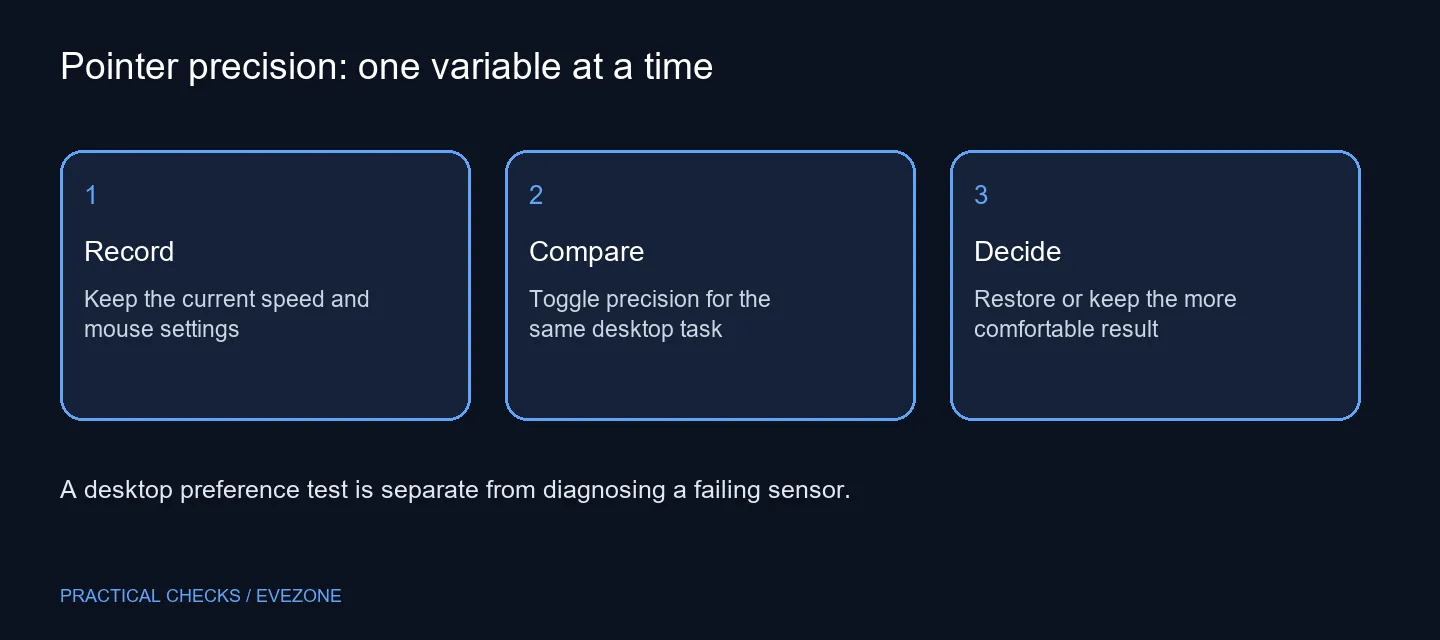
Open Settings > Bluetooth & devices > Mouse, then Additional mouse settings > Pointer Options and find Enhance pointer precision. Record its current state, compare on and off, and keep pointer speed unchanged during the test. The adjustment costs R0 in extra hardware; it is not a promise of improved aiming in every game.
🖱️ Start with the motion you are trying to improve
Choose a simple task, such as selecting a small toolbar button or placing the pointer between two nearby controls. Repeat the same movement at the normal screen layout. A vague feeling after several unrelated tweaks is difficult to use, while a repeatable task makes a preference change easier to judge.
Write down your mouse's current sensitivity and Windows pointer speed. Leave both alone while comparing the precision checkbox. Moving a slider, changing the mouse profile and toggling the checkbox together may feel different, but it hides the reason.
🎯 Compare the desktop separately from a game
Apply the new choice and repeat the task with the same mouse surface and seating position. Try ordinary movements rather than forcing an unfamiliar technique. Keep the setting only if it makes the work more comfortable; restore the original state if control becomes less predictable.
A game may offer its own sensitivity or input mode. Check that game's documentation and settings before concluding that the Windows preference governs its aiming. Avoid copying a competitive player's numbers as if they were a universal fix for desktop navigation.
Pointer visibility is another issue. If you lose sight of the cursor, adjusting its size or colour may address the problem more directly than changing how movement feels. Likewise, duplicate clicks and scroll faults need their own checks. The motion preference does not explain every symptom a mouse can produce.
🧰 Spend only after the comparison gives you a reason
There is no need to install a tuning application for this setting. Use the built-in controls, preserve the starting position and compare again after returning to your usual applications. On a shared PC, explain a changed preference to the next person rather than leaving them to discover an unfamiliar feel.
If the mouse remains uncomfortable because of its physical shape, browse gaming mice with grip and hand position in mind. Evetech's 15 October catalogue lists the Marvo M292 BK CAPO 20 at R119, a dated example rather than proof that it fits your hand better.
Keep the rest of the desk in view too. Reaching awkwardly around a wide keyboard can affect comfort even when the pointer setting is suitable; gaming keyboards offers layout context if desk space is the real issue. Replace equipment for a demonstrated fit or hardware need, while leaving a working device in place when a preference change solves the task.
Frequently Asked Questions
Where can I find the precision checkbox?
Open Mouse settings, then Additional mouse settings and Pointer Options. Windows builds can also expose controls on the newer settings page.
Should I change pointer speed at the same time?
Keep it fixed for the first comparison. Otherwise you will not know which change produced the difference you noticed.
Is there one correct setting for everyone?
No. Choose the result that makes your normal desktop tasks comfortable and repeatable.
Does this prove the mouse sensor is faulty?
No. A changed motion preference is not a hardware diagnosis. Investigate physical faults separately if symptoms persist.
Will it change every game's aiming?
Do not assume so. Games can process mouse input differently; check the particular game's supported input options.
Do I need a paid utility?
No extra utility is needed to adjust the built-in Windows control. The settings test adds R0 in hardware spending.
Make the pointer feel right for your hand.
Compare the Windows control first, then use Evetech mouse options only if physical fit or a proven fault still needs attention.