A word choice appearing beside your typing can be helpful when you want it and distracting when you do not. Windows text suggestions lets you choose whether a physical keyboard is accompanied by those suggestions. Start with the Windows switch, then check the application where you actually write.
Quick Answer
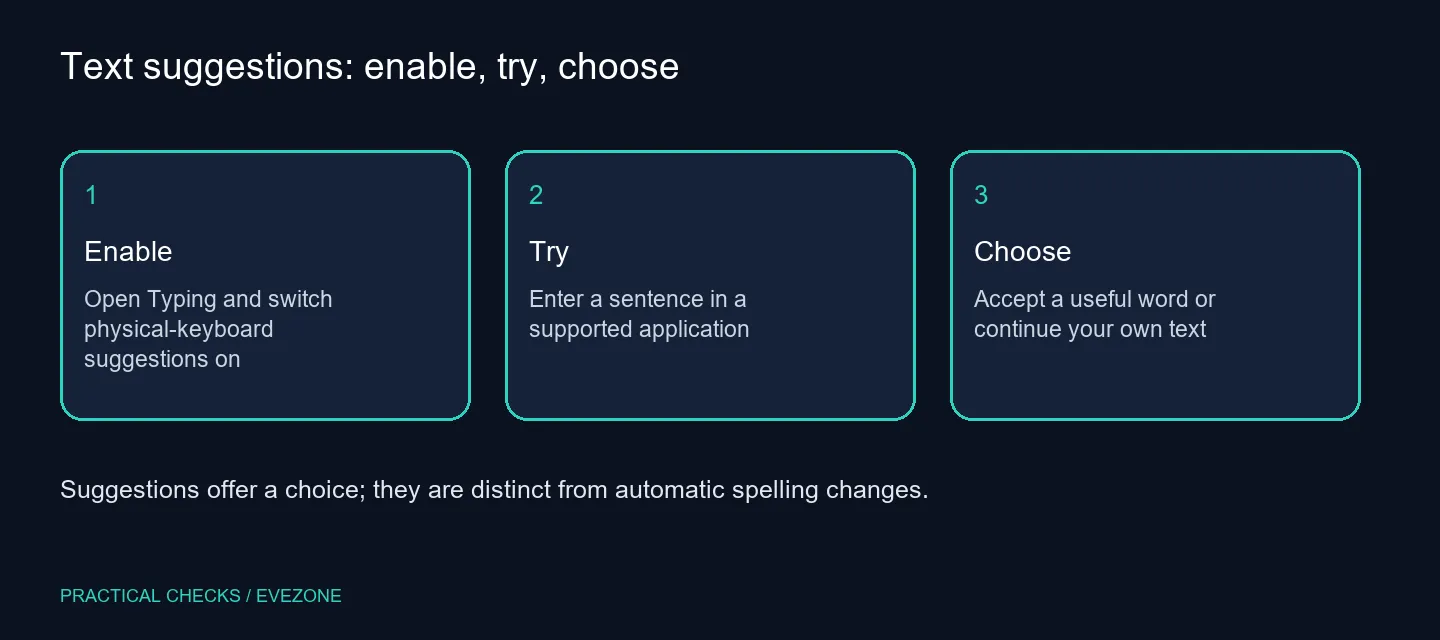
In Windows 11, open Settings > Time & language > Typing and enable Show text suggestions when typing on the physical keyboard. Type a short sample in a supported app, then select a useful suggestion or keep writing your own words. The change requires R0 in new hardware and should not be confused with autocorrect.
⌨️ Turn on the control for the keyboard you use
The wording matters: this setting concerns a physical keyboard, not merely the on-screen touch keyboard. Open Typing and look for the full switch name before changing nearby options. If several writing aids are visible, leave the others at their present values for the first test.
You can use an ordinary built-in laptop keyboard or an external keyboard. There is no special switch technology required for the Windows preference. A replacement mechanical board will not make a disabled writing feature appear by itself.
📝 Test suggestions as a choice
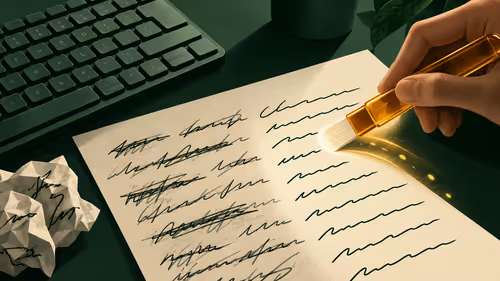
Enter a short sentence in an application that supports the feature. Watch for the suggested words, then deliberately choose one you want to insert. Continue typing normally when none fits. The point is to reduce work where the suggestion is useful, not to accept every word the interface offers.
Use a sentence without private details while you learn the behaviour. That makes it easier to compare the result and avoids turning a test into a document you later need to clean up. Try the same simple sentence in another supported application if the first app does not show a suggestion.
Some applications offer their own prediction, grammar or completion tools. Those controls can differ from Windows settings, so identify which interface is presenting the word. A browser extension or an editor's own feature should be checked inside that product instead of repeatedly switching the Windows option.
🔎 Keep writing assistance separate from key faults
If letters are missing or the wrong keys appear, note that separately. Suggestions help you choose words; they do not establish that the keyboard is sending the right characters. Test plain typing before treating a useful prediction as proof that the input hardware is healthy.
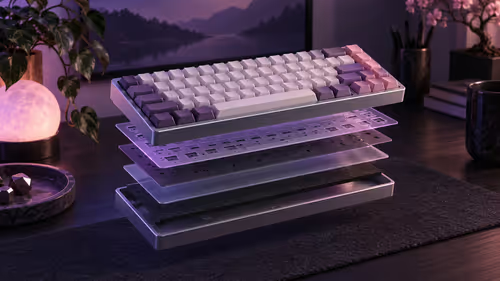
For someone shopping because the current layout is cramped, gaming keyboards can help compare key spacing and the keys needed every day. The local 15 October catalogue also lists the Logitech K120 wired keyboard at R129 as a basic price reference. That purchase is optional and unrelated to enabling suggestions.
A laptop buyer can check asus laptops for complete-machine context. Try the writing experience with the intended screen scale and keyboard before choosing a computer on the assumption that a software aid will make every layout comfortable.
Keep the feature enabled only if it helps your own writing. If it breaks concentration, turn the physical-keyboard suggestion switch off and continue normally. On a managed computer, ask the administrator about a restricted control; changing system policy is unnecessary for an ordinary preference test.
Frequently Asked Questions
Where is the physical-keyboard suggestion switch?
Go to Settings > Time & language > Typing and enable Show text suggestions when typing on the physical keyboard.
Does a suggestion replace my word automatically?
Suggestions are offered for you to select. Automatic spelling replacement is a different setting and may also be controlled by the app.
How should I test the setting?
Type an ordinary sentence in a supported app and check whether word choices appear. Use non-sensitive sample text for the test.
Do I need a new keyboard?
No. This is a Windows typing feature. A keyboard purchase is relevant only if you have a separate fit or hardware problem.
Will every application look the same?
No. Applications can provide their own writing tools, and support for Windows suggestions can vary.
Can I turn the suggestions off again?
Yes. Return to the Typing switch and disable it if the choices distract you. No paid tool is required for this R0 settings change.
Choose writing help that stays out of your way.
Try physical-keyboard suggestions first, and compare Evetech keyboard layouts separately if comfort is the reason you are shopping.