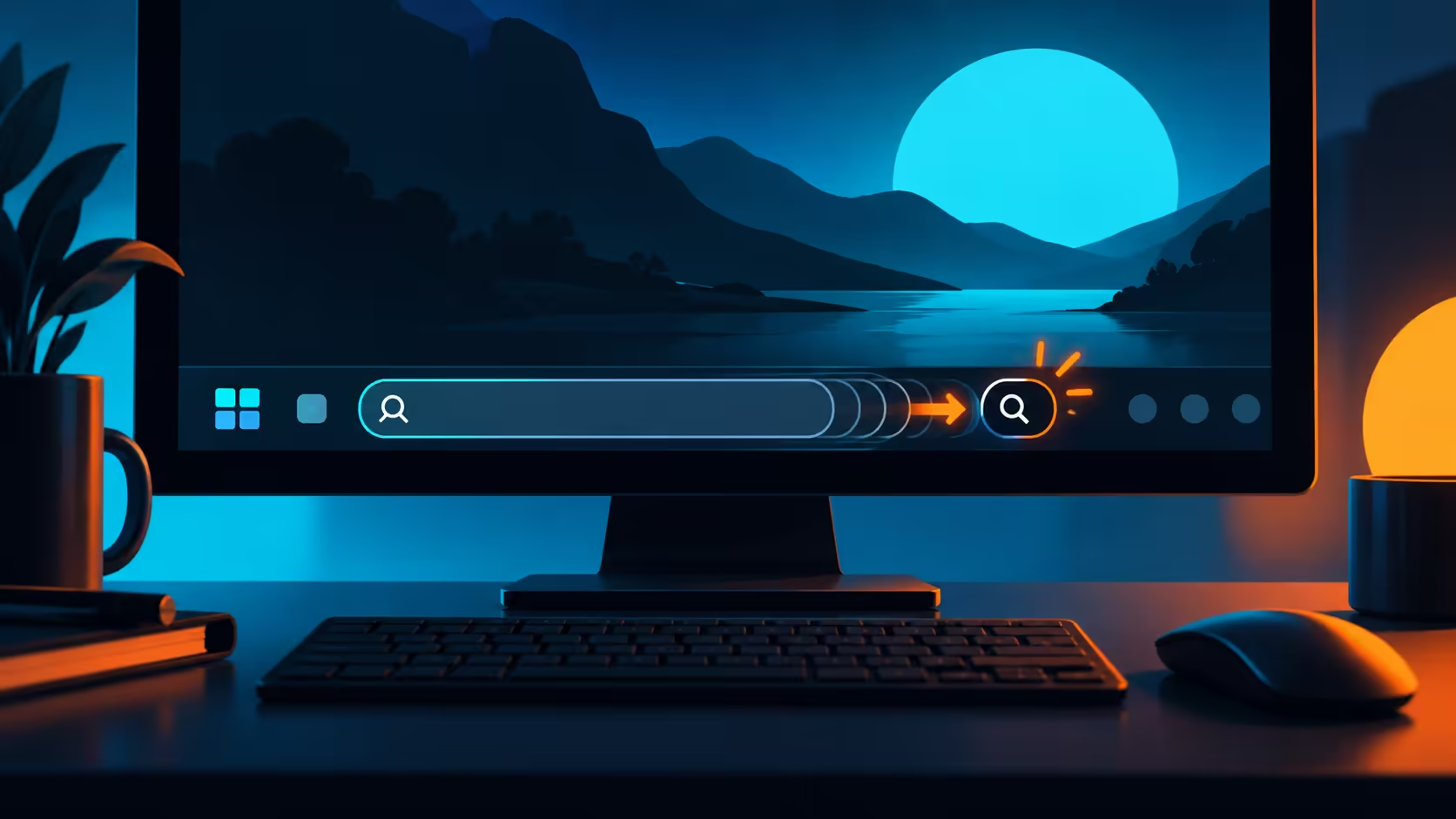
A wide search field can occupy space you would rather use for pinned applications. Windows taskbar search box options let you choose a smaller display or hide it, while keeping a keyboard route into search. Start with that preference before deciding the desktop needs a different screen.
Quick Answer
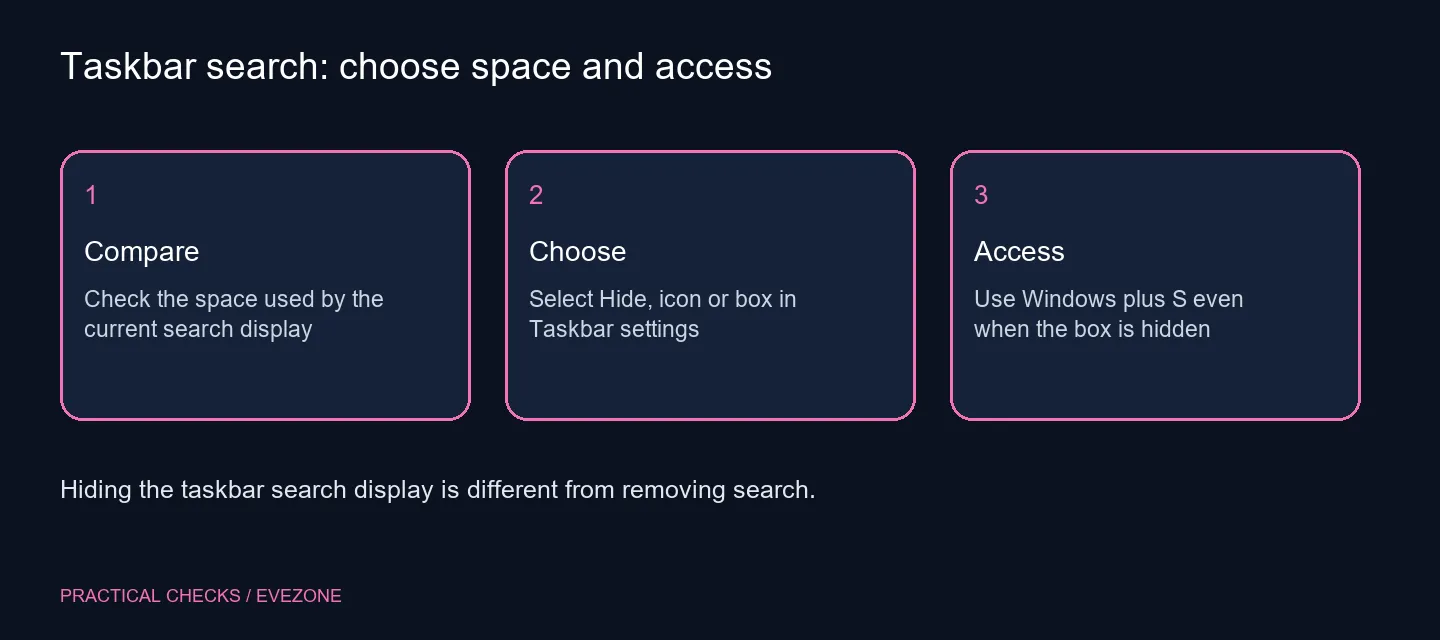
Right-click the taskbar, choose Taskbar settings and find Search under taskbar items. Select Hide, Search icon only, Search icon and label, or Search box where those options are offered. Press Windows plus S to search even when the box is hidden. This layout change adds R0 in new hardware.
🔎 Decide whether you want visibility or space
A box is easy to spot and gives occasional users an obvious place to begin. An icon leaves more room for other taskbar items. Hiding the display suits someone who already uses a keyboard shortcut. None of those preferences is universally best; choose the one that makes your own desk easier to use.
Open the menu and change one display choice at a time. Look at the taskbar with your usual applications open, rather than judging an almost empty desktop. The benefit you are checking is usable space and a familiar route to search.
⌨️ Try the shortcut before hiding the entry point
Press Windows plus S and enter a harmless application name. Make sure you can reach the search interface comfortably with the keyboard you use every day. Once that route is familiar, hiding a box is less likely to leave you looking for a missing control.
You can also open Start and begin typing. Keep those access routes in mind on a laptop where the taskbar fills quickly. If another person shares the computer and relies on the visible field, agree on the change or leave an icon that remains easy to recognise.
The available wording can differ across Windows versions, updates and managed configurations. Use the choices actually shown on your device. An absent option is a reason to check the supported build or administrator policy, rather than installing a taskbar patcher for a minor layout preference.
🖥️ Judge the whole workspace before buying a screen
Hiding search does not create more display pixels or reduce the space taken by an application window. It changes one taskbar element. If your spreadsheet still feels cramped, examine application zoom, window layout and the actual resolution as separate questions.
Use gaming monitors when a larger or sharper display would solve a demonstrated workspace need. Compare physical size and desk fit as well as resolution. A search-box preference alone is not evidence that an existing monitor has become inadequate.
Likewise, gaming keyboards is useful if the keyboard layout makes Windows shortcuts awkward. Evetech's 15 October catalogue lists the Logitech K120 at R129 as a dated basic-keyboard reference; no replacement is needed simply to change a taskbar option.
After several normal work sessions, keep the smaller display if it helps. Restore Search box when the visible field proves more convenient. Treat the result as a practical interface preference, without claiming a performance gain that has not been measured.
Frequently Asked Questions
Where do I change the search box?
Right-click the taskbar and open Taskbar settings. Under taskbar items, use the Search display options available on your Windows build.
Can I keep just an icon?
Yes, supported Windows 11 builds offer Search icon only, alongside other display choices.
Does Hide remove Windows Search?
No. It hides the taskbar display. Windows plus S still opens search.
How do I restore the box?
Return to Taskbar settings and select Search box if that option is available on the device.
Will changing this speed up the PC?
This is an interface-space choice. It is not evidence of a measured performance improvement.
Do I need a wider monitor?
Try the R0 display preference first. Buy a different monitor for a demonstrated workspace need rather than the search box alone.
Give your taskbar the space it needs.
Try the built-in search display choices, then compare Evetech monitors only if the wider workspace still needs a hardware change.