A taskbar button is useful only if it is the way you actually reach a feature. The Windows Task View button can be hidden while you continue opening Task View with a keyboard shortcut. Learn that route first, then decide whether the visible button earns its space.
Quick Answer
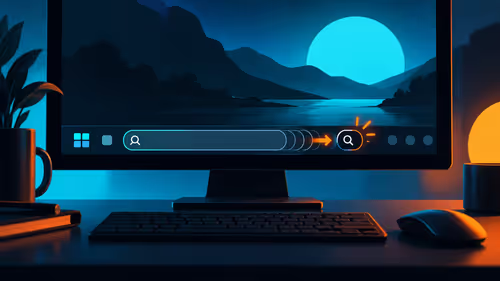
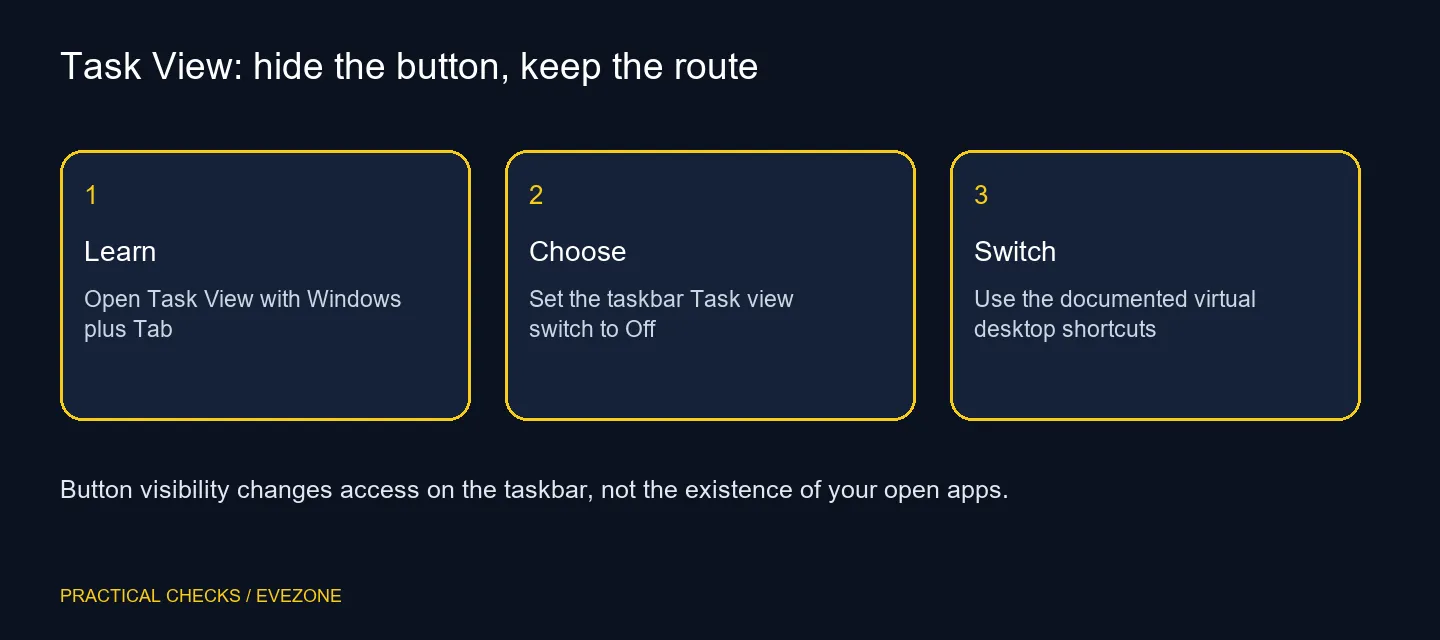
Open Taskbar settings and switch Task view off under taskbar items. Press Windows plus Tab to keep accessing Task View, and use Windows plus Ctrl plus Left or Right arrow to move between existing virtual desktops. Hiding the button does not close your apps or require new hardware; the preference adds R0 in equipment spending.
🪟 Try the alternative access route first
Press Windows plus Tab while a few ordinary applications are open. Identify the window and desktop controls before changing the taskbar. A shortcut is useful only when you can remember it and reach the keys comfortably during normal work.
If you prefer clicking a visible button, leave Task view enabled. Clearing taskbar space is optional, and losing a familiar route can create more friction than the small amount of space saves. There is no reward for hiding a control you use regularly.
⌨️ Keep window selection and desktop switching clear
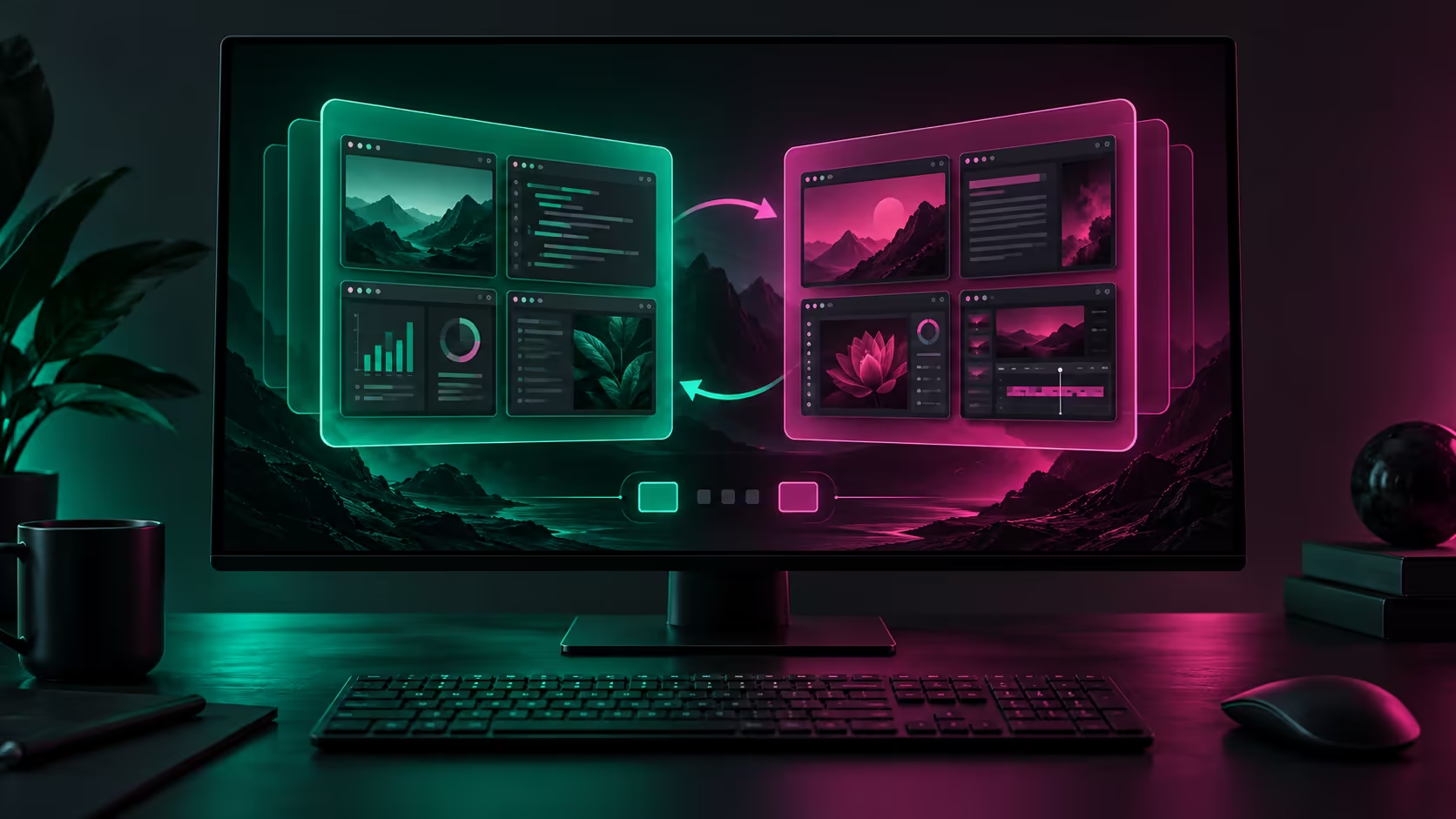
Task View gives you a view of windows and virtual desktops. Microsoft separately documents the shortcuts for switching between desktops. Try those only after confirming that multiple desktops exist, so an unchanged screen is not mistaken for a broken keyboard shortcut.
Windows plus Ctrl plus Left or Right arrow moves between virtual desktops. Keep the modifier keys pressed for the intended combination and test in an ordinary workspace. Do not interpret a desktop change as an application being closed; the workspace and the application are different things.
For someone new to multiple desktops, create a simple arrangement with recognisable applications before hiding access controls. A personal naming scheme can help you keep work areas understandable. Avoid moving important unsaved work around while learning unfamiliar controls.
🧭 Change visibility without adding a customisation tool
Right-click the taskbar to reach its settings, then use the built-in Task view switch. Apply only that preference and confirm Windows plus Tab still opens the interface. If you dislike the result, return to the same switch and enable the button again.
Managed computers may restrict layout choices. Ask the administrator about a missing or unavailable switch rather than installing a third-party taskbar replacement for this one task. A restricted interface preference is not a diagnosis of a failing computer.
On a shared machine, explain the hidden button and demonstrate the shortcut. A visible button may remain the better option for another person's workflow. Familiar access matters more than making every taskbar look identical.
If keyboard reach is the underlying issue, compare layouts in gaming keyboards. The dated 15 October Evetech catalogue lists a Logitech K120 at R129, but a purchase is separate from enabling or hiding Task View. Use gaming monitors when physical display space is the real constraint.
Keep the arrangement that remains easy after a normal day's work. Hiding the button is a reversible layout choice, and the ability to restore it is part of a useful setup. No performance or productivity improvement should be assumed from the smaller taskbar alone.
Frequently Asked Questions
How do I hide the Task View button?
Open Taskbar settings and turn Task view off under taskbar items. The exact appearance can vary with the Windows build.
Can I still open Task View?
Yes. Press Windows plus Tab to open the interface after hiding the taskbar button.
How do I move between virtual desktops?
Windows plus Ctrl plus Left or Right arrow switches between virtual desktops. Check that you have more than one desktop first.
Does hiding the button close my applications?
No. The taskbar visibility switch is not an instruction to close running applications.
Should I keep the button on a shared PC?
Keep a visible route if another user relies on it. Agree on the preference before changing a familiar shared workspace.
Is extra hardware required?
No. This is a built-in Windows layout choice with R0 additional hardware cost.
Keep desktop switching easy to reach.
Try Windows plus Tab before hiding the button, then compare Evetech desk hardware for any separate comfort or display need.