If your Windows pointer jumps to default button whenever a dialog opens, a preference may explain the movement. Snap To is designed to bring the pointer to the dialog's default action. That can save effort for someone who likes the behaviour, but feel distracting when you expect the pointer to stay where you left it.
Quick Answer
Open Mouse Properties, choose Pointer Options and clear the Snap To checkbox labelled Automatically move pointer to the default button in a dialog box. Apply the change and reopen the same dialog. This R0 check comes before buying hardware; a separate MARVO WS005 combo was R179 on 9 October 2026.
🖱️ Find the preference behind the movement
In Windows 11, open Settings, Bluetooth & devices, Mouse and Additional mouse settings. The older Mouse Properties dialog contains Pointer Options. Look for Snap To and read the checkbox description before changing anything. Keep pointer speed and the other visibility preferences at their existing values so the next comparison has one clear variable.
The option changes where the pointer moves when a dialog appears. It does not automatically press OK or Apply, and it is not the setting that controls movement speed across the desktop. This distinction helps when somebody describes the computer as clicking by itself. Watch the pointer and the button separately, then describe which action actually occurred.
🔍 Repeat the same dialog test
Switch Snap To off, apply the change and reopen a dialog that previously caused the jump. Keep your hand still long enough to observe its initial position. Repeat that action rather than moving immediately to a different programme. Microsoft notes that some applications may not support the feature, so different behaviour between apps does not establish that the mouse is faulty.
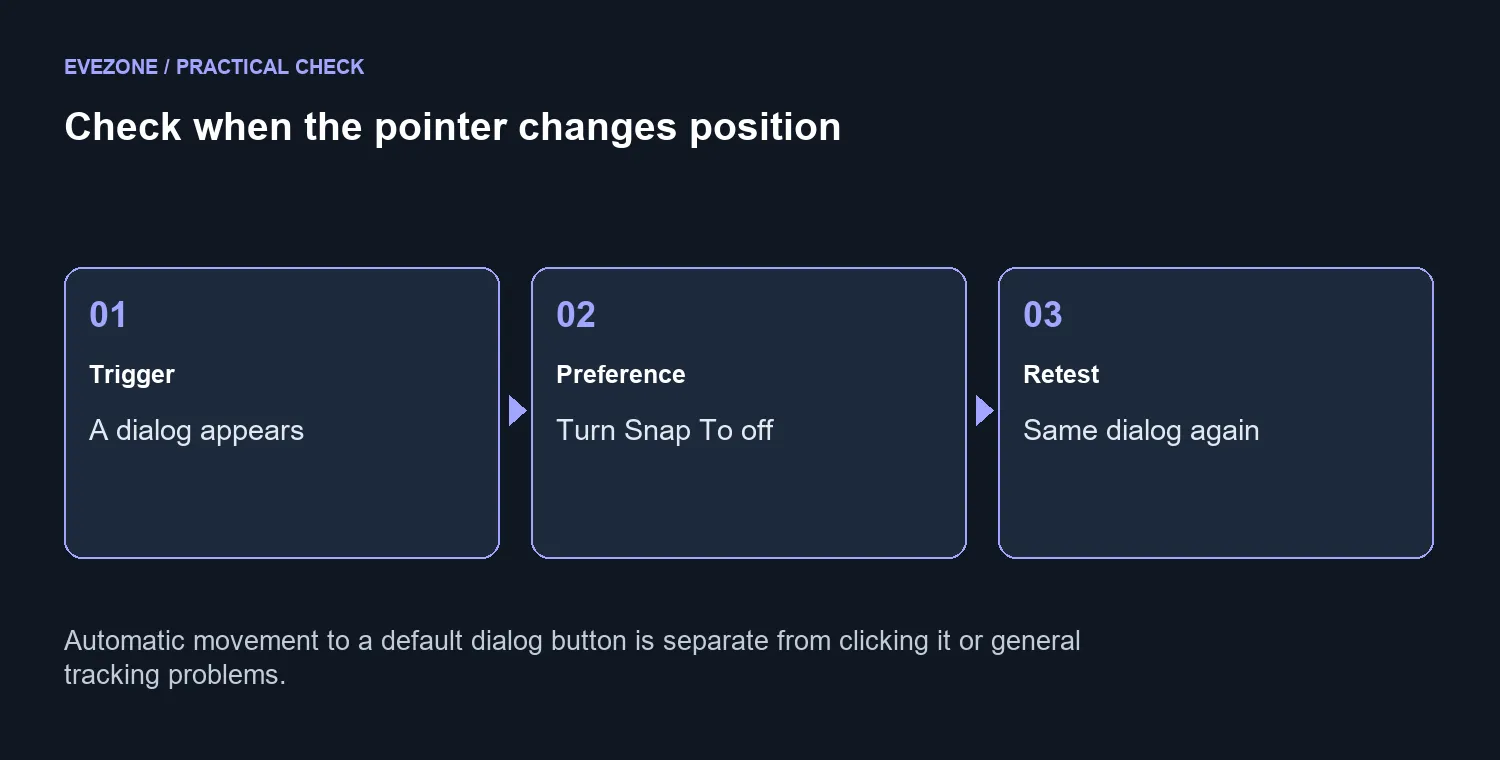
If the movement stops for the same dialog, decide whether you prefer the calmer pointer position or the convenience of the enabled feature. You can restore the preference if the automatic positioning was useful. A shared PC deserves a quick conversation before changing an accessibility preference that another person relies on during everyday work.
💡 Separate a preference from a tracking problem
Movement that happens without a newly opened dialog is outside this narrow test. Note the application, the timing and whether your hand was on the device when it happened. A repeatable observation gives the next troubleshooting step a useful starting point. Do not keep changing unrelated mouse controls simply because one preference did not explain a different symptom.
Compare gaming mouse options by grip, reachable buttons and the connection your PC can use if a separate hardware need remains. Keyboard and mouse bundles provide another route when both devices need replacing. The dated R179 combo is a budget reference, while the preference check itself costs R0. Keep a working mouse when the setting already explains the movement, and spend only after identifying what the existing hardware cannot do comfortably.
Frequently Asked Questions
Where is Snap To?
Open Mouse Properties and select Pointer Options. The Snap To checkbox controls automatic movement to the default dialog button.
Does it click OK for me?
No. The preference moves the pointer to the default button. You still choose whether to activate that control.
Why does it happen only in some apps?
Microsoft notes that some applications may not support the feature. Compare the same supported dialog before drawing a conclusion.
Does switching it off slow the mouse?
No. Snap To is separate from the pointer movement speed setting. Keep speed unchanged while testing.
Does every unexpected jump mean Snap To?
No. Movement without a newly opened dialog needs its own investigation. Start by recording when the pointer moves.
What does the first check cost?
Changing the preference costs R0. The MARVO WS005 combo at R179 on 9 October is a separate local hardware reference.
Keep pointer movement predictable. Compare Evetech mouse choices only when the remaining problem points to hardware.