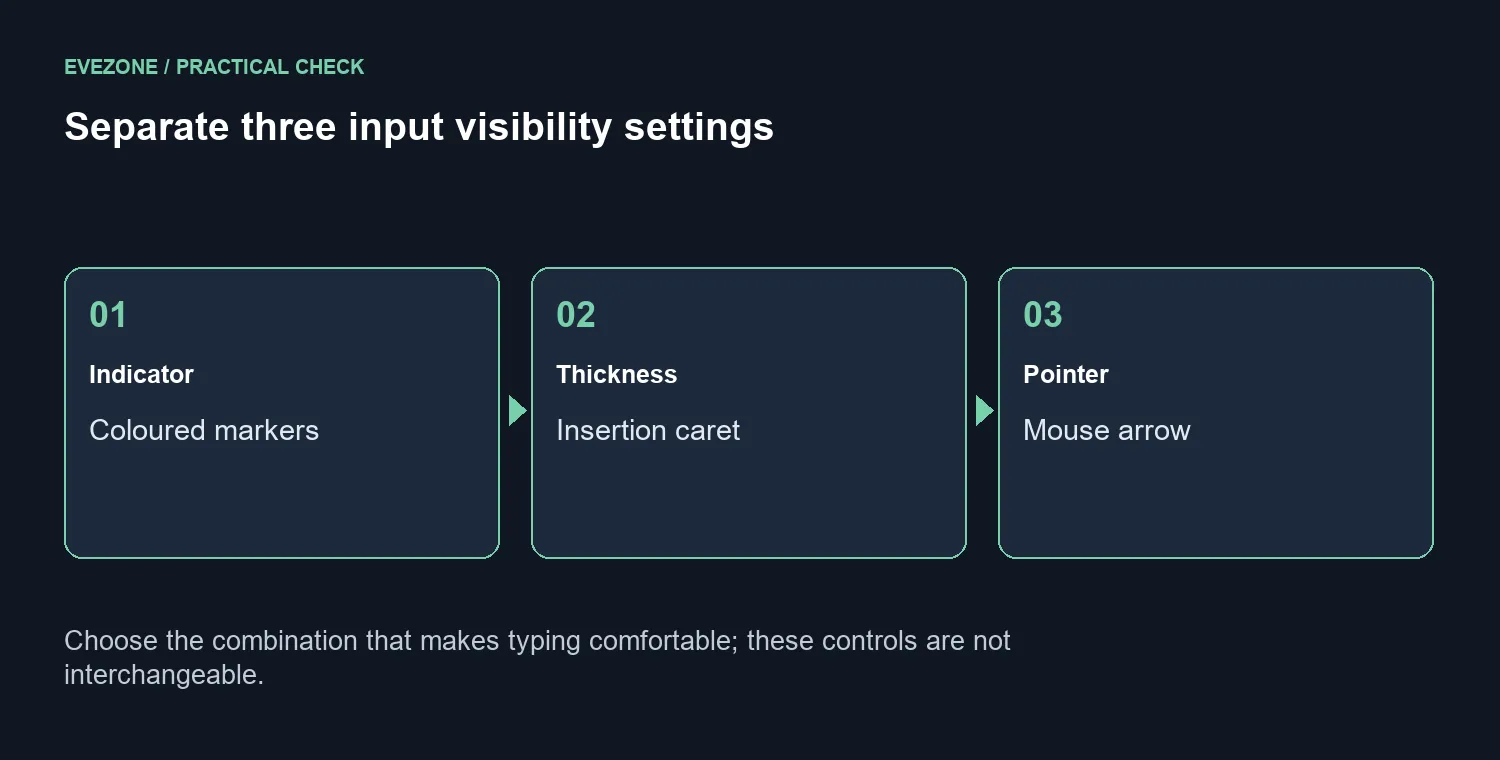
Coloured markers around the place you type can be a deliberate Windows text cursor indicator. They help the insertion point stand out against a busy page. Before removing them as a supposed screen fault, decide whether they are useful and distinguish them from the mouse arrow and the caret's thickness.
Quick Answer
Open Settings, Accessibility and Text cursor. Adjust the indicator to the visibility you want, then test a document. Its coloured markers are separate from cursor thickness and mouse-pointer controls. This costs R0; a Dahua monitor at R1,699 on 9 October is optional hardware, not a remedy for an unwanted visibility preference.
✍️ Identify the marker around the typing position
Click in a text box and enter a short sentence. Watch the vertical caret that marks where the next character appears, then move the mouse away. If the coloured shapes stay beside the insertion point, they are serving a different role from the mouse arrow. Knowing that difference keeps you in the correct settings panel and avoids changing mouse sensitivity unnecessarily.
Try another plain document to compare the effect. An application can have its own editing visuals, so do not assume that every coloured mark comes from the same control. Note whether the indicator appears wherever you can type or only in one programme. That observation makes the next adjustment more useful.
👁️ Choose visibility for the person at the keyboard
In Text cursor settings, inspect the indicator and thickness controls separately. Change one preference, return to the same sentence and compare how easily you can find the insertion point. A small change may be enough; there is no requirement to use the least visible option. Larger screens and dense documents can make a clear marker particularly helpful.
Keep useful accessibility choices on a shared PC. Someone else may rely on the coloured marker to locate typing quickly. Ask about that need before removing it. If the display looks different after a family member used the machine, a discussion about preferences is more productive than treating the change as damage.
🧩 Diagnose a missing caret separately
An indicator adjustment cannot explain every editing problem. If text appears in the wrong place, make sure the intended document has focus and the insertion point was selected. If only one app loses its caret, record that behaviour and inspect the app separately. A mouse pointer that disappears while typing is another feature again, so describe which visual is absent when asking for support.
Browse monitor choices for clearer workspace or keyboards for a more comfortable typing layout when those are real needs. The software setting remains the first R0 check. Neither a new screen nor a keyboard automatically changes the coloured marker preference. Set the existing PC to a useful visibility level before deciding what an upgrade would actually improve.
Frequently Asked Questions
What do the coloured markers mean?
They can be the Windows text cursor indicator, a visibility aid around the text insertion point.
Where can I adjust them?
Open Settings, Accessibility and Text cursor. Inspect the indicator and choose suitable visibility.
Is thickness the same option?
No. Cursor thickness changes the insertion caret; the coloured indicator is an additional visibility aid.
Does this change mouse speed?
No. The text cursor marks typing position. Mouse movement and sensitivity use different settings.
Why might I keep the indicator?
It can make the typing position easier to find on a busy page or a larger screen.
Is a screen upgrade required?
No purchase is needed to inspect this R0 setting. A Dahua monitor read at R1,699 is a separate display choice.
Make the insertion point easier to find. Choose Evetech display and keyboard options around your preferred text visibility.