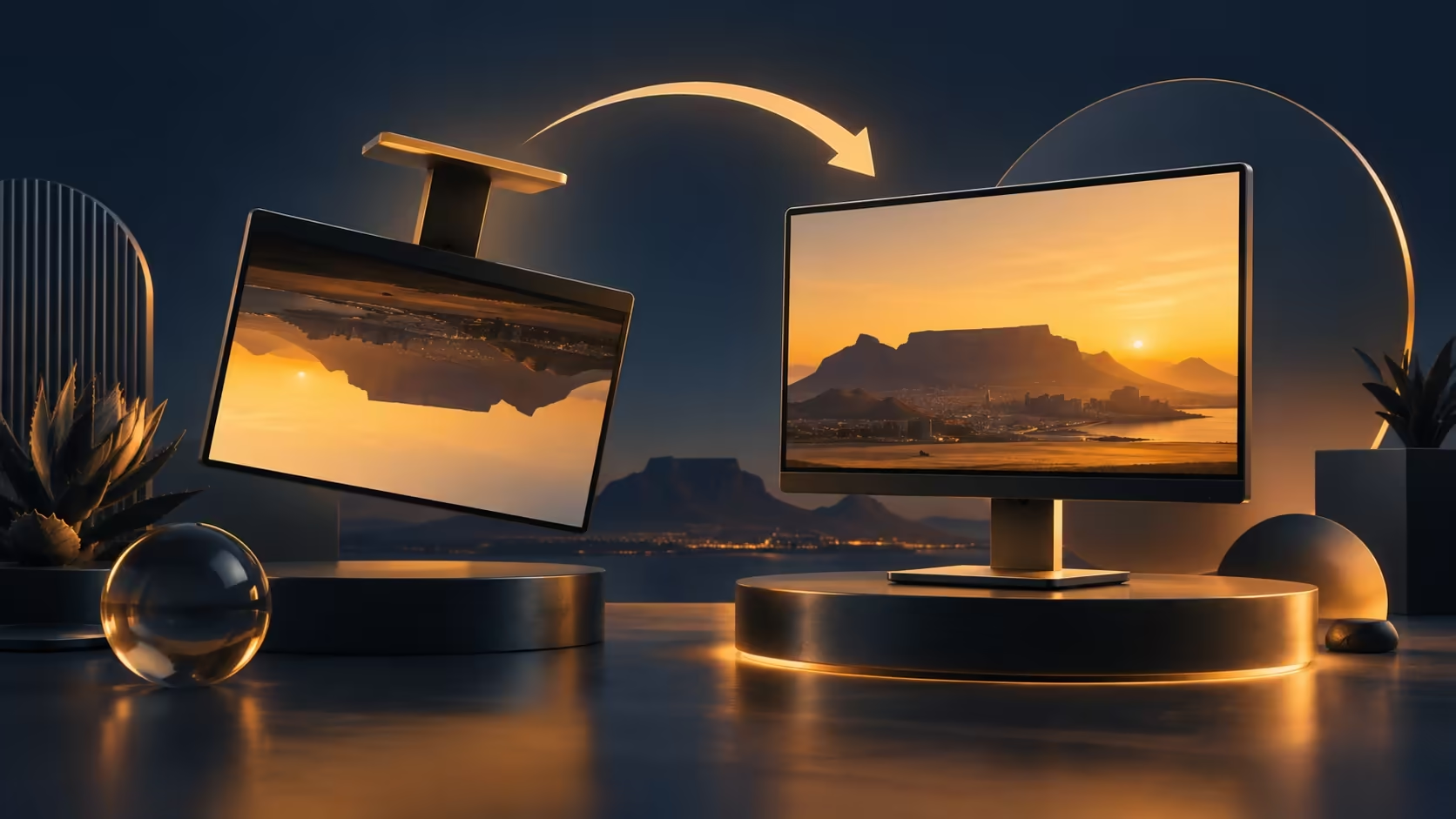
Finding Windows screen upside down usually calls for a careful look at display orientation before any hardware purchase. This is especially easy to confuse on a desk with several monitors or a stand that rotates. The physical panel and the software image need to point in the same useful direction.
Quick Answer
Open Settings, System and Display, select the affected monitor and choose its intended Display orientation. Confirm the readable result when prompted. This adjustment costs R0. The Dahua LM24-A221Y was R1,699 on the 9 October catalogue read, but replacing a working screen will not correct an inappropriate Windows layout.
🖥️ Select the screen you mean to change
On a multi-monitor desk, first match the numbered displays in Settings with the physical screens. Use the identification control rather than guessing from their position on the settings diagram. A useful layout may have one screen upright and another horizontal, so changing the wrong one can create a second problem while leaving the original unchanged.
Move the settings window onto the screen you can read comfortably if that helps. Keep a note of the current selection and orientation. The goal is a controlled change to one display, not a reset of the whole graphics setup. There is no need to alter resolution, scaling and refresh rate at the same time.
🔄 Match software orientation to the stand
Choose the layout that agrees with the monitor's physical position. Landscape and portrait choices serve different desk arrangements; flipped options reverse the corresponding image direction. Read the available options carefully instead of cycling through them repeatedly. When the confirmation appears, keep the result only after checking that text and pointer movement feel right.
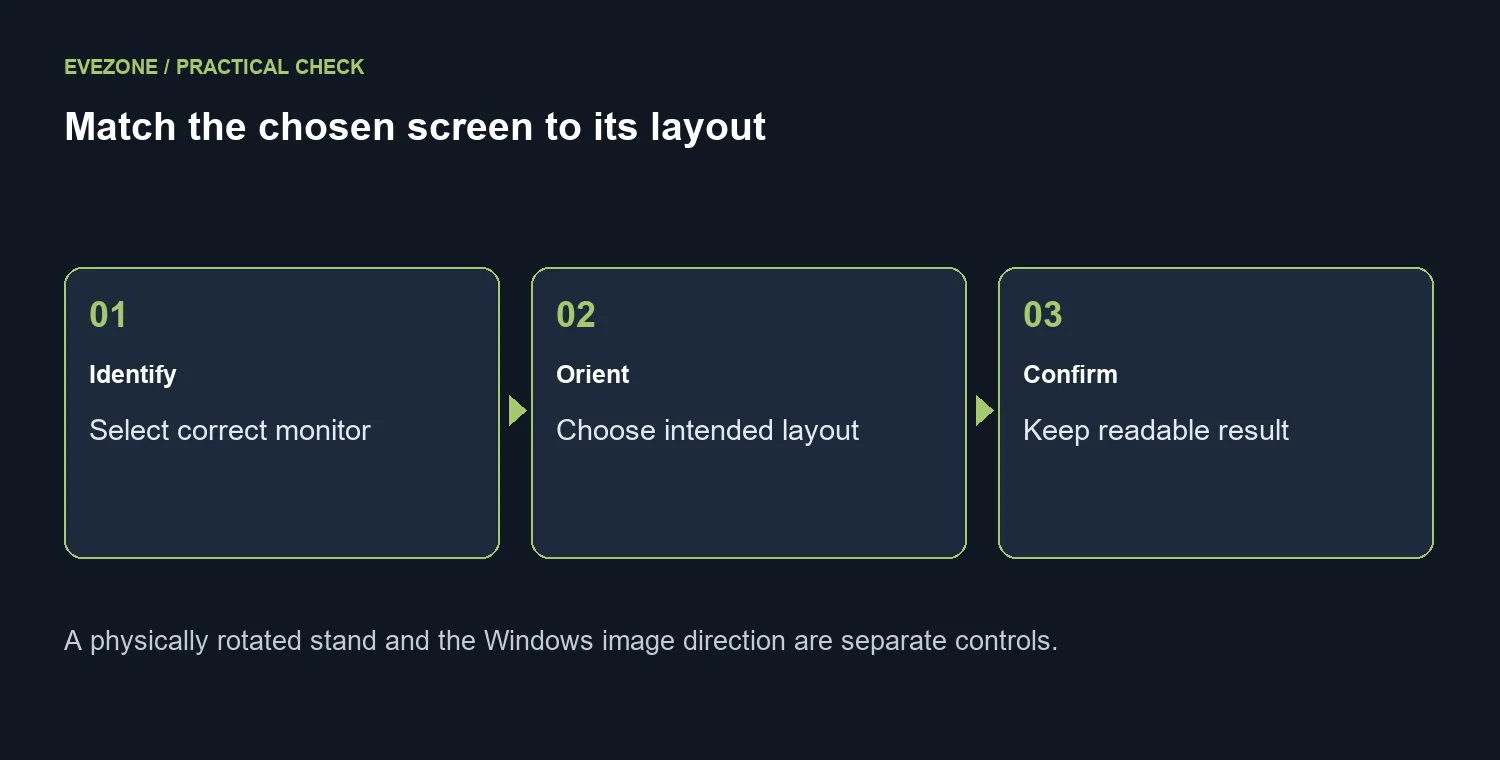
A rotating stand does not automatically establish that Windows has selected the intended orientation. Equally, a software portrait setting does not make a fixed stand safe to turn. Check the monitor's physical adjustment limits separately. Do not force a panel or twist its cables just because a menu offers another image direction.
🧭 Keep layout and buying decisions separate
After the image is upright, compare the screen arrangement with how you move between applications. A document beside a main display may suit portrait use, while a game can need a conventional horizontal view. Align the desktop arrangement so moving the pointer between screens feels natural. This is a usability choice and can be revisited as the desk changes.
Explore gaming monitors when you need different size or viewing space. Check the actual stand features of discounted displays before choosing one for rotation. The R1,699 Dahua reference describes a separate model and does not promise a pivoting stand. Correct the existing orientation first, then buy only for a physical or display capability the current setup genuinely lacks.
Frequently Asked Questions
Where is orientation changed?
Go to Settings, System and Display. Select the right screen and choose Display orientation.
Which screen should I select?
Use the display identifiers to match the numbered screen to the physical monitor you want to change.
Does rotating the stand rotate Windows?
Do not assume it does. Physical panel position and the software image orientation must agree.
Should I use a keyboard shortcut?
Use Display settings as the dependable starting point. Graphics-driver shortcuts vary between systems.
Will this remove my files?
Changing image orientation does not delete your documents. Read the confirmation screen so the chosen layout is retained.
Do I need a new monitor?
An orientation preference costs R0 to correct. The separate Dahua reference was R1,699 on 9 October.
Set the right orientation for your desk. Compare Evetech displays by stand movement and usable layout after correcting the software setting.