You’ve spent thousands on a beastly rig, ready to dominate in Apex or Valorant. You’re in the final circle, you line up the perfect shot… and your screen rips in half. This jarring visual glitch, known as screen tearing, can ruin immersion and cost you the match. What if you could eliminate it for good? That’s where adaptive sync for gaming comes in, a technology designed to deliver perfectly smooth gameplay. Let's break it down.
Understanding the Enemy: Screen Tearing and Stutter
Screen tearing happens when your graphics card (GPU) and monitor are out of sync. Your monitor refreshes its image at a fixed rate (like 60, 144, or 240 times per second, or Hz), while your GPU renders frames as fast as it can. When the GPU sends a new frame while the monitor is still drawing the previous one, you see a "tear"—a horrible horizontal line where two different frames are displayed at once. 🔧
It’s a common headache for anyone serious about their setup. The opposite problem, stutter, occurs when frame rates drop below the monitor's refresh rate, making the action feel choppy. Both issues break your focus and can be a real disadvantage in competitive play. Upgrading to a display from our wide selection of PC monitors is the first step to solving this.
The Solution: How Adaptive Sync for Gaming Works
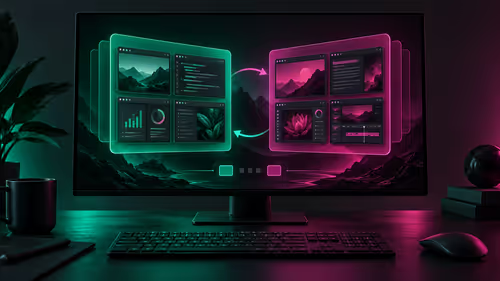
Adaptive sync for gaming is the elegant solution to this digital tug-of-war. Instead of a fixed refresh rate, a monitor with adaptive sync technology dynamically adjusts its refresh rate to match the exact frame rate your GPU is outputting, frame by perfect frame.
Imagine your GPU is pushing out 97 frames per second (FPS) in a chaotic team fight. Your adaptive sync monitor will refresh at exactly 97Hz to match it. If the action calms down and your FPS climbs to 135, the monitor adjusts instantly to 135Hz. The result?
- No more screen tearing.
- Dramatically reduced stutter.
- Lower input lag for a more responsive feel.
This creates an incredibly fluid and smooth gameplay experience, making it a must-have feature you can find across all our gaming monitors.
G-Sync vs. FreeSync: Choosing Your Team
Two main players dominate the adaptive sync space: NVIDIA's G-Sync and AMD's FreeSync. While they both aim for the same tear-free result, they get there slightly differently.
NVIDIA G-Sync
Initially, G-Sync required a special hardware module inside the monitor, which led to a higher price but guaranteed a premium, rigorously tested experience. Today, there are three tiers:
- G-Sync Ultimate: The best of the best, with HDR support and top-tier performance.
- G-Sync: The classic hardware-based solution.
- G-Sync Compatible: These are FreeSync monitors that NVIDIA has tested and certified to provide a solid variable refresh rate experience with their GPUs. This is often the best value sweet spot.
AMD FreeSync
FreeSync is AMD's open-standard alternative, meaning manufacturers can implement it without paying licensing fees. This has made it incredibly popular and widely available, often at more budget-friendly prices. Like G-Sync, it has tiers (FreeSync, FreeSync Premium, and FreeSync Premium Pro) that certify different levels of performance. You can find incredible value by checking out the best PC monitor deals in South Africa. Many gamers find that the immersion offered by immersive curved monitors combined with FreeSync is a winning formula.
What Else Matters for Smooth Gameplay?
Getting a monitor with adaptive sync is a huge step, but it’s not the only spec that matters for a great gaming experience. Keep an eye on these features too.
- Resolution: Higher resolution means sharper images. While many pros stick to 1080p for maximum frames, the visual detail of stunning 4K monitors is breathtaking for single-player adventures. Just make sure your GPU can handle it!
- Refresh Rate (Hz): This is how many times your screen updates per second. 144Hz is the modern standard for competitive gaming, offering a huge advantage over older 60Hz screens.
- Response Time (ms): A low response time (like 1ms) reduces motion blur and ghosting, keeping fast-moving objects crisp and clear.
Even gaming on the go has been revolutionised, with some high-quality portable monitors now offering these features for your laptop or console setup. ✨
Don't Forget to Flip the Switch! ⚡
Owning a monitor with adaptive sync is only half the battle. You need to enable it! For NVIDIA cards, open the NVIDIA Control Panel, go to "Set up G-SYNC," and check the box. For AMD, open the Radeon Software, go to the "Gaming" > "Display" tab, and toggle AMD FreeSync to "On." It's a simple step many gamers miss.
Ready for Tear-Free Gaming?
Investing in a monitor with adaptive sync is one of the biggest upgrades you can make for a smoother, more responsive gaming experience. Stop letting screen tear ruin your K/D ratio. Explore our latest PC deals and find the perfect display to conquer your world.