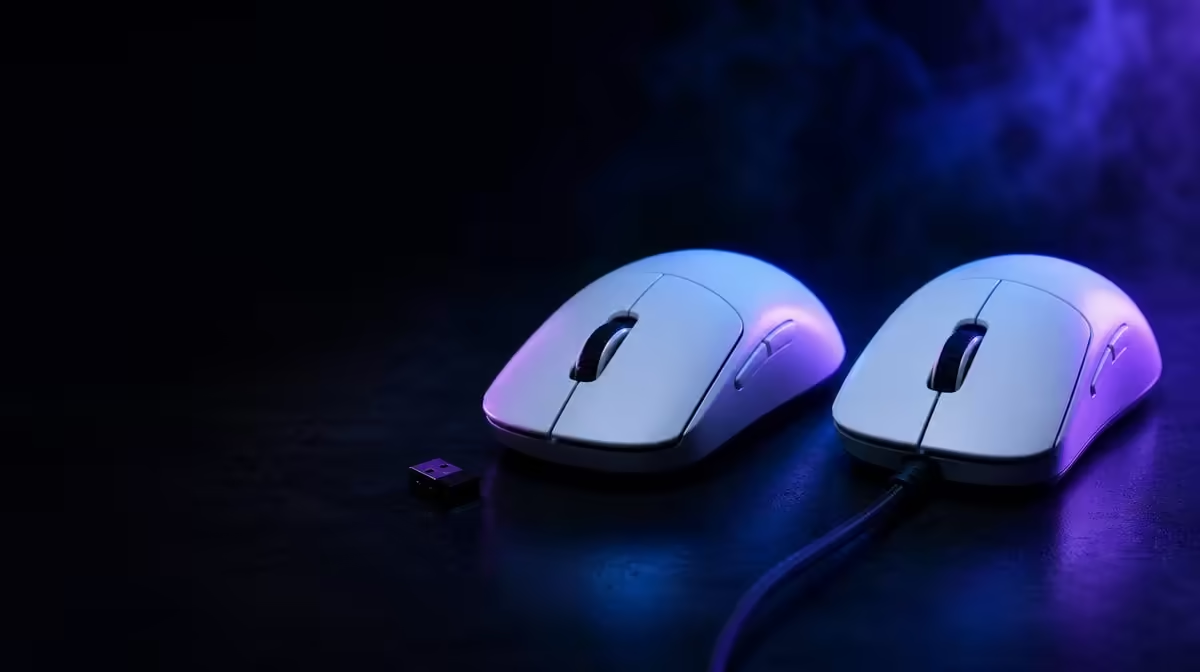
Lightspeed, Bluetooth and wired operation solve different connection priorities. Understanding wireless, Bluetooth and wired mouse connections means testing performance, pairing convenience, cable movement and endurance separately. The G305 X SUPERLIGHT provides all three at R1,499.
Quick Answer
Begin with Lightspeed for the performance wireless test, assign Bluetooth to a suitable secondary device, and evaluate wired operation with the cable arranged for the task. At R1,499, the G305 X SUPERLIGHT's tri-mode design is useful when each route has a device and profile, while report support and battery behaviour should be measured per mode.
🔹 Test Lightspeed
Place the receiver clearly, fix the USB route and run a competitive scene.
Compare the Logitech gaming mouse family.
Test up to 8kHz
Start lower and hold DPI fixed. Monitor frame behaviour.
🔹 Test Bluetooth
Pair the intended device, test wake and pointer control, then switch back to gaming.
Do not assume the same report ceiling across every mode.
🔹 Test wired use
Route the cable without drag and repeat fine plus rapid movement.
Evetech's wider gaming mouse range helps compare connection packages.
Use it as a fallback
Test the wired profile before a critical session.
🔹 Maintain the mode map
Name profiles by device and task. Remove stale pairings.
Use Evetech's popular accessories page for wider R1,499 context and verify availability when buying.
Measure battery by mode
Use the rating beyond 130 hours as context and record real sessions.
Store the receiver
Keep small connection parts in a known place for travel.
Give each mode a defined job
Write a one-line purpose for every connection before creating profiles. Lightspeed can be the dedicated performance route on the gaming PC, Bluetooth can serve a compatible secondary device, and wired operation can cover a cabled session or diagnosis. Clear roles prevent casual switching from producing confusing results.
Name profiles with both the device and mode. A label such as gaming-PC Lightspeed is more useful than fast, because it tells the next user which receiver and computer belong to the test.
Build the Lightspeed baseline carefully
Connect the receiver to a stable USB route and keep its position consistent. Start with a moderate DPI and dependable report rate, then run fine corrections, broad turns and rapid direction changes in the intended game. Record the port path beside the result.
Only after that profile is clean should the rate move towards the supported 8kHz ceiling. Test under a demanding scene and retain the lower baseline so a future system change has an immediate reference.
Check receiver placement rather than guessing
If wireless behaviour changes, inspect the physical setup before rewriting DPI or button mappings. Note whether the receiver moved, whether a hub was introduced and whether the mouse is now used from a different part of the desk.
Repeat the same movement course after restoring the recorded layout. This keeps a connection-path issue from being mislabelled as a sensor or sensitivity problem.
Make Bluetooth transitions deliberate
Pair Bluetooth with the exact compatible device that will use it, then check wake, pointer control and the return to the primary gaming connection. Perform the sequence several times so the user understands how to confirm the active mode.
Bluetooth convenience should be evaluated through its intended work, browsing or secondary-device tasks. Do not carry an 8kHz conclusion from Lightspeed into Bluetooth without checking the mode's actual supported behaviour.
Treat wired operation as a physical setup
A cable changes the route between hand and PC, so arrange it with enough slack for the full pad. Run slow corrections, edge-to-edge sweeps and lift-and-return movements while watching for drag or tugging.
Record the wired USB path separately from the receiver route. If the cabled test is being used for diagnosis, preserve all other variables so it isolates the connection rather than introducing a new surface or sensitivity.
Confirm settings after every switch
After changing modes, verify the active DPI, report rate and button profile before entering a game. A short menu movement and one mapped-button check can catch the wrong profile quickly.
Keep the confirmation routine consistent: mode, profile name, measured turn and one input. It is especially valuable when the mouse moves between a gaming desktop, a laptop and a shared workspace.
Map the six buttons by task
Start with default primary clicks and add side or auxiliary commands one at a time. Each mapping should remain reachable without changing grip or interfering with tracking. Test it in the connection mode where it will actually be used.
A productive secondary-device map may differ from the gaming map. Keep both simple enough that switching devices does not turn the same button into a surprising high-impact command.
Plan around real battery use
The battery is rated for more than 130 hours, but a personal schedule should come from recorded sessions. Log connection mode, report setting and active time over several charge cycles, then set a recharge point with enough margin for the next long session.
Bluetooth and Lightspeed use should be logged under their own roles. The rating gives useful scope, while the user's mix of modes supplies the practical routine.
Prepare a connection recovery card
Keep a small note with the chosen USB route, receiver location, primary profile and tested wired fallback. Include the normal mode-switch sequence without storing any private account information.
When an unexpected issue appears, restore the known configuration first. A recovery card reduces random changes and makes it easier to identify whether the mode, profile or wider system caused the difference.
Make travel less fragile
Store the receiver in a secure, repeatable place and pack the appropriate cable when wired operation is part of the fallback plan. On arrival, inspect the desk surface and USB availability before copying the home profile unchanged.
Run a two-minute check with the standard turn, fine correction and mapped inputs. Travel changes pad space and receiver geometry, so the quick validation matters even when the same laptop is used.
Support shared users cleanly
When more than one person uses the mouse, give each user a clearly named profile and define who may alter the connection map. Record the default mode left for the next session.
Remove obsolete pairings and experimental profiles once their purpose ends. A tidy mode list prevents a shared device from reconnecting in a way that neither user expected.
Review value across the complete design
At R1,499, tri-mode connectivity should be judged alongside the Hero 44K sensor, 44,000 DPI ceiling, 678 IPS tracking, six programmable buttons and the rated endurance beyond 130 hours. The price is buying a combined set of capabilities, not three connection labels in isolation.
If a strict mass target matters, verify the current weight and combine it with a hands-on assessment of balance, cable feel and receiver practicality.
Run a quarterly connection cleanup
Recheck the receiver path, remove unused Bluetooth pairings, inspect the cable and confirm the fallback profile. Repeat the same movement course in each mode that still has an active role.
This small audit keeps connection convenience from becoming configuration clutter. Every retained route should have a known device, a clear task and a recent successful test.
Frequently Asked Questions
Which route suits competitive play?
Start with the dedicated performance-focused wireless mode and test it on the actual PC.
What is Bluetooth best for?
It suits convenient pairing where its behaviour matches the task.
Why test wired operation?
It supplies another physical route and diagnostic comparison.
Do all modes use the same report rate?
Do not assume so. Check each active route.
Can mode affect endurance?
Yes. Measure connection, report setting and activity together.
Ready to map three connection routes?
Compare tri-mode gaming mice at Evetech and assign performance, pairing and wired roles before building profiles.