


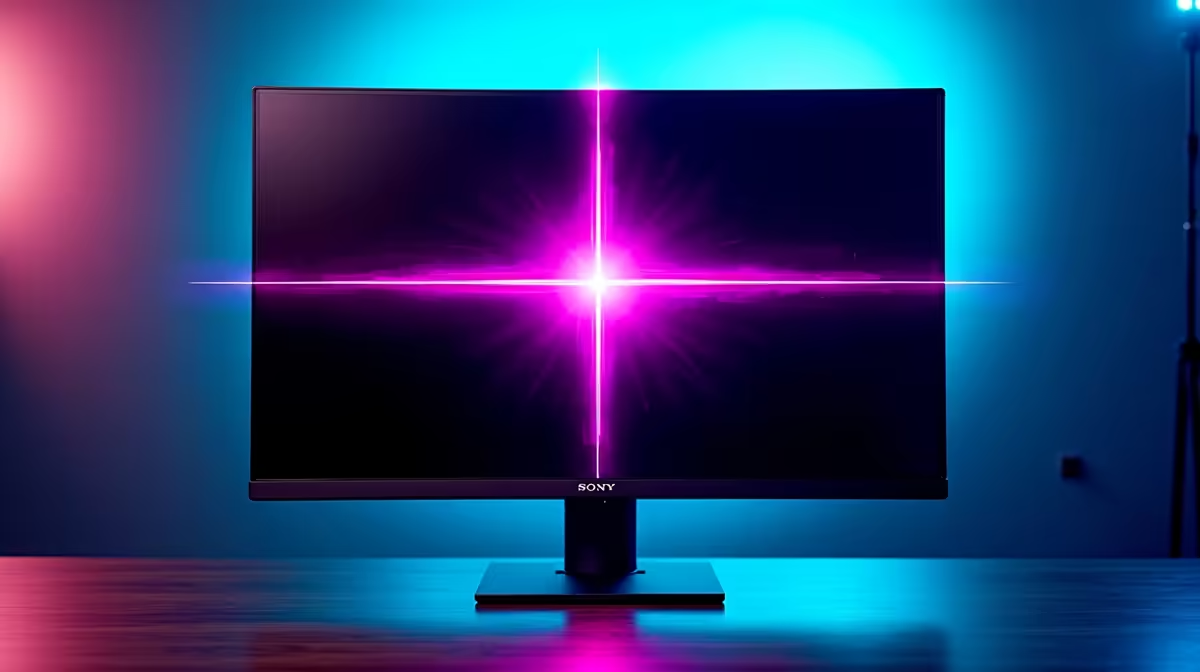
That clutch moment in Valorant... you line up the perfect headshot, but something's off. Is that... two crosshairs? Many South African gamers repurposing office monitors for their rigs have hit this frustrating wall. That built-in crosshair overlay, meant to be a feature, is messing with your aim and costing you rounds. Don't stress, boet. We’ve got the guide to help you fix crosshair overlay issues in office models and get back to climbing the ranks. 🔧
Understanding Why Your Office Monitor Has a Crosshair
Before we dive into the fix, let's quickly understand the "why." Monitor manufacturers, in an attempt to add value, often bundle "gaming" features even into their office-centric displays. These can include timers, FPS counters, and the infamous static crosshair overlay. While the intention might be good, the execution is often basic and lacks the customisation that PC gamers need. Unlike in-game crosshairs, these hardware-level overlays don't account for weapon bloom or recoil, leading to inaccurate shots and visual clutter. This is a common problem when using general-purpose PC monitors not specifically designed for competitive play.
How to Disable the On-Screen Crosshair Overlay
Ready to get that annoying dot off your screen? The solution almost always lies within your monitor's On-Screen Display (OSD) menu. Here’s a step-by-step guide to fix the crosshair overlay issue for good.
Step 1: Access the OSD Menu
First, locate the physical buttons on your monitor. They're usually on the bottom edge, the back, or sometimes a small joystick nub. Press the 'Menu' button (or the equivalent) to bring up the settings panel on your screen. If you're struggling to reach them because of a tight setup, investing in quality monitor accessories like an adjustable VESA arm can make life much easier.
Step 2: Navigate to Gaming Settings
Once inside the OSD, you'll need to hunt for the right sub-menu. Use the navigation buttons to look for a section labelled "Gaming," "Game Assist," "GamePlus," or something similar. This is where manufacturers stash all the gaming-related toggles. Every brand's menu is slightly different, so you might need to explore a bit.
OSD Menu Locked? 🔐
If you can't access the monitor settings, the OSD might be locked—a common feature on office displays. Try pressing and holding the 'Menu' or 'Power' button for about 10 seconds. This often toggles the lock, giving you back control to disable the monitor crosshair.
Step 3: Turn Off the Crosshair
Inside the gaming menu, you should find an option for "Crosshair," "Aim Point," or "Center Point." It will likely be set to 'On' or show a selection of different crosshair styles. Simply navigate to this setting and select 'Off'. Press the menu button again to exit, and voilà! Your screen should be clean and ready for your game's native crosshair. ✨
When the Fix Isn't Enough: The Upgrade Path
What if you've followed the steps and the crosshair is still there, or the setting is permanently greyed out? Honestly, this can happen with some budget office models where the firmware is extremely limited. At this point, you're fighting the hardware itself. Instead of a recurring headache, it might be time to consider a display built for the job.
Dedicated gaming monitors don't just solve overlay problems; they offer superior performance with higher refresh rates (144Hz+), lightning-fast response times, and Adaptive-Sync technology to eliminate screen tearing. For those seeking ultimate focus, the wrap-around view of curved monitors can provide a significant competitive edge. And if you're a multi-tasking streamer or a frequent LAN-goer, a versatile portable monitor could revolutionise your setup.
Ultimately, the best long-term solution to office monitor gaming problems is to invest in a screen designed for gamers. You'll not only get rid of annoying overlays but also unlock a smoother, more responsive experience. For pure visual fidelity in both work and play, the incredible detail of 5K and 4K monitors offers an unmatched level of clarity. 🚀
Ready for a True Gaming Display? Stop letting your hardware hold you back. Check out the best PC monitor deals in South Africa and find a screen that gives you the competitive edge you deserve.











