


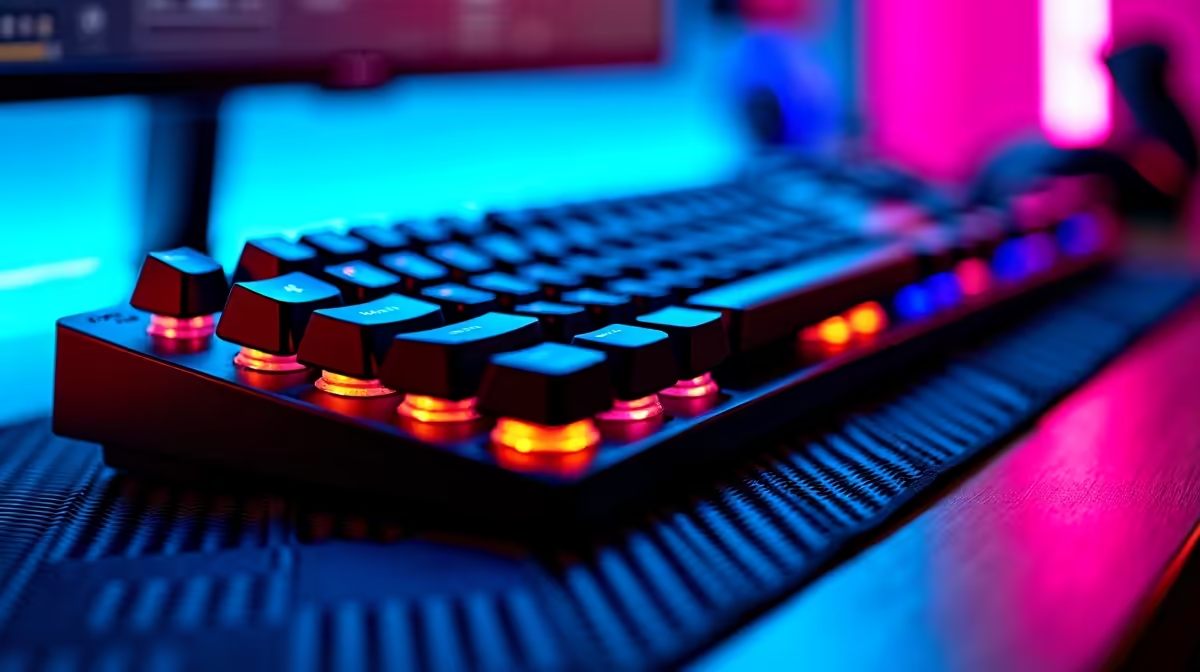
Dedicated Media Controls on Gaming Keyboards: Rollers, Dials & Buttons (Why SA gamers actually care) 🎮
You know that moment when you’re in a sweaty match… then you need to tweak volume or switch effects fast. Instead of alt-tabbing, hunting menus, or relying on controller buttons, dedicated media controls put the power on the keyboard itself. For South African gamers, that means fewer interruptions… and more consistency, whether you’re on a wired setup at home or jumping between devices.
In this Deep Dives guide, we’ll break down dedicated media controls on gaming keyboards, including rollers, dials, and dedicated buttons, and how to choose a board that matches your playstyle and your desk.
Dedicated Media Controls on Gaming Keyboards: What rollers, dials, and buttons really do 🔧
Dedicated media controls usually fall into three physical categories:
Rollers (the “fine-tune” control)
A roller is typically used for volume. The big advantage? Precision. You can make small adjustments without overshooting.
Best for: Twitchy shooters where audio clarity matters, plus streamers who adjust mic/stream audio during quick breaks.
Dials (often more “premium”, sometimes multi-function)
A dial can do the same job as a roller, but it often feels sturdier and may support multiple modes depending on software support (if the keyboard includes it).
Best for: Creators who want quick control of volume, media playback, or even lighting effects… without opening an app.
Dedicated buttons (the “instant action” approach)
Buttons are hard to beat for speed. Play/pause, next/previous track, mute, and sometimes profile toggles are common.
Best for: LAN nights, console-adjacent PC setups, and anyone who hates “scroll-wheel guesswork”.
Dedicated Media Controls on Gaming Keyboards: Choose the right layout for your desk ⚡
Before you buy, ask one simple question: Where will you reach these controls mid-game? Your wrist position matters. If the controls are too far forward, you’ll end up adjusting them with awkward movement.
Here are practical buying filters:
- Look for controls near the top-right area (where hands naturally rest).
- Prefer tactile separation so you can identify mute and volume without looking.
- Check compatibility (some boards focus on wired use; others are wireless-friendly).
- Confirm whether the keyboard is marketed for both gaming and productivity. Evetech listings often clarify intended use and connectivity.
If you’re also pairing with a mouse, consider how your combo will work as a set.
Browse keyboard and mouse combo options for a matching setup
Dedicated Media Controls on Gaming Keyboards: Wired vs wireless (and what it means for media controls) 🚀
Dedicated media controls are physical, but connectivity can still affect your day-to-day experience. Wired setups tend to feel more consistent for competitive play. Wireless setups can be more convenient on a shared desk or if you swap between a gaming PC and a laptop.
Use these quick checks:
- If latency is your top priority: favour a wired connection.
- If you frequently switch devices: prioritise wireless and confirm the keyboard supports your workflow.
- If you stream: stability matters. Wired often wins for live sessions, especially during long rounds.
If you want a starting point for wired-focused deals, check:
And for wireless-friendly picks:
- Wireless options: Cheapest gaming keyboard in South Africa (Wireless connectivity)
For broader comparisons across top deals, start here: View the best gaming keyboard deals
Dedicated Media Controls on Gaming Keyboards: A short checklist before you click “buy” ✨
Media controls sound small… until you realise how often you use them. Here’s a quick checklist that helps you avoid buyer’s remorse:
- Does the volume control feel smooth? If it’s gritty, you’ll hesitate mid-match.
- Are mute and volume easy to find by feel? Texture and spacing matter.
- Are the buttons clearly labelled? Especially play/pause and next/track.
- Does the rest of the board support your typing habits? Comfort affects how often you touch controls.
- What’s your price reality in ZAR? Decide your budget first, then choose the control style.
If you’re still deciding on a general value option across connectivity types, compare: Cheapest gaming keyboard in South Africa
Productivity Pro Tip ⚡
On Windows, use the PowerToys FancyZones utility to create custom snap layouts for your windows. It's a lifesaver for managing multiple apps on an ultrawide monitor, letting you organise your timeline, preview window, and asset folders perfectly for video editing.
Dedicated Media Controls on Gaming Keyboards: The best choice for different players 🎮
Let’s match controls to real habits:
- Competitive FPS players: go for dedicated buttons (mute, play/pause) plus a smooth volume roller. It’s about speed and consistency.
- Streamers and content creators: consider a dial (or multi-function control) if the keyboard supports it, because you’ll touch controls throughout the workflow.
- Multitaskers (study, work, gaming): dedicated buttons reduce interruptions, especially when you’re switching between Discord, browser tabs, and your media.
And remember… the “best” control is the one you can reach without thinking.
Call-to-action: dedicated media controls meet the right keyboard deal
Ready to Find Your Perfect Match? The Mac vs Windows debate is complex, but for maximum power, choice, and value in South Africa, Windows is hard to beat. Explore our massive range of laptop specials and find the perfect machine to conquer your world.











