Ten-point control is valuable when several contacts make a real application easier to navigate or operate. The benefit of 10-point touch for creative and business work comes from supported gestures on correctly mapped panels, not from pressing ten fingers onto a screen to prove the number.
Quick Answer
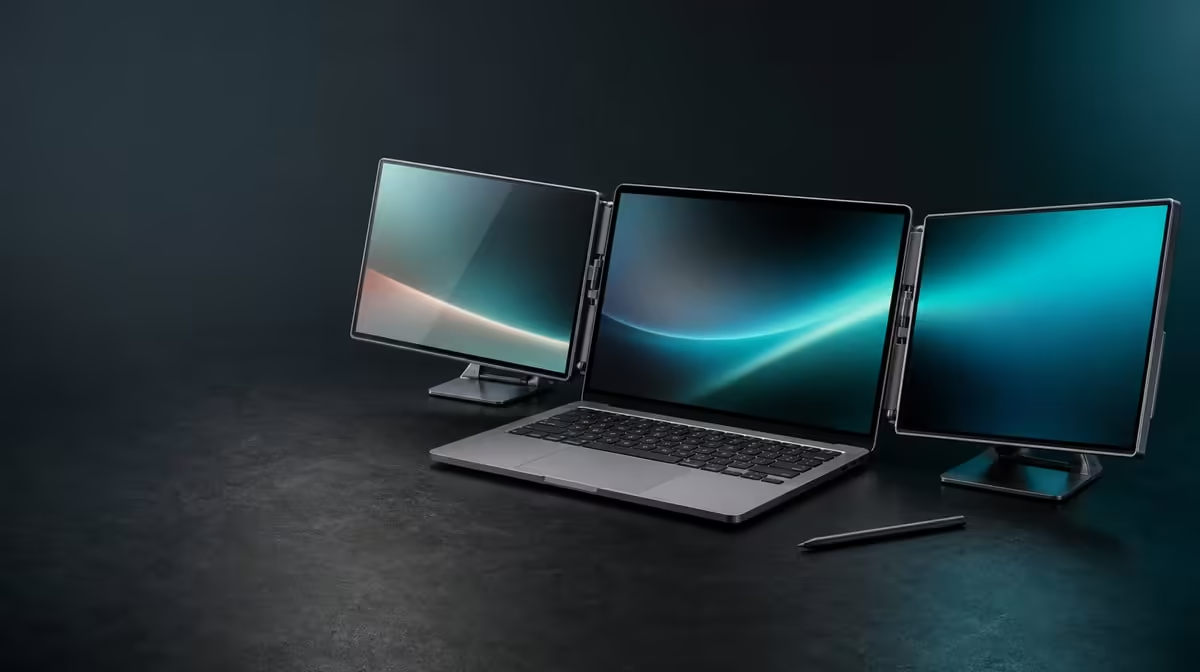
Ten-point touch means the Delta Pro Touch can register up to ten simultaneous contacts. At R11,999, the dual QHD monitor can support multi-finger creative gestures, interactive business controls and direct navigation, but each laptop application decides how many contacts it recognises and what they do.
✋ Understand what ten contacts provide
Begin with a single tap, drag and edge check on the first panel. Repeat on the second. Correct mapping before testing any gesture, because a multi-contact action sent to the wrong display produces confusing results regardless of hardware capacity.
Open software that visibly supports touch. Start with two fingers, then add contacts only where the application documents or demonstrates a function. Record the highest useful combination rather than treating all ten as a daily requirement.
Evetech's portable-monitor selection can be compared with a shortlist of touch-aware applications and the laptop that will run them.
Separate point count from pressure
The ten-point figure counts simultaneous contacts. Pressure-sensitive input describes changing force interpreted by compatible software and a suitable tool. One does not state the other.
A creator may use a two-finger gesture to move or enlarge a canvas, then apply pressure with a compatible tool for a stroke. Test each input path separately before combining them.
Protect work during the first trial
Use a disposable canvas, copy of a document or non-destructive control surface while learning the gestures. Several contacts can trigger an unexpected action if the application maps them differently from the user's assumption.
Move to the live project only after taps and gestures behave predictably. This reduces the risk of mistaking an app command for inaccurate hardware.
🎨 Apply multi-touch to creative tasks
Place a QHD canvas on one Delta panel and tools or reference material on the other. Keep interface scaling readable. Use supported gestures to pan, zoom, rotate or navigate only where the creative application provides them.
Count whether direct input reduces mode switches between the canvas and laptop controls. A gesture that saves repeated steps can justify part of the interactive screen; an infrequent novelty should carry less weight.
Combine fingers and a compatible pressure tool
First confirm positional accuracy with slow lines and corner taps. Then choose a pressure-aware brush or control and compare light with firmer input. Return to finger navigation and watch for accidental marks or lost focus.
Verify whether a pen comes in the current package, then choose any alternative through laptop and application compatibility. The complete input path determines whether the sequence works.
Use both panels deliberately
Move the same creative window from one screen to the other and repeat the multi-touch action. Check whether gestures follow the application or remain tied to the original panel. Keep the second screen's role stable during diagnosis.
This exposes a mapping issue that a successful test on one panel could hide. Dual touch only adds value when both interactive surfaces behave in their assigned roles.
📊 Put several contacts into business software
Business use can include interactive presentations, touch-led dashboards, collaborative planning or direct control of a compatible application. Select one task and test the gestures it supports instead of extrapolating from the ten-point capacity.
For shared interaction, observe how the program handles several hands or contacts. The hardware count does not promise separate user identities, independent cursors or collaboration features that the software lacks.
Compare the wider PC-monitor category at Evetech if viewing documents and dashboards is sufficient without direct control.
Time a repeatable business sequence
Complete a short workflow with touch, then perform it with the usual pointer and keyboard. Count corrections, hand movements and screen changes. Use the same data and laptop state in both trials.
Multi-touch improves business work when it removes recurring friction, helps a meeting flow or makes a control surface easier to operate. The benefit should be visible in the task, not inferred from the feature name.
Test after sleep and reconnection
Wake the laptop and verify that each panel still receives its own input. Repeat after a full restart, then rebuild the display at another working location.
A configuration that loses assignments regularly carries an ownership cost. Preserve the screen map and successful application test so recovery begins from a known state.
🧱 Make the physical setup support interaction
Place the Delta and laptop on the normal desk. Adjust the ergonomic stand so both panels remain within a comfortable reach. Tap outer controls and perform a multi-finger gesture near the edges while watching for movement.
Rotate one panel into a planned position, allow gravity sensing to update the picture and map touch again. An orientation change can affect where the application or operating system expects contacts.
Use Evetech's monitor best sellers as current comparison context for the R11,999 Delta. Confirm availability before buying.
Check long-session ergonomics
Run the intended touch sequence for more than a brief demo. Watch whether the user leans, raises an arm for too long or reaches across the laptop. Reposition the workstation and retest before blaming the concept of direct input.
Stand stability and user comfort determine whether multi-touch remains practical through a workday. A gesture can be accurate yet still be poorly placed for frequent use.
Keep an application capability card
Record the program version, useful gestures, maximum contacts actually used, successful panels and any orientation limit. Note pressure behaviour separately.
After software or operating-system changes, repeat this small test. It provides better evidence than assuming the same ten-point hardware figure guarantees unchanged app behaviour.
Review visual feedback for every contact
Use an application that shows where fingers land or how a gesture changes content. Add contacts slowly enough to identify the one that causes an unexpected command. This is more informative than placing all ten on the panel at once.
Repeat with the application window on the other screen and with the laptop display still active if it belongs to the normal setup. Clear feedback makes both mapping errors and software limits easier to recognise.
Decide whether collaboration is real
Invite a second participant only after one user's gesture set works. Give each person a defined action and observe whether the program accepts simultaneous input without conflict.
Do not describe several contacts as multi-user support unless the software demonstrates it. The practical result may be a useful shared control surface, a single-user multi-finger workflow or no collaboration benefit at all.
Frequently Asked Questions
What does 10-point touch count?
It counts up to ten simultaneous touch contacts.
How can business software use several contacts?
Compatible programs can map contacts to gestures, controls or shared interaction.
What can creators gain from multi-touch?
Supported gestures can make canvas navigation and other direct actions more immediate.
Does every application use all ten points?
No. Each program decides which contacts and gestures it recognises.
How should multi-touch be tested?
Map single touches first, then add supported contacts gradually on both panels.
Why does stand stability matter?
Several fingers apply physical force, so the screens should remain steady during interaction.
Ready to turn a touch-point count into useful app actions?
Compare Evetech's portable monitors with your laptop software, gesture sequence and physical workspace prepared.