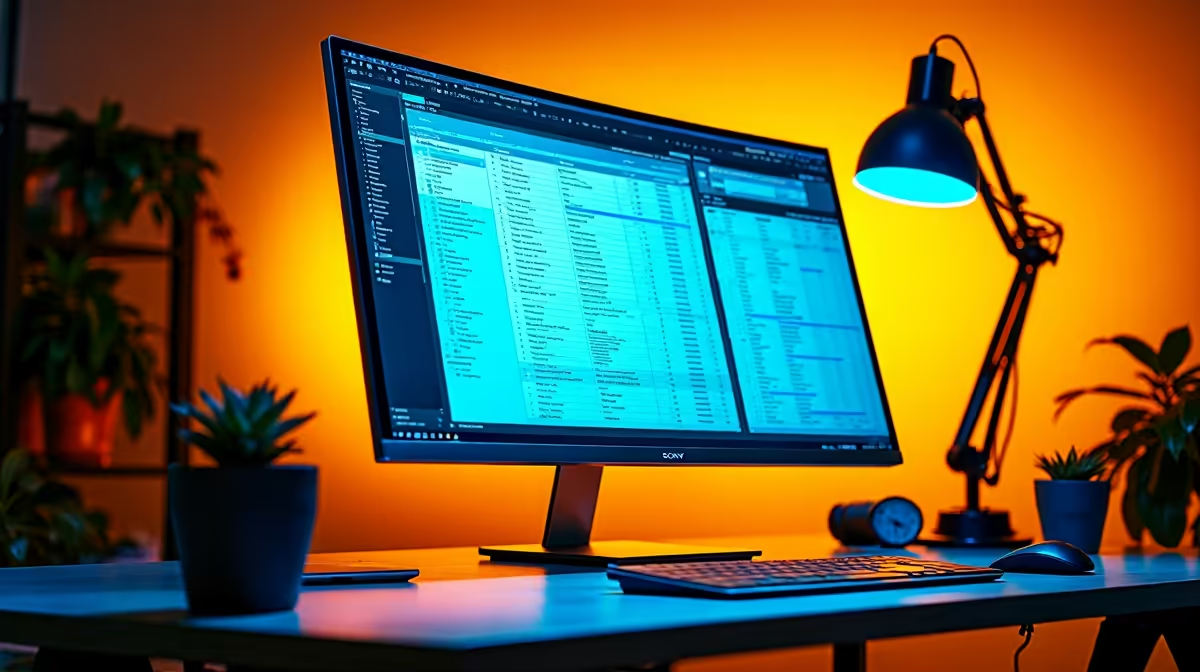
So, you’ve just unboxed a glorious new 32-inch 4K monitor. The screen real estate is massive, but everything looks… tiny. Icons are microscopic, and text is a real strain on the eyes. This is a classic DPI scaling issue, and don’t worry, you haven’t wasted your money. We'll show you exactly how to optimise DPI scaling for your 32" 4K office monitor for crisp, perfectly sized visuals on your PC or Mac. ✨
Why DPI Scaling is Crucial for Your 32” 4K Monitor
DPI, or Dots Per Inch, refers to the density of pixels on your screen. A 4K resolution (3840x2160) packs a huge number of pixels into that 32-inch space. Without scaling, Windows and macOS try to display everything at a 1:1 pixel ratio, making user interface elements and text incredibly small.
Properly configuring your display settings is the key to unlocking the true potential of the best high-resolution 4K monitors. The goal is to make everything comfortably readable without sacrificing that beautiful 4K sharpness.
How to Optimise DPI Scaling in Windows 🖥️
For most South African professionals and gamers, Windows is the OS of choice. Getting the scaling right is straightforward.
- Right-click on your desktop and select Display settings.
- Under the "Scale & layout" section, you'll see a dropdown menu for "Scale".
- Windows will suggest a "Recommended" value. For a 32" 4K office monitor, this is typically 150%. This is an excellent starting point.
- Feel free to try 125% if you prefer more screen space or 175% if you need larger text.
Finding the perfect balance is part of dialling in any new PC monitor, so don't be afraid to experiment.
Pro Tip: Use ClearType for Razor-Sharp Text
After setting your scaling, type "ClearType" into the Windows search bar and run the "Adjust ClearType text" tool. This quick wizard will fine-tune font rendering on your specific display, making text significantly easier to read.
A Quick Guide to Scaling on macOS
Apple handles scaling a bit differently, focusing on user-friendly presets rather than percentages.
- Open System Settings and go to Displays.
- You'll see a series of options from "Larger Text" to "More Space".
- Hovering over each option shows the "looks like" resolution. For a 32-inch 4K screen, the middle option, which often "looks like 2560 x 1440," is the sweet spot for most users.
This single-screen focus is great, but many power users in SA love a multi-monitor setup. Adding a secondary portable monitor is a fantastic way to boost productivity, and macOS handles different scaling settings for each display flawlessly.
Beyond System Settings... Application-Specific Scaling
Sometimes, older applications don't play nicely with system-wide scaling, resulting in blurry text. While office monitors prioritise clarity, the needs can differ for other displays. The high refresh rates on modern gaming monitors often mean gamers run at native resolution, while the unique perspective of curved monitors can also influence your preference.
For a stubborn app in Windows, you can often override its scaling behaviour. Right-click the application's .exe file > Properties > Compatibility > Change high DPI settings. This can be a lifesaver for legacy software. 🔧
Fine-Tuning for Maximum Productivity
Ultimately, the perfect DPI scaling for your 32" 4K monitor is subjective. It’s about finding what’s comfortable for your eyes while maximising your digital workspace. To ensure the best possible picture quality, make sure you're using high-quality cables and stands from a trusted selection of monitor accessories.
Getting the right hardware is the first step, and finding the best PC monitor deals in South Africa makes that step even easier. Once you have it, spend a few minutes dialling in these settings—your eyes will thank you.