A dual-monitor buying decision is a chain from desk and laptop through pixels, motion, layout and ownership. A dual monitor buying guide for business work should make every feature answer a task rather than reward the longest specification list.
Quick Answer
Choose a dual business monitor by measuring the desk, confirming the laptop connection and testing the applications across two screens. At R6,899, the UPERFECT Delta Mega provides a pair of 23.8-inch FHD IPS work areas. They combine 100Hz with 14ms response, flexible 360-degree positioning, two input formats, speakers and low blue light.
📐 Start with screen area and posture
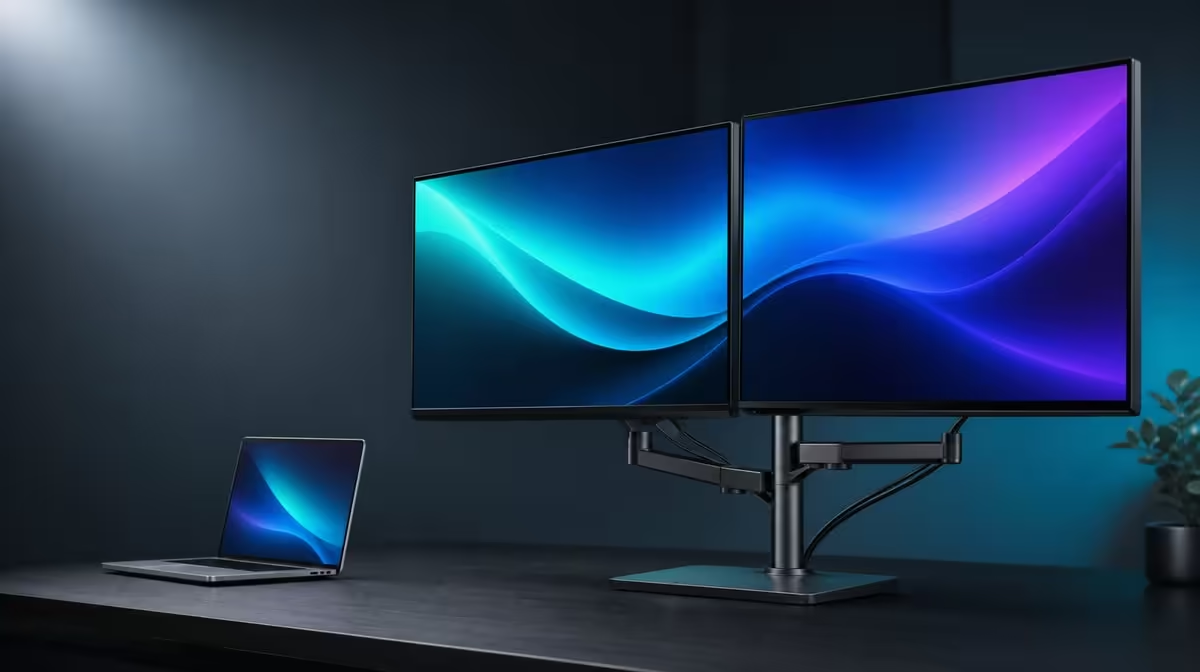
Two 23.8-inch panels create substantial visual area. Measure the desk around the laptop, keyboard, panels and stand, leaving clear space for the 360-degree folding movement.
Choose a default physical layout. Side-by-side can keep two frequent tasks at similar height. A vertical stack saves width and keeps work near the centreline, but the upper panel should hold lower-frequency content.
Turn the panels towards the user's chair and test the viewing distance with real text. Panel size has little value when scaling or placement encourages leaning.
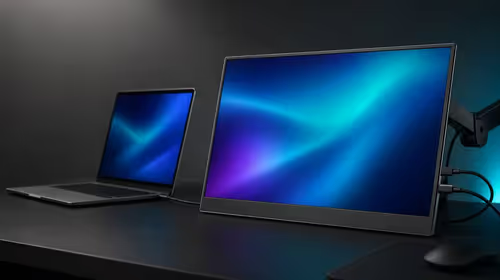
Include the laptop display only when it has a defined role. It can provide communication, controls or a camera view, while the Delta Mega screens carry the main work.
Use the stand on a stable surface and support both displays while changing angle. A large folding system needs balance and a clear cable path in every arrangement.
Compare folding screens through Evetech's portable monitor range after mapping the physical workspace.
Assign task zones
Place the main document on the more comfortable panel and use the second for references, communication, previews or monitoring. Swap them for another session to confirm the arrangement.
Count useful visible windows rather than screen count. An unused desktop does not create productivity.
🖥️ Read Full HD, 100Hz and 14ms separately
Each IPS panel uses 1920 x 1080. Select native resolution on both, begin from matched scaling and open the exact business applications.
Move a fine-text document and spreadsheet between screens. Check whether fonts remain readable and whether application zoom follows the intended display.
Enable 100Hz after both panels are stable. The higher refresh can smooth scrolling, cursor movement and animation when the source path supports it.
Refresh does not add pixels. Full HD workspace and 100Hz fluidity should receive separate rows on the buying sheet.
The 14ms figure describes pixel response behaviour. It is more relevant to moving images than still documents and should remain visible for casual gaming or motion-sensitive buyers.
Begin both screens at matched neutral picture settings. Test low blue light later, because its warmer result is a comfort choice rather than a neutral colour reference.
🔌 Prove Windows and Mac connections
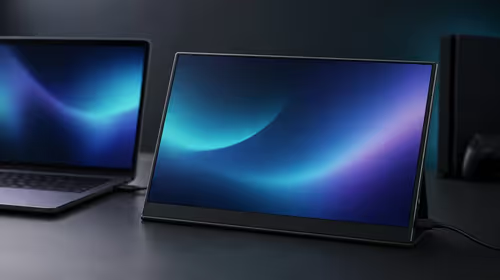
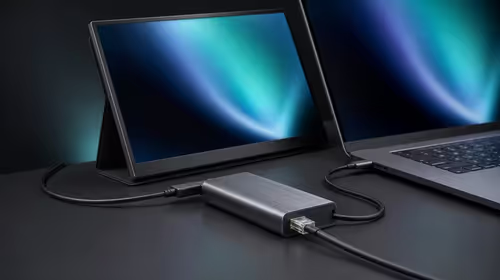
On Windows and Mac systems, the Delta Mega accepts either a supported Type-C path or HDMI. The computer's exact output, cable and display mode determine how both panels operate.
Create a device matrix. For every laptop, record the working port, cable, both-panel detection, native resolution, available refresh and audio route.
Test one connection at a time. Restart and confirm that both displays return in the correct software positions before comparing another route.
Keep cable slack through side-by-side and stacked arrangements. A Type-C or HDMI route is not practical if the lead is pulled across a joint or moves the stand.
Use the identify function after every large fold. Match top, bottom, left and right positions, then move a test window across each shared edge.
Compare fixed business screens through Evetech's PC monitor department when folding does not matter to the buyer.
🔊 Test convenience and long-term value
Select the built-in speakers from the companion laptop and play a familiar sample. Decide whether they suit meetings, notifications and casual media, or whether the existing audio route remains preferable.
Test low blue light during a long reading session. Keep a neutral profile for work where colour comparison matters.
Create a recovery card with laptop, connection, display map, resolution, scaling, refresh, picture mode and speakers. Another user should be able to restore the system.
Run the full setup for one week. Record which layout is used, which applications occupy each screen, how often 100Hz motion is noticed and whether the speakers remove desk equipment.
Review at month end and remove unused features from the value score. A monitor should become easier to explain through ownership, not remain a generic list.
At R6,899, the Delta Mega is valuable when its two large work areas, supported source routes and flexible positions remove recurring business friction.
Use Evetech's monitor best-seller list at purchase time with this complete checklist.
Create a first-day commissioning sheet. It should record stand stability, laptop detection, panel order, native resolution, scaling, active refresh, speaker selection and neutral picture state.
Then create a first-month ownership sheet. Replace specification rows with tasks performed, layouts used, reconnections completed and problems recovered.
Run a horizontal baseline for one week before deciding that vertical stacking is better. Familiarity with the ordinary layout gives the folding comparison a fair reference.
During the stacked week, keep the same main and secondary applications. Moving every task at once would make the screen direction impossible to evaluate.
Test a sharing day with one panel turned towards another person. Record whether duplicate or extended mode, privacy reset and audio routing remain easy.
Add a laptop-only recovery. Move important windows and sound back to the computer before disconnecting the Delta Mega, then restore the dual map later.
Review 100Hz and 14ms after actual motion-heavy work or casual gaming. Keep office smoothness and game response in separate rows.
Ask another user to recreate the setup from the sheet. A business monitor is easier to share when the instructions do not depend on one owner's memory.
The buying guide finishes when the month-later sheet contains a short reason for each retained feature and a clear blank for anything not used.
Add a maintenance line for cable routing and stand balance. Flexible panels should be inspected after a major fold or desk move, not treated as permanently aligned.
Keep the neutral connection card separate from personal profiles. This gives support checks a clean baseline without deleting a user's scaling or low-blue-light preferences.
Review the laptop's source role too. A new computer, dock or output should trigger another compatibility pass before old screen results are reused.
The final guide should let a reader explain why two 23.8-inch panels are useful on this desk, not merely why dual monitors exist.
Frequently Asked Questions
How much physical screen does the example provide?
It provides two 23.8-inch panels that can form horizontal, vertical or sharing task areas.
What does Full HD mean on each screen?
Each display uses native 1920 x 1080 resolution.
How should 100Hz and 14ms be read together?
100Hz describes refresh frequency, while 14ms describes pixel response behaviour.
Which connection checks belong before purchase?
Test the exact Windows or Mac laptop, Type-C or HDMI output, cable and intended dual-screen mode.
What ergonomic layouts are possible?
The 360-degree range supports side-by-side, stacked and screen-sharing positions.
How should low blue light be evaluated?
Use it as a separate comfort mode during long reading, not as a neutral colour setting.
When do built-in speakers help?
They help when their audio meets meeting, notification or casual media needs without another desk device.
Ready to turn a dual-monitor specification list into a business pass sheet?
Explore Evetech's monitor options and test the Delta Mega through desk fit, laptop connection, Full HD tasks, motion, folding and audio.