You’ve just dropped some serious ZAR on a shiny new 144Hz gaming monitor. You plug it in, ready for that buttery-smooth gameplay everyone raves about… but it feels… off. Still choppy. Still stuck at 60Hz. What gives? Before you start blaming your GPU, take a look at the humble cable connecting it all. That thin wire is often the secret bottleneck holding your performance hostage, but luckily, it’s an easy fix.
Why Your Cable is Crippling Your Refresh Rate
So, you've got the hardware, but not the results. The most common culprit behind a high-refresh-rate monitor underperforming is an inadequate cable. It’s like trying to fill a swimming pool with a garden hose… the potential is there, but the delivery system can't keep up. This can lead to screen tearing, flickering, or your PC simply not recognising your monitor's 144Hz capability. To truly fix 144Hz monitor cable bottlenecks, you first need to understand the tech.
DisplayPort vs. HDMI: The 144Hz Showdown
For years, DisplayPort has been the go-to for PC gamers chasing high refresh rates. A DisplayPort 1.2 cable can handle 144Hz at both 1080p and 1440p resolutions without breaking a sweat. DisplayPort 1.4 pushes that even further, supporting 144Hz at 4K.
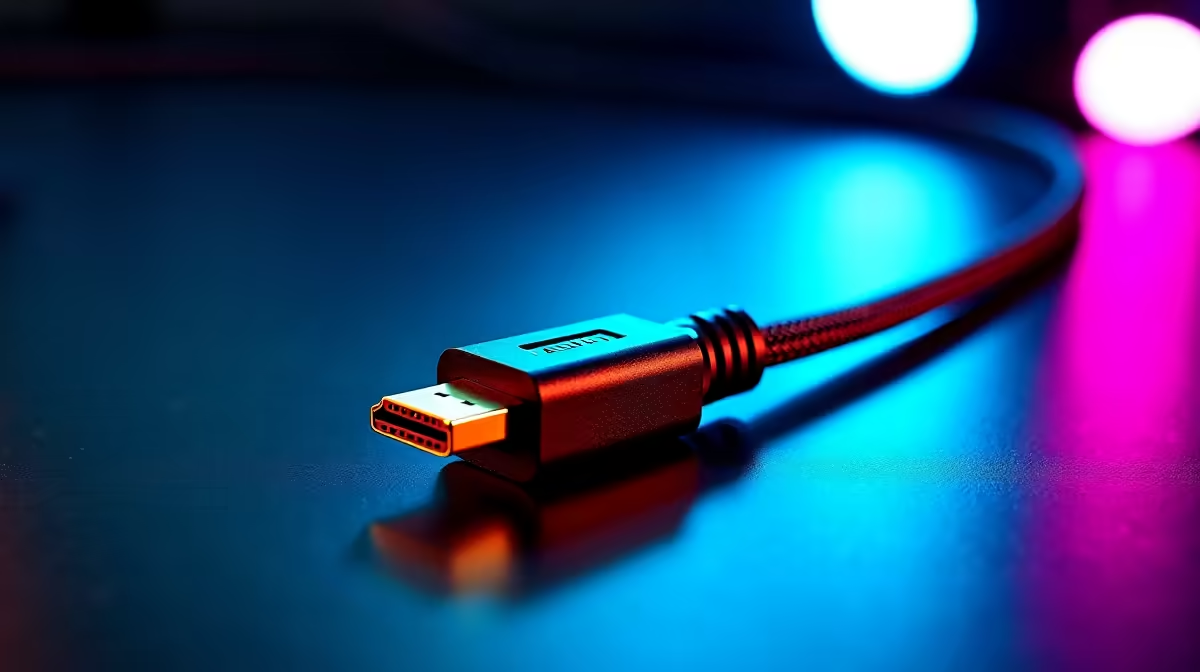
HDMI can also achieve 144Hz, but it’s trickier. You need at least an HDMI 2.0 cable for 1080p or 1440p at 144Hz. Anything older, like the very common HDMI 1.4, will likely cap you at 120Hz or even 60Hz. It’s a simple mismatch that catches out so many gamers. For a reliable connection, a quality GIZZU DisplayPort cable is often the simplest way to guarantee you get the speed you paid for.
The Right Way to Fix Your 144Hz Cable Connection
Okay, so you suspect the cable is the problem. The solution is more than just buying a new one; it's about choosing the correct one and ensuring your system is set up to use it properly. A small investment here protects the big investment you made in your monitor. 🚀
Check Your Settings First! 🔧
Before you buy a new cable, dive into your Windows Display Settings and your GPU's control panel (NVIDIA Control Panel or AMD Radeon Software). Make sure you've manually selected the 144Hz refresh rate. Sometimes, Windows defaults to 60Hz, and a simple click is all you need to fix it!
Choosing Your Champion Cable
When shopping, don't just grab the cheapest option. Look for cables that explicitly state their version, like "DisplayPort 1.4" or "HDMI 2.0 Certified". This certification ensures the cable has the bandwidth to deliver those glorious high refresh rates without signal loss. Even trusted brands like HP offer cables built to specific standards for professional and gaming use.
Length also matters. A cable longer than 3 metres can sometimes struggle with high-bandwidth signals unless it's a high-quality, actively powered one. For most desktop setups, a 1.8m or 2m cable is the sweet spot. If you're managing a more complex setup with multiple devices, versatile options from brands like Promate also provide solutions that can help keep things tidy and performing well. ✨
Unleash Your Monitor's True Power
Don't let a R100 cable bottleneck your R5000 monitor. Upgrading to the right cable is the cheapest and fastest performance boost you can give your gaming rig. Shop our comprehensive cable solutions at Evetech and finally get the buttery-smooth gameplay you deserve.