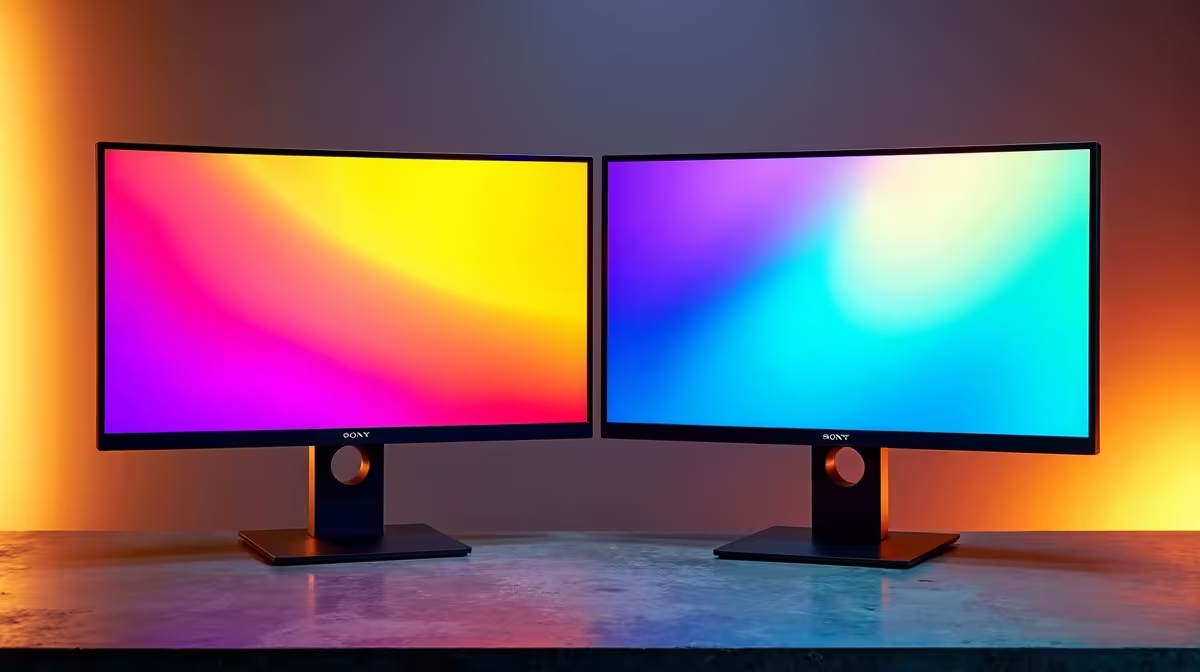
So, you’ve finally built your dream multi-monitor setup. The productivity! The immersion! But wait… why does your main screen look crisp and white while the one next to it has a weird, yellowish tint? You’re not alone. This frustrating dual monitor colour mismatch is a common headache for gamers and creators across South Africa. But don’t stress, getting your screens in sync is easier than you think. Let’s dive in and fix this distracting colour problem for good.
Why Do My Monitors Show Different Colours?
Before we can fix the dual monitor colour mismatch, it helps to understand why it happens. It’s rarely a single issue, but often a combination of factors. Even identical models can have slight variations right out of the box.
The most common culprits include:
- Different Panel Technologies: Is one monitor an IPS and the other a VA or TN panel? Each type produces colours differently, making a perfect match nearly impossible without calibration.
- Manufacturing Variances: No two panels are ever 100% identical. Tiny differences during manufacturing can lead to noticeable shifts in colour temperature and brightness.
- Settings Mismatch: One monitor might be in "Game" mode while the other is set to "Standard." These presets drastically alter colour, contrast, and sharpness.
- Cables and Connections: Believe it or not, using an HDMI on one screen and a DisplayPort on the other can sometimes cause subtle differences in the colour signal.
How to Fix Your Dual Monitor Colour Mismatch: Step-by-Step
Ready to get those colours looking uniform? Let's start with the easiest software-based solutions before moving on to the more advanced stuff. You'll be surprised how much you can achieve without spending a cent. 🔧
1. Match Your On-Screen Display (OSD) Settings
This is your first port of call. Grab the remote or find the buttons on your monitors and dive into the settings menu (the OSD).
- Reset Both Monitors: Start by resetting both displays to their factory defaults. This gives you a clean, neutral baseline to work from.
- Choose the Same Picture Mode: Select the exact same preset on both screens (e.g., "Standard," "sRGB," or "User").
- Manually Adjust: Pick one monitor as your "master" reference. Now, tweak the Brightness, Contrast, and RGB (Red, Green, Blue) values on the second monitor to match the first. It takes patience, but this often solves the most obvious colour mismatch issues.
Pro Calibration Tip
Open the same high-resolution, colourful image on both screens. Drag the window so it's split perfectly between the two displays. This makes it much easier to spot subtle differences and fine-tune your settings for a near-perfect match.
2. Calibrate Using Your Graphics Card Software
Your NVIDIA or AMD graphics card software has powerful colour correction tools built right in.
- For NVIDIA: Open the NVIDIA Control Panel, go to "Adjust desktop colour settings," and select your secondary monitor. Here, you can tweak the colour channels, brightness, and contrast at the driver level.
- For AMD: Open AMD Software: Adrenalin Edition, click the "Display" tab, and look for "Custom Color." You can adjust Hue, Saturation, Brightness, and Contrast for each connected display.
This method is great because it saves the profile at the system level, ensuring your settings stick.
3. Use Windows Built-in Colour Calibration
Windows has its own tool that can help you fix your dual monitor colour mismatch. It's not as precise as professional hardware, but it's a massive step up from just eyeballing it.
- Press the Windows key and type
dccw or "Calibrate display color." - Press Enter to open the tool.
- Drag the window to the monitor you want to calibrate and follow the on-screen wizard. It will guide you through adjusting gamma, brightness, contrast, and colour balance.
- Run the tool separately for each monitor, trying your best to make the same adjustments on both.
When Software Isn't Enough: Considering Hardware & Upgrades
If you've tried everything and your colours are still off, the difference in panel technology or age might just be too significant. For professionals or serious enthusiasts, a hardware calibrator (like a colorimeter) is the ultimate solution. These devices read the colours on your screen and generate a perfect colour profile automatically. You can find some great professional monitor accessories that can help achieve true colour accuracy. ✨
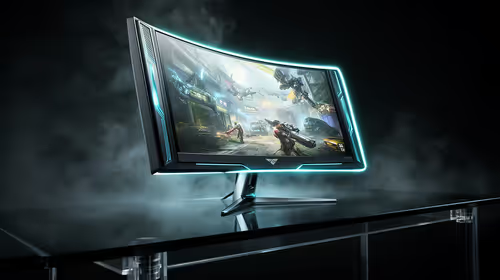
Sometimes, the best fix for a dual monitor colour mismatch is a strategic upgrade. Pairing an old 1080p screen with one of today's stunning 4K monitors will always be a challenge. If you're looking to create a seamless visual workspace, investing in a matching pair of PC monitors is the most reliable long-term solution. Whether you need the wrap-around feel of immersive curved monitors or the flexibility of portable monitors for your on-the-go setup, getting panels with similar specs is key.
Ready for a Perfect Match?
Stop fighting with mismatched colours and create the seamless setup you deserve. Check out the best PC monitor deals in South Africa and find the perfect pair for your rig today.