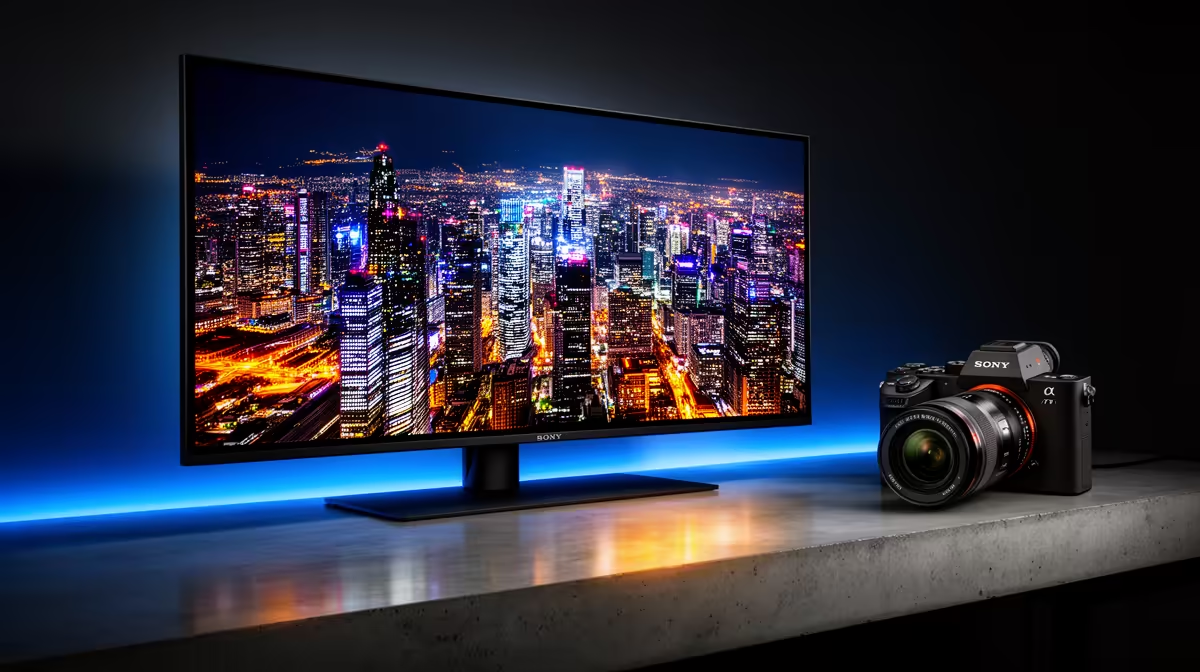
So, you’ve finally invested in a glorious OLED monitor. The inky blacks and explosive colours are breathtaking for gaming and movies... but a small worry might be creeping in. What about burn-in? Or that strange dimming you noticed in a bright scene? Don't stress, Mzansi. Most common OLED monitor issues are completely manageable with a bit of knowledge. This ultimate troubleshooting guide will turn you from a worried owner into a confident OLED master. 🚀
The Elephant in the Room: OLED Burn-In (and How to Tame It)
Let's tackle the biggest fear first: burn-in. Technically called "image retention," it’s when a faint ghost of a static image (like a taskbar or game HUD) remains visible. While early OLEDs were more susceptible, modern panels have powerful built-in protections. Your job is simply to help them along.
The core principle is to avoid leaving the exact same, high-contrast image on screen for hundreds of hours. Here’s how you can easily prevent this particular OLED monitor issue:
- Hide Your Taskbar: Set your Windows or macOS taskbar/dock to auto-hide. It’s the number one culprit for static elements.
- Use a Blank Screen Saver: Instead of fancy animations, set a simple black screen saver to kick in after 5-10 minutes of inactivity.
- Vary Your Content: If you work in the same app all day, occasionally move the windows around. It’s that simple.
Most modern PC monitors with OLED technology have built-in tools like Pixel Orbiting (or Shifting) and run automatic pixel refresh cycles to keep the panel healthy. Just let them do their thing!
Troubleshooting Common OLED Monitor Issues
Beyond burn-in, a few other quirks can pop up. Fortunately, these OLED problems usually have simple explanations and solutions.
Unwanted Dimming (ABL)
Ever noticed your screen get slightly dimmer during a bright, full-screen scene, like a snowy landscape in a game? That's your Automatic Brightness Limiter (ABL) at work. It's a protective feature designed to manage heat and power consumption, preventing damage to the organic pixels. While it's not a fault, it can be distracting. Some gaming monitors have less aggressive ABL than others, a factor worth checking in reviews before you buy.
Text Clarity and Colour Fringing
If you've noticed text looks a bit less crisp than on your old LCD, especially with coloured edges, you're not imagining things. Many OLED panels use unique subpixel layouts that can affect how operating systems render text.
The fix is often straightforward. Running the built-in ClearType Text Tuner in Windows can make a massive difference. Higher pixel density also helps, which is why text on premium 5K and 4K monitors often looks incredibly sharp, mitigating this subpixel issue almost entirely.
Quick Fix for Fringed Text 🔧
In Windows, just press the Windows key and type "ClearType". Select "Adjust ClearType text" and follow the on-screen wizard. It will show you several text samples, and you simply choose the one that looks clearest to you. This calibrates text rendering specifically for your monitor's subpixel structure.
Flickering or Black Screens
A sudden flicker or a screen that goes black for a second is alarming, but it's rarely a sign of a fatal OLED monitor issue. Before you panic, run through this checklist:
- Check Your Cable: Ensure you're using a certified, high-quality DisplayPort 1.4 or HDMI 2.1 cable that can handle the bandwidth.
- Update Your GPU Drivers: A simple driver update from NVIDIA or AMD often resolves signal and compatibility problems.
- Check Power Saving Settings: Ensure your PC's power plan isn't putting the display to sleep too aggressively.
Maximising Your OLED's Lifespan ✨
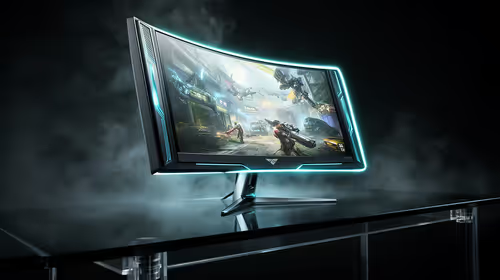
Proactive care ensures your investment pays off for years to come. Many of the same principles apply whether you have one of the latest immersive curved monitors or a handy portable monitor for your on-the-go setup.
Don't disable the monitor's built-in care functions like "Pixel Refresh" or "Panel Refresh." These are crucial maintenance routines. The shorter cycle often runs automatically after a few hours of use when the monitor enters standby, while the longer, more intensive cycle might prompt you to run it after thousands of hours. Just follow the on-screen instructions when they appear.
By understanding these common OLED monitor issues and their solutions, you can enjoy the unparalleled picture quality with total peace of mind.
Ready to Upgrade Your View?
While OLED monitor issues are manageable, sometimes the best fix is an upgrade to the latest tech. From immersive gaming screens to ultra-sharp 4K panels, your perfect display is waiting. Explore our massive range of PC monitor deals and find the perfect screen to conquer your world.