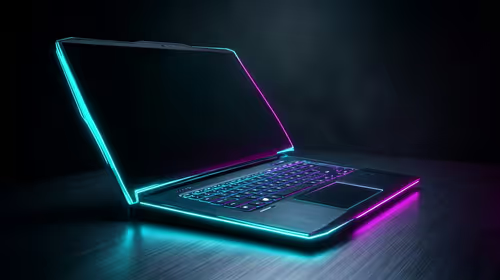
Is your gaming laptop feeling a bit… sluggish? That machine that once crushed frame rates now stutters during an intense firefight in Apex Legends. Before you start pricing out a new rig, know this: a little TLC can go a long way. Proper gaming laptop maintenance is the secret to unlocking sustained performance and extending your hardware’s lifespan. Let's dive into some pro tips to get your portable powerhouse back in fighting shape. 🚀
The Physical Clean-Up: Your First Line of Defence
Heat is the number one enemy of performance. When your laptop gets too hot, it throttles its CPU and GPU to protect itself, resulting in those dreaded frame drops. The main culprit? Dust. It clogs up your fans and heatsinks, trapping heat inside the chassis.
Regular physical maintenance is non-negotiable for any high-performance machine.
Vents, Fans, and Keyboard
At least once every few months, give your laptop a proper clean.
- Power Down: Completely shut down your laptop and unplug it.
- Compressed Air: Use short, controlled bursts of compressed air to blow dust out of the intake and exhaust vents. Never blast air directly into the fan for a long time, as it can damage the bearings.
- Wipe Down: Use a microfibre cloth to gently wipe the chassis, screen, and keyboard. For stubborn grime between keys, a soft brush works wonders.
This simple routine doesn't just apply to gaming rigs; the principles of good hardware care are universal. Even powerful workstation laptops used for rendering and design demand the same attention to keep them running cool under pressure.
Software TLC: Optimise Your Digital Battlefield
A clean machine on the outside is only half the battle. Your software environment needs just as much attention to ensure peak gaming laptop performance. An un-optimised operating system can bottleneck even the most powerful hardware.
Keep Everything Updated
This might sound basic, but it's amazing how many performance issues stem from outdated software.
- Graphics Drivers: NVIDIA, AMD, and Intel constantly release new drivers that optimise performance for the latest games. Make this a monthly check.
- Windows Updates: These often include crucial security patches and performance improvements.
- Game Updates: Ensure your games are updated via Steam, Epic Games, or their respective launchers.
Quick Performance Boost ⚡
Dive into your GPU's control panel (NVIDIA Control Panel or AMD Radeon Software) and set the global power management mode to "Prefer maximum performance". This tells your graphics card to prioritise frame rates over power saving when plugged in. It’s a simple switch that can make a noticeable difference.
Declutter Your Drive
A nearly full SSD can slow down over time. Free up space by uninstalling games you no longer play and clearing out your downloads folder. A tidy drive means faster loading times and a more responsive system overall. Think of it as digital housekeeping for your gaming laptop.
When Maintenance Isn't Enough
You've cleaned the fans, updated the drivers, and decluttered your storage… but you're still not getting the performance you crave. Sometimes, older hardware simply can't keep up with the demands of modern titles like Helldivers 2 or Alan Wake 2. If your machine is several years old, no amount of gaming laptop maintenance will magically transform a GTX 1050 into an RTX 4070. ✨
Recognising when it's time to upgrade is part of the journey. If you've done all you can and your laptop is still holding you back, it might be time to explore the incredible performance and features offered by the latest generation. The good news is that modern gaming laptops offer desktop-level power in a portable package. Exploring the best gaming laptop deals can show you just how far the technology has come.
Ready to Dominate the Leaderboards?
Whether you're reviving an old favourite or stepping up to a new beast, a well-maintained laptop is key. If it's time for an upgrade, we've got you covered. Explore our massive range of laptop specials and find the perfect machine to conquer your world.