


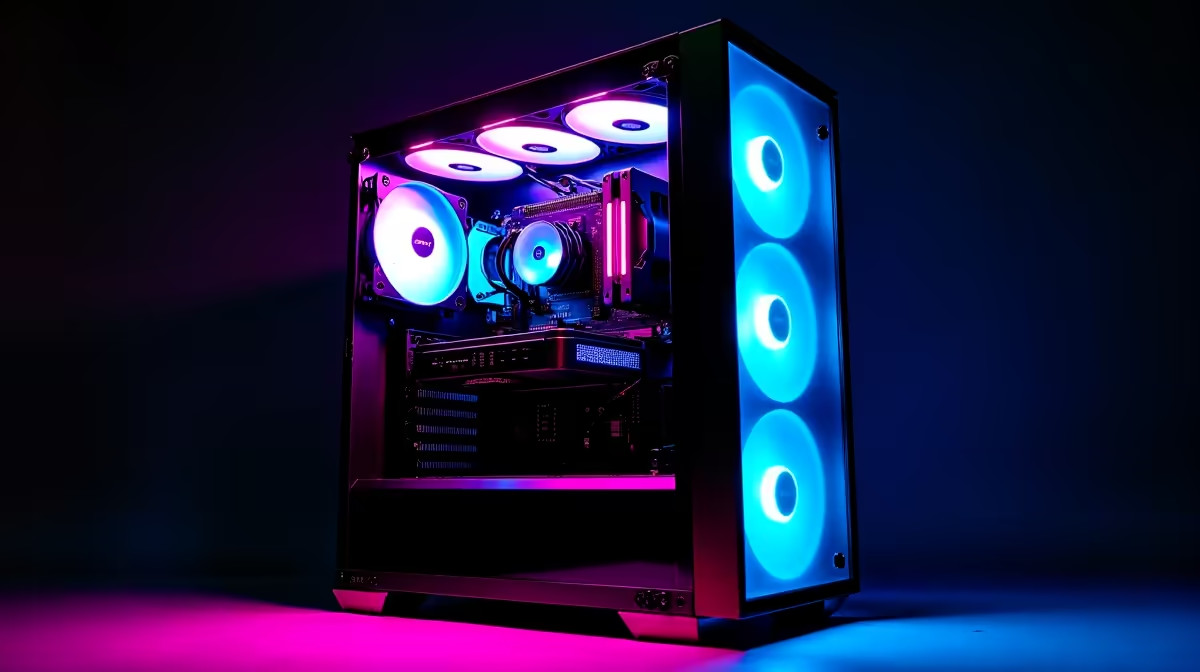
Gaming PC Overheating Even With Multiple Fans: Fix Guide (South African Edition) 🔥
If your gaming PC is overheating even with multiple fans, you’re not alone. In SA heat, dust, and poorly guided airflow can turn a “high-end” build into a stuttery, shutdown-prone mess. The frustrating part? It often looks like your fans are spinning… so why is the temperature still climbing? In this guide, we’ll walk through the most common causes and what to do next, without guessing.
Gaming PC Overheating Even With Multiple Fans: Start With the Basics ✅
First, confirm the symptoms. Are temps rising fast in menus, or only during GPU-heavy games? Do you hear whine from the CPU cooler, or see any fan wobble? These clues matter.
Check the temperatures (not just fan speed) 📈
Use a monitoring tool (many motherboards also show temps in BIOS). You’re looking for:
- CPU temperature under load (often the first culprit)
- GPU temperature under load
- Hot spots or sharp spikes
If fans are running yet temps climb, it usually points to airflow problems, a bad mounting/thermal paste issue, or a sensor/control mismatch.
Rule out “fan spinning but not cooling” 🔧
Even with multiple fans:
- A fan could be installed backward (yes, it happens).
- A cable could keep it at low RPM.
- Filters and dust buildup can choke intake airflow.
Quick test: gently check whether intake fans pull air in strongly and exhaust fans push air out. If airflow feels weak, clean time first.
Gaming PC Overheating Even With Multiple Fans: Dust, Airflow, and Case Choice Matter
Dust acts like insulation. Filters and clogged heatsinks trap heat, especially in warmer regions. If you’re using a case with restrictive front airflow or awkward fan placement, the GPU can cook while the CPU looks “fine”.
Choose a better airflow layout
An effective layout is usually:
- Front/Bottom intake
- Rear/Top exhaust
- Enough clearance for the cooler and GPU fans
If you’re planning a case change, compare options focused on airflow. Browse compatible case options like Evetech’s computer cases here: computer cases. For specific airflow-first models, consider Fractal Design PC cases: Fractal Design PC cases.
Productivity Pro Tip ⚡
If your temps spike after game launches, watch fan RPM and temps together for 5–10 minutes. This helps you spot “fans running late” due to fan curves or BIOS settings, so you can adjust cooling behaviour instead of only replacing hardware.
Gaming PC Overheating Even With Multiple Fans: CPU Cooler Mounting and Thermal Paste
If the CPU cooler isn’t making full contact, more fans won’t fix it. Similarly, old thermal paste dries out and stops transferring heat.
What to do:
- Power down, unplug, and remove the cooler.
- Clean old paste from the CPU and cooler base.
- Reapply fresh thermal paste (thin, even coverage).
- Mount the cooler evenly and securely.
Also check cooler pressure. Overtightening can warp, undertightening can leave gaps.
Gaming PC Overheating Even With Multiple Fans: When the GPU Still Looks Hot
Sometimes the CPU runs okay, but the GPU is the real issue. In that case:
- Confirm GPU fans spin and ramp in-game.
- Check whether your case has enough exhaust above or behind the GPU.
- Ensure front intake isn’t blocked by cable clutter.
If you’re trying to improve cooling without breaking your budget, explore Gamdias gaming cases: Gamdias gaming cases. If you’re price-conscious, here’s a more grounded option range (example filter) to keep your build realistic: Gamdias gaming cases under R1500.
Gaming PC Overheating Even With Multiple Fans: Quick Fix Checklist (Try These in Order) ✨
- Clean dust (fans, filters, heatsinks).
- Confirm fan direction and RPM control.
- Update BIOS if fan control options exist (follow your board’s instructions).
- Reseat and repaste the CPU cooler.
- Improve case airflow and reduce cable blockage.
- Re-test temps during a consistent game benchmark.
If temperatures don’t drop after these steps, the cooling hardware may be faulty. That’s when it’s worth getting a technician’s eye on mount contact, fan headers, or a cooler that’s simply not up to the CPU load.
Ready to Find Your Perfect Match? The Mac vs Windows debate is complex, but for maximum power, choice, and value in South Africa, Windows is hard to beat. Explore our massive range of laptop specials and find the perfect machine to conquer your world.











