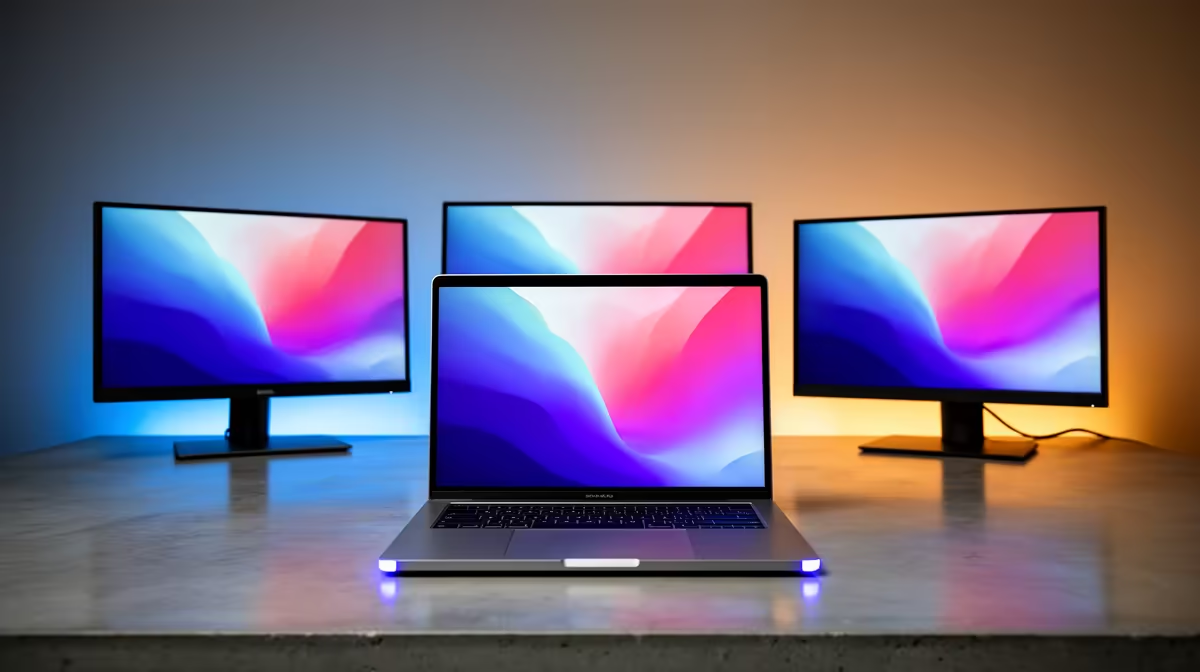
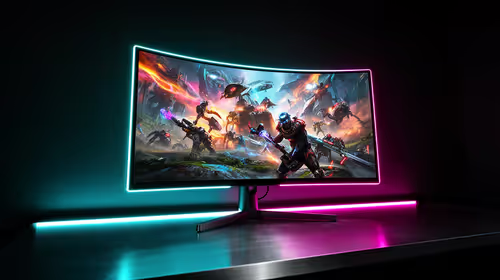
A MacBook that looks identical on the outside can drive a wildly different number of screens depending on the chip inside it. The M5 MacBook range splits its external display support cleanly by tier, and that single spec quietly decides whether your three-monitor trading desk or video edit bay will actually work, or leave one panel dark.
Quick Answer
The base M5 (in the MacBook Air and entry MacBook Pro) drives 2 external displays. The M5 Pro supports 3 external displays. The M5 Max reaches 4, with the fourth typically connected through a Thunderbolt daisy-chain. If a multi-monitor desk is non-negotiable, the chip tier matters more than the screen size or RAM you pick.
Why the Chip, Not the Ports, Sets the Limit
It is tempting to count the Thunderbolt ports on the side of a MacBook and assume that is your monitor budget. It is not. The real limit lives in the chip's display engine: the dedicated hardware that builds and pushes each screen's image. Each tier of M5 silicon ships with a different number of these display controllers, and that number caps how many external panels the laptop can render at once, regardless of how many cables physically fit.
That is why two MacBooks with the same ports can support different monitor counts. You are buying display engines, not sockets.
The full spread of current models and the chip options behind each one sits in the MacBook lineup at Evetech, which is the cleanest way to match a tier to your desk before you commit.
Tier by Tier: What Each M5 Chip Drives
Base M5 (MacBook Air and entry Pro): 2 displays
The standard M5 powers two external monitors. For most people that is plenty: a laptop on a stand plus a single large screen, or two side-by-side panels with the lid closed in clamshell mode. Students, writers and general professionals rarely need more. Where it bites is the desk that wants the laptop screen plus two externals at once, which the base chip cannot do.
M5 Pro: 3 displays
Step up to the M5 Pro and you get three external displays. This is the sweet spot for serious productivity: a centre panel for your main work, a second for reference or chat, and a third for a vertical document or a dashboard. Combined with the built-in screen, that is a genuinely expansive workspace for coding, finance or content production.
M5 Max: 4 displays
The M5 Max tops out at four external displays. The fourth is usually reached by daisy-chaining over Thunderbolt rather than running four independent cables to the laptop. This tier is aimed at video editors with timeline, preview, scopes and reference all open at once, or anyone running a true multi-screen command centre. It is the chip you buy specifically because the lower tiers ran out of outputs.
How to Choose for Your Desk
Work backwards from the screens you actually run, not the ones you might one day add.
- Laptop plus one big monitor: the base M5 is enough, and you save the premium.
- Laptop plus two externals, or three externals in clamshell: you need at least the M5 Pro.
- Three or four externals for editing or trading: go straight to the M5 Max.
A common mistake is buying for RAM or storage and treating display count as an afterthought, then discovering the third monitor will not light up. Decide the monitor count first, then size memory and storage within that tier.
Don't forget resolution and refresh
Display count is the headline, but each panel's resolution and refresh rate also draw on the chip's bandwidth. A pair of high-refresh 4K screens is more demanding than two modest 1080p panels. Stay within the published display support for your tier and you will not run into surprises. If you are choosing the panels at the same time, it helps to see what other local buyers are pairing with their machines, and the most popular laptops right now give a useful read on common pairings.
The Clamshell Question and Built-In Display
There is a subtlety worth understanding: whether the laptop's own screen counts against your monitor budget. On many Mac configurations, running the laptop open with its built-in display active uses part of the chip's display capacity, while closing the lid (clamshell mode) frees that up for an extra external panel.
That detail can change your real-world monitor count. A machine that drives two externals plus its own screen open might drive a different number with the lid shut, because the internal display is no longer drawing on the same resources. If your plan is a docked, lid-closed setup feeding a wall of monitors, clamshell mode is your friend. If you want the laptop screen as an active part of the layout, factor it in as one of your displays from the start.
The practical takeaway: decide whether the built-in screen is part of your workspace or not, because that choice interacts with how many external panels each tier can actually light up at once.
Docks, Cables and Getting the Displays Connected
The chip sets the ceiling, but the connection chain decides whether you reach it cleanly. Each external monitor needs a path from a Thunderbolt or USB-C port to the screen, and the cable or adapter has to carry enough bandwidth for that panel's resolution and refresh rate.
For a multi-monitor desk, a Thunderbolt dock keeps things tidy: one cable to the MacBook, several display outputs on the dock, plus power and peripherals. On the M5 Max, the fourth display reached by daisy-chaining relies on monitors that support that chaining, so check the screens as well as the laptop. Mismatched cables and underspecced adapters are the most common reason a perfectly capable MacBook fails to drive its full complement of screens, so the chain deserves as much attention as the chip.
A sensible buying order is: confirm the chip tier for your monitor count, then choose monitors that match the resolution and refresh you want, then pick a dock and cables rated for all of it together.
Frequently Asked Questions
How many monitors does the base M5 MacBook Air support?
The base M5 supports 2 external displays. That covers a laptop plus one external, or two externals in clamshell mode with the lid shut. For three screens at once you need the M5 Pro or higher.
Can the M5 Max really run four external monitors?
Yes. The M5 Max supports up to 4 external displays, with the fourth normally connected by daisy-chaining over Thunderbolt rather than a separate direct cable. It is the tier built for multi-screen editing and trading desks.
Do more Thunderbolt ports mean more monitors?
No. The number of monitors is set by the chip's display engines, not the port count. Two MacBooks with the same ports but different chips will support different numbers of external screens.
Does monitor resolution affect how many I can connect?
Higher-resolution, high-refresh panels use more of the chip's display bandwidth, so very demanding setups can hit limits sooner. Staying within each tier's published display support keeps the count reliable.
Which M5 tier is best for three monitors?
The M5 Pro, which supports 3 external displays, is the natural choice for a three-screen desk. Choose the M5 Max only if you need a fourth display or the extra GPU power for heavy editing.
Know how many screens your desk needs before you pick a chip. Browse the MacBook range at Evetech, match the M5, M5 Pro or M5 Max tier to your monitor count, and buy the laptop that lights up every panel.