



Marvel Rivals launch in South Africa
Marvel Rivals launch needs a balanced parts plan, not a random basket. Map the CPU, GPU, RAM, SSD, cooling, and monitor target to the budget so SA builders know where to spend first.
Read moreRight away: good wireless headsets keep 2.4GHz latency under 20ms for gaming. For the install or setup runs faster than it reads, with three or four real steps. Inside: driver, ANC, mic, and battery numbers compared.
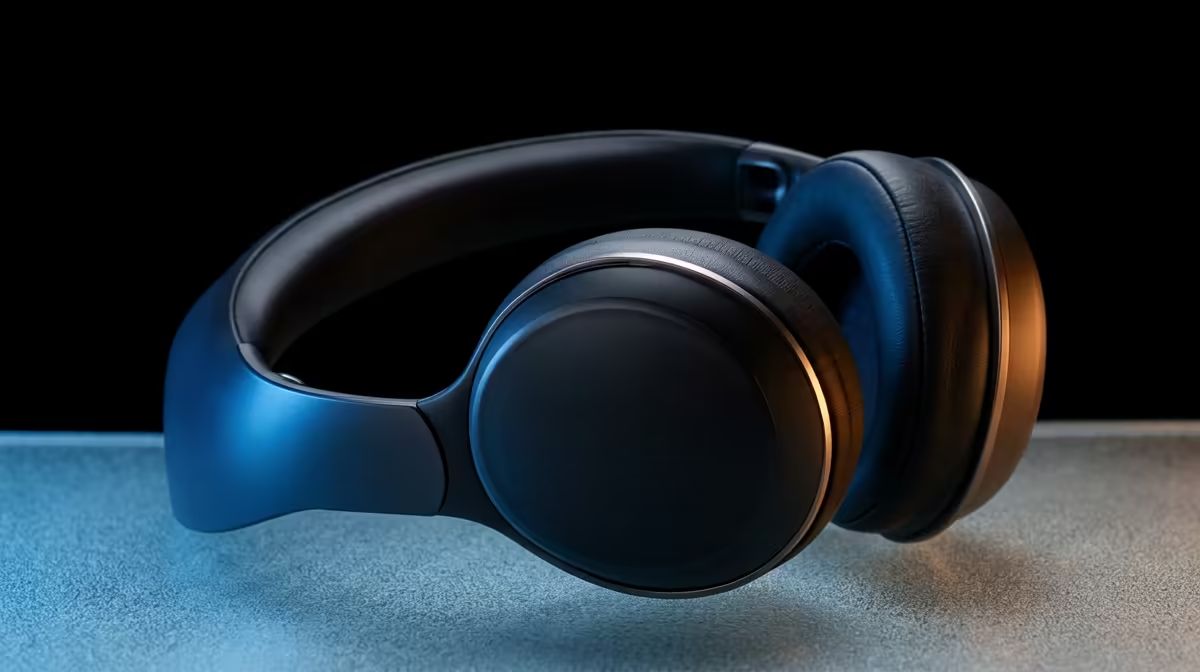
Most wireless headset connection problems are resolved by one of four actions: re-pairing to the dongle or Bluetooth device, updating headset firmware via the companion app, moving the dongle away from USB 3.0 ports and Wi-Fi adapters, or clearing the pairing list and starting fresh. Start with the firmware update before any hardware changes.
Bluetooth dropouts usually stem from range issues, interference from other Bluetooth devices, or a pairing memory conflict. Test by forgetting all paired devices in the headset's pairing list (typically hold the pairing button for 10 seconds), then pair fresh to one target device only. If dropouts stop, a ghost device in pairing memory was the culprit. For 2.4GHz issues, the most common cause in South African homes is USB 3.0 port interference. USB 3.0 generates broadband electrical noise in the 2.4GHz spectrum, and plugging the dongle directly into a USB 3.0 rear port places it centimetres from a strong noise source. Use the included dongle extension cable to move it away from the case.
For a headset that connects but drops audio intermittently: update firmware first via the companion app, then move the dongle to a USB 2.0 port or use the extender cable, keep distance under 5 metres with no obstacles, and check whether a second device is claiming the Bluetooth connection. For a headset that shows connected but produces no audio: open OS audio settings and confirm the headset is set as the default output device since Windows sometimes switches defaults on USB reconnection. For a headset that will not pair at all: hold the power button until the LED flashes rapidly to enter pairing mode, then initiate pairing from the host device within 30 seconds.
If the above steps do not work, a factory reset clears all stored pairing data and returns firmware to default settings. Most headsets do this with a 10-second hold of power and volume-down simultaneously, but check your manual for the exact combination. After resetting, re-pair all devices and reinstall the companion app to restore any EQ and mic settings. If the connection remains unstable after a full reset, the issue is likely hardware. Contact the brand's local SA warranty agent since connectivity hardware faults within the first year are covered under standard warranty.
If your 2.4GHz headset drops out near your PC, try plugging the dongle into a USB 2.0 port instead of USB 3.0. USB 3.0 generates RF noise in the exact frequency range the headset uses. If no USB 2.0 port is accessible, use the extension cable to physically move the dongle at least 30 cm away from the case.
Windows can switch the default audio device when applications like video editors or communication tools register their own audio device preference on launch. Go to Settings, System, Sound, App Volume and Device Preferences, and manually assign your headset as output for each application listed.
Yes. Bluetooth uses frequency hopping in the 2.4GHz band, and in an environment with 10 or more active Bluetooth devices, hop collisions increase and cause brief audio interruptions. Disabling Bluetooth on unused devices reduces this meaningfully.
PC Bluetooth radios vary significantly in quality. Budget integrated Bluetooth on motherboards can have shorter range and weaker signal recovery than a phone's Bluetooth chip. A USB Bluetooth 5.0 adapter costing around R150 to R250 often solves the problem immediately.
Looking to upgrade to a more reliable wireless headset? Evetech stocks wireless gaming headsets with proven connectivity, from dedicated 2.4GHz models to dual-wireless options built for stable everyday use.
Marvel Rivals launch needs a balanced parts plan, not a random basket. Map the CPU, GPU, RAM, SSD, cooling, and monitor target to the budget so SA builders know where to spend first.
Read more
Path of Exile 2 launch needs a balanced parts plan, not a random basket. Map the CPU, GPU, RAM, SSD, cooling, and monitor target to the budget so SA builders know where to spend first.
Read more
Black Myth Wukong launch needs a balanced parts plan, not a random basket. Map the CPU, GPU, RAM, SSD, cooling, and monitor target to the budget so SA builders know where to spend first.
Read more
Hollow Knight PC requirements should be mapped to resolution, settings and upgrade budget before choosing a tier. Verify current requirements, then balance GPU, CPU, RAM and SSD around SA pricing.
Read more
Hollow Knight build planning should focus on the target resolution, settings and total system balance. Treat launch wording as time-sensitive, then verify requirements before choosing SA PC parts.
Read more
Fallout 4 PC requirements should be mapped to resolution, settings and upgrade budget before choosing a tier. Verify current requirements, then balance GPU, CPU, RAM and SSD around SA pricing.
Read more
Wondering if a TKL wireless mechanical keyboard is worth it for everyday productivity? We break down latency, battery life, comfort, and workflow gains for real work. ⚡⌨️

Maximise battery life on a fanless 15-inch laptop using efficiency core architecture. Cut idle drain, tune power profiles, and improve thermals for longer runtime. 🔋⚙️

Learn how to reduce desk clutter with a TKL wireless keyboard using fewer cables, smart placement, and tidy essentials. Get a faster, calmer workspace with better ergonomics. ✅🧼

RGB keyboard lighting too distracting? Learn how to manage backlight modes, set brightness, and reduce distraction for focus and productivity 😌🖱️

Are themed gaming keyboards worth the extra cost? Compare build quality, switch options, features, and resale value to find the best fit for your setup 🎮⌨️

Full-Size vs Tenkeyless mechanical keyboards for gaming: find out if a smaller layout truly improves aim, speed, and comfort. We break down layout, desk space, latency-feel, and keybinds 🎮⌨️

Dedicated media rollers vs function key shortcuts: learn which setup gives you better workflow control, faster media access, and fewer mistakes. 🖱️🎧

Best Mechanical Switch Type for Gaming: Clicky vs Linear vs Tactile. Find your feel, speed, and noise balance with practical guidance for FPS, MOBA, and productivity 😄🎮

Direct mouse answer: Mouse not keeping up with your work? Everything that matters about dual-mode 2.4GHz + BT 5.0: DPI behaviour, channel switching, battery curves and per-app button mapping. Covers when 2.4GHz USB wins (low-latency desk) and when BT 5.0 wins (laptop, d

Plain wireless mouse guide: Mouse not keeping up with your work? Everything that matters about wireless productivity mouse: DPI behaviour, channel switching, battery curves and per-app button mapping. Includes DPI tuning tips, channel switch shortcuts, and ZAR-aware fea

Real productivity numbers: Set up your wireless mouse in this order: everything that matters about wireless productivity mouse: DPI behaviour, channel switching, battery curves and per-app button mapping. Includes DPI tuning tips, channel switch shortcuts, and ZAR-aware

Pen not feeling like paper? Stylus lag and skipping usually trace to old drivers, dirty nibs, or display refresh mismatches, not the pen itself. Covers pressure curve tuning, tilt thresholds, nib swap timing, and SA pricing brackets.