


iRacing SA Gaming PC Build Guide
iRacing build planning should focus on the target resolution, settings and total system balance. Treat launch wording as time-sensitive, then verify requirements before choosing SA PC parts.
Read moreFlickering Black: real 4K 60Hz over HDMI demands a Premium High Speed cable rated for 18Gbps and full HDR colour passthrough. Pricing, fit and feature trade-offs sit alongside straight technical answers. Quick answers come first, then technical detail.
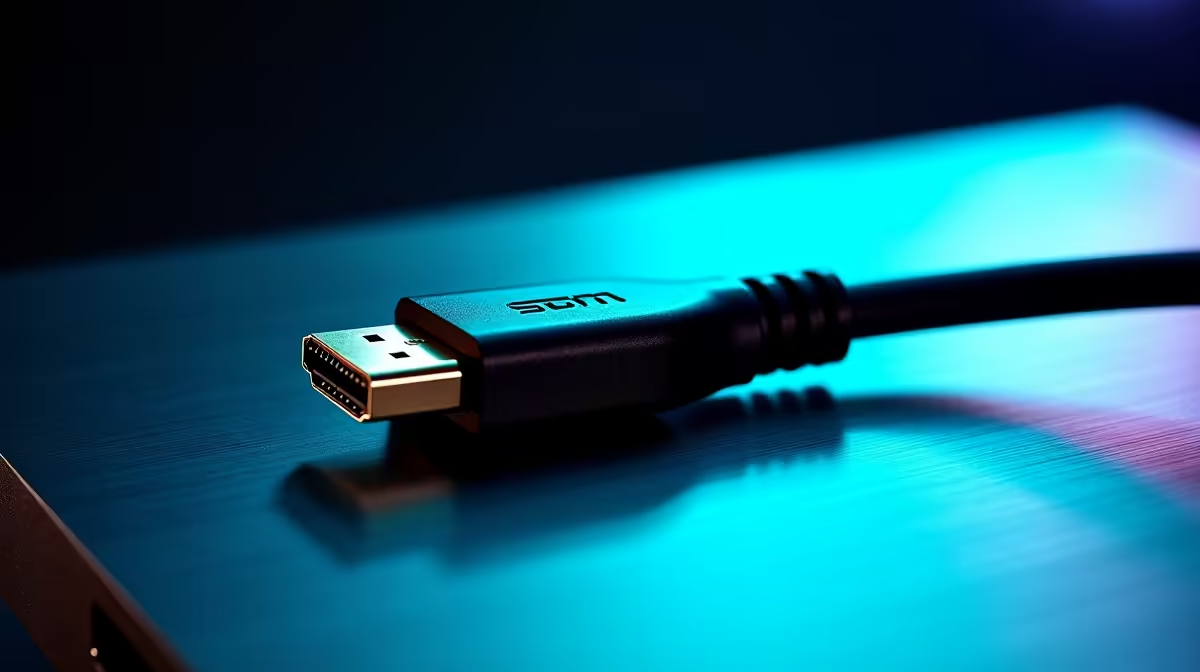
Flickering, brief black screens, or no signal on a 4K HDMI connection are almost always caused by one of four issues: an underpowered cable failing to hold 18 Gbps, a loose connector at one end, an HDMI port on the display not set to Enhanced mode, or the GPU negotiating a link rate the cable cannot sustain. Work through these in order before replacing display hardware.
A black screen flash (lasting half a second) followed by the display reconnecting is the classic symptom of a cable that cannot consistently maintain 18 Gbps. The GPU and display renegotiate the HDMI link every time the signal drops below the error threshold. This appears as an intermittent flicker that worsens with heat (as cable conductors expand slightly) or after the system has been running for an hour. The fix: replace the cable with a Premium Certified HDMI 2.0 cable rated at 18 Gbps. A certified cable from Evetech in the R200 to R350 range at 1.8 metres resolves this in the vast majority of cases without any other changes.
A loose HDMI connector at either end causes identical symptoms to a failing cable: intermittent black screens with immediate reconnect. Test by pressing the connector firmly into the port (HDMI connectors do not lock) and checking whether the problem resolves temporarily.
If a new cable and confirmed connector seating do not resolve the issue, the next steps are: reduce colour depth (try 8-bit instead of 10-bit in Nvidia Control Panel or AMD Software) to lower bandwidth demand slightly; try a different HDMI port on the display if multiple are available; and test the source with a different display to isolate whether the problem follows the cable, the source, or the display. For South African gaming setups running an RTX 50-series card, also check that GPU drivers are current, as HDMI link negotiation issues are occasionally caused by driver bugs that firmware updates resolve.
Before buying a new cable or assuming a port is broken, switch off both the display and the source device completely (power button, not sleep), unplug the HDMI cable from both ends, wait 30 seconds, reconnect firmly, and power on. Many HDMI handshake failures are resolved by a full power cycle that clears the HDMI authentication state. This is especially relevant after a GPU driver update or firmware update on a smart TV in South Africa.
HDR at 4K/60Hz pushes bandwidth demand from around 11.9 Gbps (SDR 8-bit) to approximately 14.2 Gbps (HDR10 10-bit). A cable with marginal 18 Gbps capability handles SDR but fails under the extra load of HDR. Replace the cable with a fully compliant Premium Certified HDMI 2.0 cable to resolve HDR-specific flickering.
Yes. TV firmware updates occasionally change HDMI handshake timing or HDCP authentication behaviour, causing flickering with cables or sources that previously worked. Check the TV manufacturer's support site for a rollback option or a subsequent firmware update that addresses the regression.
HDMI ports on TVs and monitors are rated for around 5,000 to 10,000 insertion cycles, more than enough for normal home use. Damage occurs mainly from lateral stress (cables pulling at an angle) or forceful insertion. Use a right-angle adapter on a frequently disconnected port to protect the port socket and reduce wear.
Getting intermittent black screens or no signal on your 4K setup? A certified HDMI 2.0 cable is usually the fix. Browse Evetech's HDMI cable range for Premium Certified 18 Gbps options in multiple lengths, stocked locally with SA warranty support.
iRacing build planning should focus on the target resolution, settings and total system balance. Treat launch wording as time-sensitive, then verify requirements before choosing SA PC parts.
Read more
Skyrim PC requirements should be mapped to resolution, settings and upgrade budget before choosing a tier. Verify current requirements, then balance GPU, CPU, RAM and SSD around SA pricing.
Read more
Skyrim PC builds is a cautious guide for game PC build planning. Compare game requirements, tier fit, resolution goals, RAM, storage, and GPU choice for SA buyers without assuming live prices, availability, or exact benchmark results.
Read more
Hades 2 PC builds is a cautious guide for game PC build planning. Compare game requirements, tier fit, resolution goals, RAM, storage, and GPU choice for SA buyers without assuming live prices, availability, or exact benchmark results.
Read more
Roblox PC builds is a cautious guide for game PC build planning. Compare game requirements, tier fit, resolution goals, RAM, storage, and GPU choice for SA buyers without assuming live prices, availability, or exact benchmark results.
Read more
Mortal Kombat 1 launch needs a balanced parts plan, not a random basket. Map the CPU, GPU, RAM, SSD, cooling, and monitor target to the budget so SA builders know where to spend first.
Read more
Wondering if a TKL wireless mechanical keyboard is worth it for everyday productivity? We break down latency, battery life, comfort, and workflow gains for real work. ⚡⌨️

Maximise battery life on a fanless 15-inch laptop using efficiency core architecture. Cut idle drain, tune power profiles, and improve thermals for longer runtime. 🔋⚙️

Learn how to reduce desk clutter with a TKL wireless keyboard using fewer cables, smart placement, and tidy essentials. Get a faster, calmer workspace with better ergonomics. ✅🧼

RGB keyboard lighting too distracting? Learn how to manage backlight modes, set brightness, and reduce distraction for focus and productivity 😌🖱️

Are themed gaming keyboards worth the extra cost? Compare build quality, switch options, features, and resale value to find the best fit for your setup 🎮⌨️

Full-Size vs Tenkeyless mechanical keyboards for gaming: find out if a smaller layout truly improves aim, speed, and comfort. We break down layout, desk space, latency-feel, and keybinds 🎮⌨️

Dedicated media rollers vs function key shortcuts: learn which setup gives you better workflow control, faster media access, and fewer mistakes. 🖱️🎧

Best Mechanical Switch Type for Gaming: Clicky vs Linear vs Tactile. Find your feel, speed, and noise balance with practical guidance for FPS, MOBA, and productivity 😄🎮

Direct mouse answer: Mouse not keeping up with your work? Everything that matters about dual-mode 2.4GHz + BT 5.0: DPI behaviour, channel switching, battery curves and per-app button mapping. Covers when 2.4GHz USB wins (low-latency desk) and when BT 5.0 wins (laptop, d

Plain wireless mouse guide: Mouse not keeping up with your work? Everything that matters about wireless productivity mouse: DPI behaviour, channel switching, battery curves and per-app button mapping. Includes DPI tuning tips, channel switch shortcuts, and ZAR-aware fea

Real productivity numbers: Set up your wireless mouse in this order: everything that matters about wireless productivity mouse: DPI behaviour, channel switching, battery curves and per-app button mapping. Includes DPI tuning tips, channel switch shortcuts, and ZAR-aware

Pen not feeling like paper? Stylus lag and skipping usually trace to old drivers, dirty nibs, or display refresh mismatches, not the pen itself. Covers pressure curve tuning, tilt thresholds, nib swap timing, and SA pricing brackets.