Quick Answer
LED indicator dongles signal battery and connection status through colour and flash patterns: solid green typically means connected and above 50% charge, amber means below 30%, red or rapid flashing means critically low, and slow steady flashing usually means the mouse is searching for a connection. Consult your specific mouse manual for the exact blink codes, as they vary by manufacturer.
Reading Your Dongle LED Patterns 💡
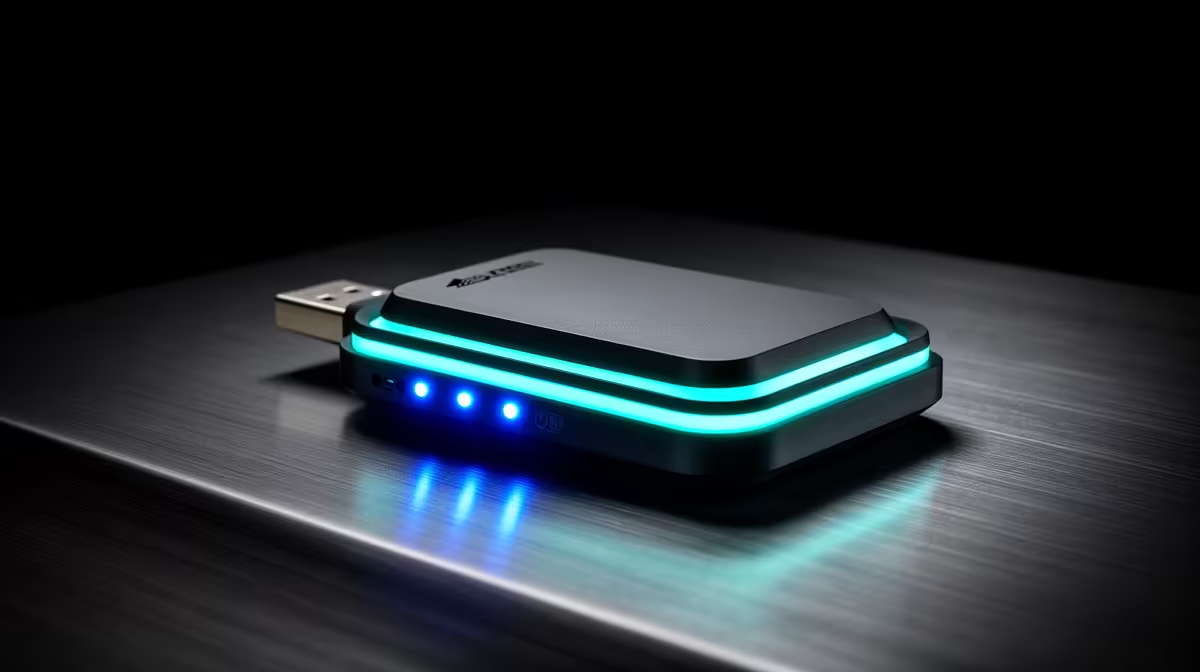
The dongle LED serves as a remote status indicator for your wireless mouse. Razer's HyperSpeed dongle uses a green LED that pulses slowly when the connection is active and solid when data is flowing at high polling. A double-blink pattern on some Razer models indicates the mouse battery has dropped below 15%. Logitech Lightspeed dongles typically use amber to signal low battery and white or green for normal operation, with rapid flashing indicating a pairing failure or out-of-range condition.
Some gaming mice omit a dongle LED and rely on a status LED on the mouse body itself, usually near the DPI button or on the scroll wheel. A pulsing rear RGB zone on Razer mice indicates charging when connected via cable; steady colour indicates normal wireless operation.
Setting Up Software Battery Monitoring 🖥️
For precise battery percentage readouts, install the manufacturer's companion software. Razer Synapse 3 displays the exact battery percentage in the device panel and can send a Windows notification when the battery drops below a configurable threshold, typically defaulting to 20%. Logitech G Hub shows battery percentage in the top-right corner of the device page. SteelSeries GG Engine displays a small battery icon in the Windows system tray.
Windows 11 natively shows Bluetooth device battery status in Settings under Bluetooth and devices, though this applies only to Bluetooth-connected mice, not proprietary 2.4 GHz dongles. For 2.4 GHz mice, the companion software is the only reliable software-side monitor.
Pairing and Re-Pairing via the Dongle 🔧
If your dongle LED shows a rapid alternating pattern without the mouse responding, the pairing has been lost. This happens most commonly after a USB port change or a firmware update. To re-pair, hold the pairing button on the underside of the mouse (usually for 3 to 5 seconds) until the mouse body enters pairing mode (typically a fast flash), then connect the dongle and wait for the solid connection indicator. The process takes under 30 seconds on most modern mice.
For mice using a USB-A nano dongle with no physical pairing button (many Logitech models), pairing is managed via the Connect option in G Hub.
Label Your Dongles ⚡
If you own multiple wireless mice, label each dongle with a small sticker matching the mouse colour. Dongles from different brands fit any USB port, and using the wrong dongle for a mouse causes an immediate no-connection error that is easy to misdiagnose as a battery or firmware issue.
FAQ
What does it mean if the dongle LED flashes red continuously?
A continuous red flash almost always means the mouse battery is critically low, typically below 5 to 10 percent. Charge the mouse immediately via USB-C or the charging dock if available.
Can I use the dongle with a different mouse of the same brand?
Generally no. Dongles are paired at the factory to specific mice. Logitech's Unifying receiver is an exception, supporting multiple Logitech devices on one dongle, but most gaming-focused proprietary dongles are single-device only.
My dongle stopped lighting up but the mouse still works. Is something wrong?
Not necessarily. Some mice disable the dongle LED after a short period to reduce power consumption. If mouse tracking is normal and the companion software shows a stable connection, the mouse is functioning correctly.
Need a wireless gaming mouse with reliable connection monitoring?
Evetech stocks wireless gaming mice from Razer, Logitech, and HyperX, all with companion software for precise battery and connection tracking. Visit Evetech to find the right wireless model.