Quick Answer
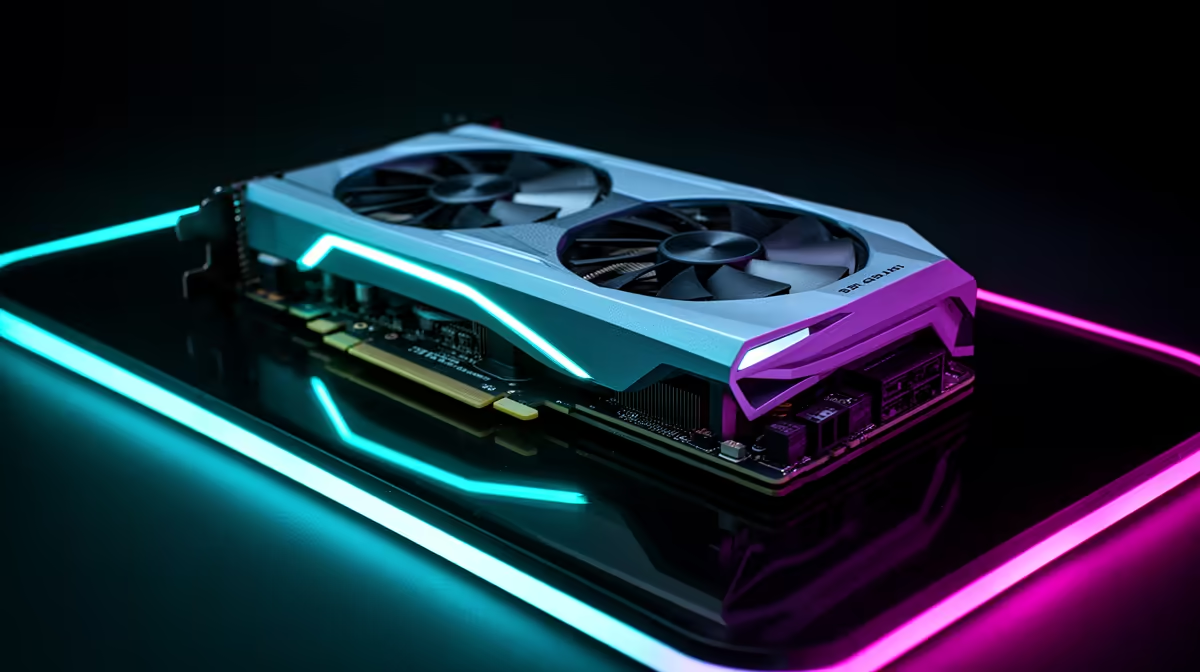
Optimise your RTX 5060 8GB for 1080p gaming by enabling DLSS Super Resolution at Quality mode, applying a mild undervolt to reduce heat and improve boost clock stability, setting a custom fan curve for quieter sustained play, and keeping your NVIDIA driver updated for the latest performance optimisations in current titles.
Enable DLSS and Frame Generation First 🖥️
The RTX 5060 8GB is designed for 1080p gaming, and DLSS 4 is the most impactful single setting you can change in any supported title. At Quality mode, DLSS renders internally at around 720p and upscales to 1080p, cutting GPU rendering load by 40 to 50 percent. This translates to 30 to 60 additional frames per second in GPU-limited scenarios, moving titles like Cyberpunk 2077 from 50 to 60fps at ultra into 90 to 110fps territory at 1080p. Frame Generation further multiplies the displayed frame rate at the cost of a small amount of input latency, acceptable in single-player titles but best disabled in competitive multiplayer where latency is critical.
Undervolt for Cooler, More Stable Performance 🔧
The RTX 5060 8GB runs within a tighter thermal budget than flagship cards. Applying a mild undervolt through your GPU utility, reducing the voltage-frequency curve by 50 to 75 millivolts at the maximum frequency point, typically reduces load temperatures by 5 to 10 degrees without any measurable frame rate reduction. In South Africa's warm climate, where ambient indoor temperatures in Gauteng can reach 30 to 35 degrees in summer, the headroom gained by undervolting is the difference between a GPU sustaining its target clock for three hours and one that dips noticeably in the second hour of play.
In-Game Settings That Maximise 1080p Performance 🎮
At 1080p on an RTX 5060 8GB, most settings scale well except for full ray tracing and maximum shadow distance. Full ray tracing cuts frame rates significantly on an 8GB card because ray tracing acceleration structures consume VRAM alongside textures. The recommended approach is to enable ray-traced ambient occlusion while leaving ray-traced reflections at medium or off, capturing most of the visual improvement at a fraction of the performance cost. For competitive titles like Valorant, CS2, or Apex Legends, setting graphical options to low except for resolution and anti-aliasing pushes frame rates well above 200fps, fully exploiting a 144Hz or 240Hz monitor.
Enable Resizable BAR for Free Performance ⚡
Check your motherboard BIOS for Resizable BAR or Above 4G Decoding settings. Enabling it for the RTX 5060 8GB can improve frame rates by 3 to 8 percent in supported titles. This is a zero-cost BIOS change that takes two minutes and requires no hardware modification.
FAQ
Is 8GB VRAM enough for 1080p gaming in 2026?
8GB is adequate for 1080p at high to ultra settings in the majority of current titles. A small number of memory-heavy games push beyond 8GB at maximum texture quality. Keeping textures at high rather than ultra in these titles resolves VRAM overflow without significantly affecting the overall experience.
Should I overclock or undervolt my RTX 5060 8GB?
Undervolt first. The RTX 5060 8GB benefits more from stable sustained clocking via undervolting than from aggressive overclocking, which increases heat and power consumption. A stable undervolt delivers equivalent or better frame rates over long sessions.
How does the RTX 5060 8GB handle 1080p at 144Hz in competitive games?
In esports titles at 1080p, the RTX 5060 8GB exceeds 144fps comfortably at medium to high settings. CS2, Valorant, and Apex Legends all run above 180fps to 250fps on this card at 1080p with optimised settings, making it a strong match for 144Hz and 240Hz monitors.
Getting the most from your RTX 5060 8GB?
Evetech stocks the full range of RTX 5060 cards with local warranty support for South African 1080p gaming builds.