Quick Answer
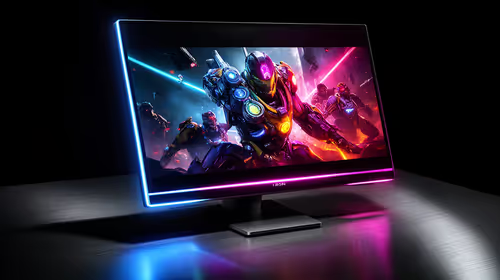
To set up a 31.5-inch curved FHD monitor for smooth competitive gaming, connect via DisplayPort 1.4, enable the monitor's highest native refresh rate in Windows Display Settings, turn on FreeSync in your GPU driver and monitor OSD, set in-game resolution to 1920x1080, and disable blur reduction modes that conflict with adaptive sync. The full process takes under 10 minutes.
Step 1: Physical Setup and Cable Selection 🔧
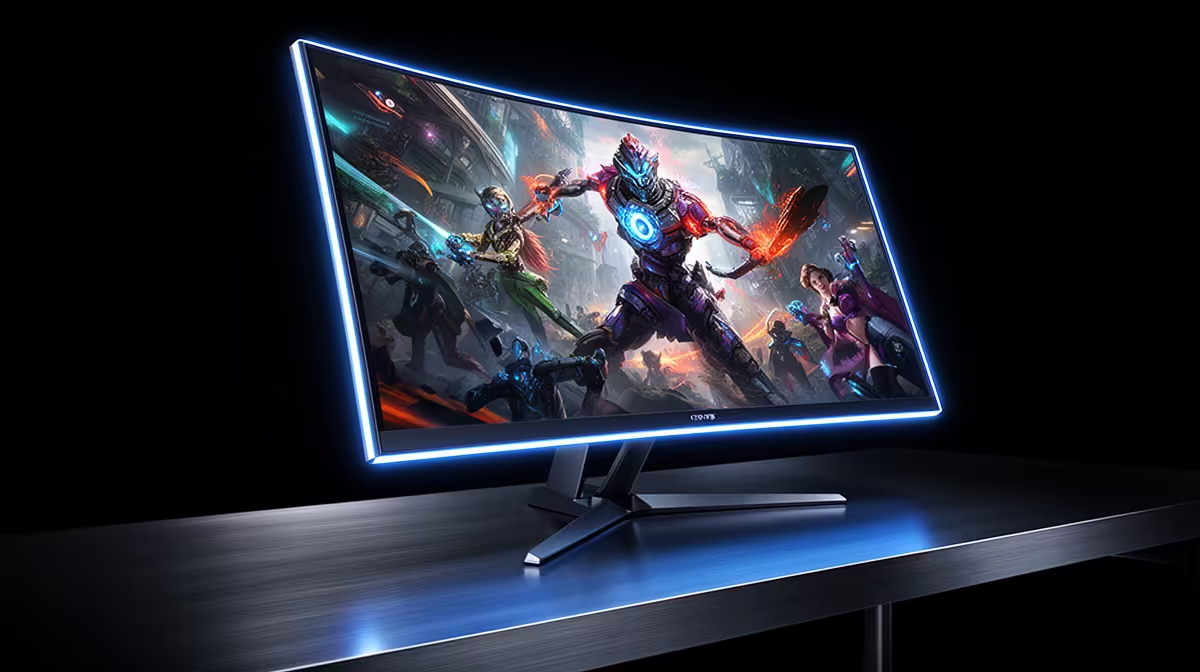
Position the monitor at 70 to 80cm from your eyes, the optimal distance for a 31.5-inch curved panel. The 1800R curve naturally pulls outer edges into peripheral vision, so this distance is comfortable without distortion. Use DisplayPort 1.4 as your connection. At 1920x1080, DisplayPort handles 250Hz without bandwidth issues. HDMI 2.0 can reach 240Hz at 1080p but introduces minor compression artefacts in some implementations, so DisplayPort is the safe choice for competitive setups. If the stand allows height and tilt adjustment, raise the panel to eye level to reduce neck fatigue across long sessions.
Step 2: Windows and Driver Settings 🖥️
Right-click the desktop and open Display Settings. Under Advanced Display, confirm the refresh rate shows the panel's native maximum (165Hz, 200Hz, or 250Hz depending on your model). If it shows 60Hz, the cable or GPU port is the bottleneck; switch to DisplayPort. In AMD Software: Adrenalin Edition or NVIDIA Control Panel, enable FreeSync or G-Sync Compatible respectively. Set in-game resolution to 1920x1080 in every title. Running a lower resolution stretches pixels on an FHD panel and looks noticeably blurry; native resolution ensures sharpest output. Disable Windows Night Light during gaming sessions as it shifts colour temperature and can interfere with calibrated profiles.
Step 3: In-Monitor OSD Calibration 🎮
Open the monitor OSD via physical buttons or software (DisplayWidget Center for ASUS, MSI Gaming OSD for MSI). Set brightness to 80 to 100 nits for standard room lighting, contrast around 75%, and select the sRGB or Racing preset for competitive FPS. Disable onboard HDR mode unless playing a supported title; HDR lifts the black floor, destroying shadow detail in dark corridors. ELMB or similar backlight strobing should be enabled only when adaptive sync is turned off, since the two features conflict on most panels. For competitive play, adaptive sync plus optimised overdrive is the default winning configuration.
Enable FreeSync in Both GPU and Monitor OSD ⚡
must be toggled on in two places: the GPU software and the monitor OSD. Missing either step results in adaptive sync being silently disabled. Confirm both are active before testing in-game, especially after a driver update, which can reset GPU settings to default.
FAQ
Why is my 31.5-inch curved monitor only showing 60Hz in Windows?
This almost always means the cable does not support the panel's native refresh rate. HDMI 1.4 maxes out at 144Hz for most monitors. Switch to DisplayPort 1.4 and the full refresh rate will appear in Display Settings.
Should I run my 31.5-inch FHD at 1080p or a scaled resolution for competitive play?
Always run at native 1920x1080. Lower resolutions stretch the image and reduce clarity, and on a 31.5-inch panel the pixel stretch is very visible. Stretched resolution practices that some players use on smaller 24-inch panels lose their clarity advantages at this size.
Does a 31.5-inch curved FHD monitor need a calibration tool for gaming?
For competitive gaming the factory Racing or FPS preset is sufficient. For colour-accurate design or photo editing, a hardware colorimeter (around R1,500 to R3,000 locally) is worthwhile, but it is not necessary for gaming purposes.
Setting up a new 31.5-inch curved gaming monitor?
Evetech stocks a full range of curved FHD gaming displays backed by local warranty and available for fast delivery across South Africa.