Quick Answer
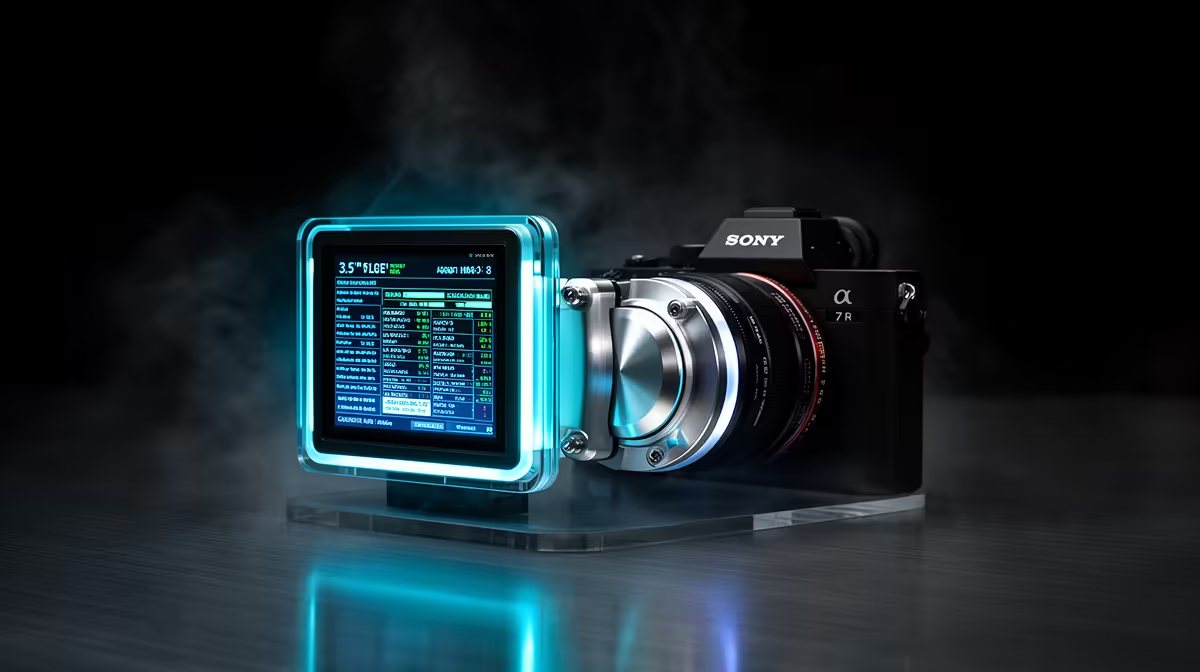
You configure the 3.5-inch LCD on an AIO cooler pump block through the manufacturer's companion software, typically iCUE for Corsair, CAM for NZXT, or Armoury Crate for ASUS ROG. The display connects via a USB 2.0 internal header and shows live CPU temperature, GPU temperature, clock speeds, or custom images selected through the software dashboard.
Setting Up the Software and USB Connection 🖥️
Once the AIO is physically installed, plug the pump block's USB cable into an internal USB 2.0 header on your motherboard. This is separate from the pump power cable. Install the manufacturer's monitoring software from their official support page. On first launch the software detects the AIO and prompts you to configure the LCD. Most platforms offer a drag-and-drop widget interface where you choose which sensors to display: CPU package temperature, CPU frequency, GPU temperature, GPU utilisation, RAM usage, or custom text. The display typically refreshes at 30 frames per second, giving near-real-time readouts during demanding sessions. For Ryzen 9000 series CPUs running at elevated boost clocks around 5.4 to 5.7GHz, watching the temperature hover at 70 to 75 degrees Celsius under load confirms your cooling is working correctly without opening a secondary monitoring app.
Customising What the Display Shows 🎨
Beyond raw sensor data, most LCD AIO software allows you to upload custom GIF animations or static images to the pump block face. This turns the 3.5-inch screen into a visual centrepiece for windowed builds. You can cycle between a monitoring layout during gaming and a custom logo or animation during desktop use. Corsair iCUE allows resolution-matched GIF uploads; NZXT CAM offers a similar custom image panel. File size limits typically apply, around 500KB to 2MB depending on firmware version, so compress images before uploading. The display brightness can be adjusted independently, which matters for South African home office setups where ambient lighting varies significantly through the day.
Monitoring Multiple Sensors and Alert Thresholds ⚡
Some AIO LCD platforms support temperature alert overlays that change the display colour or flash a warning when a sensor crosses a threshold you define. Setting a CPU alert at 85 degrees Celsius and a GPU alert at 80 degrees gives you a visible in-build early warning without needing a secondary monitoring overlay on your gaming display. Keep the USB cable secured neatly behind the motherboard tray to prevent it from interfering with airflow near the radiator inlet.
Update Firmware Before Configuring the LCD ⚡
Before spending time setting up display layouts, check the AIO manufacturer's website for firmware updates for the pump block. Outdated firmware can cause display flickering or prevent certain sensor readings from appearing correctly in the companion software.
FAQ
Does the LCD display add significant heat to the pump block?
No. The small LCD panel draws minimal power, typically under 2W, and does not meaningfully affect pump block temperatures or coolant heat transfer. The thermal performance of the AIO is determined by the radiator, fans and pump speed, not the display.
Can I use third-party software like HWiNFO64 to feed data to the LCD?
Some AIO models support sensor bridging via plugins that pull from HWiNFO64. This is ecosystem-dependent: NZXT CAM has limited third-party integration, while ASUS ROG Armoury Crate supports richer cross-app sensor feeds. Check your specific model's compatibility documentation.
What happens to the LCD if the USB header disconnects?
The pump continues normally as it draws power from the CPU_OPT or AIO_PUMP header separately. The LCD goes blank until the USB connection is restored and the software relaunches.
Want a build that shows you what is happening in real time?
Check out Evetech's range of LCD-equipped AIO coolers that put live sensor data right on your pump block.