Quick Answer
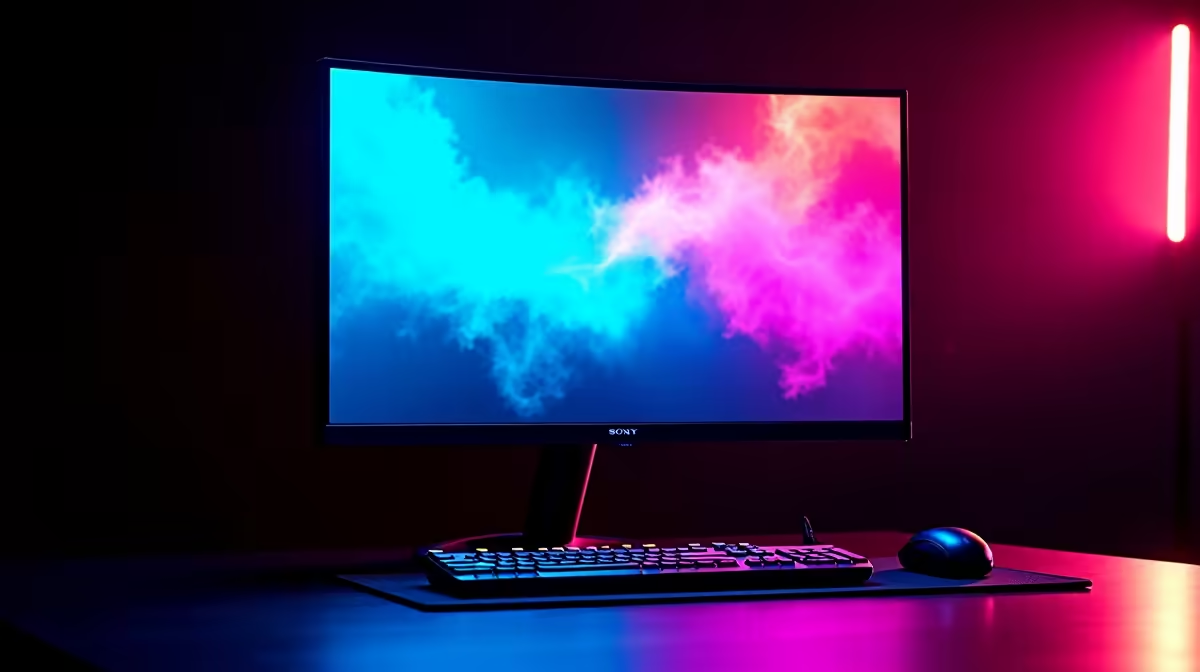
ASUS TUF Gaming monitors include AI-assisted visual enhancement through Armoury Crate and the monitor OSD. The two key tools are GameVisual AI modes, which adapt contrast and sharpness based on detected content type, and Shadow Boost, which lifts dark scene visibility without blowing out bright areas. Access them through the TUF Gaming OSD five-way joystick or Armoury Crate after connecting the monitor via both DisplayPort and a USB cable to your PC.
What TUF Gaming AI Visual Tools Do 🖥️
GameVisual is ASUS's content-adaptive display technology, significantly enhanced in recent TUF Gaming VG and XV series panels. It analyses incoming signal content and applies adjustments for contrast, shadow recovery, and colour saturation based on detected content: FPS, RTS, Racing, Cinema, or Scenery mode. The AI refinement adds scene-by-scene adaptation rather than static preset tuning. Shadow Boost brightens dark game environments without clipping highlights, improving visibility in titles like Hunt: Showdown or PUBG where dark corridors are tactical disadvantages. These features run in the monitor's onboard processor and add no measurable input lag on tested TUF panels. TUF Gaming monitors in the R5,000 to R9,000 range locally include both features standard.
Enabling AI Features Through Armoury Crate 🔧
Connect the monitor via USB in addition to the display cable: Armoury Crate communicates over USB to enable software-side OSD control. Install Armoury Crate from the ASUS support page for your specific monitor model, then navigate to the display control tabs where GameVisual modes appear. Shadow Boost is adjustable from level 1 to 10. For SA competitive gamers with a TUF Gaming monitor, enabling Shadow Boost at level 3 to 5 is the fastest single improvement for dark-map visibility. Without Armoury Crate, access all features directly from the monitor OSD: press the five-way joystick, navigate to Image, then GameVisual, and select the desired mode.
Practical Mode Selection by Use Case 🎮
For competitive FPS (CS2, Valorant): use Racing or FPS GameVisual mode with Shadow Boost at level 3. This lifts dark corners without washing out player outlines in bright zones. For open-world RPGs or story games: use Scenery or RTS mode for colour fidelity without aggressive contrast manipulation. For evening productivity or document work: enable ASUS Low Blue Light mode at its moderate setting, shifting the white point toward 5000K. Do not use Shadow Boost for photo editing: it is a black stretch algorithm that misrepresents shadow tones in images. Keep a Standard profile saved and switch to it for creative work.
Map GameVisual to OSD Joystick Shortcut ⚡
Most TUF Gaming monitors let you assign GameVisual switching to a joystick quick-shortcut. Press and hold the joystick for two seconds while in gaming mode to access the shortcut assignment screen. Mapping GameVisual to the left shortcut lets you flip between FPS and Scenery modes in under two seconds, practical for SA gamers who switch between competitive sessions and movie watching on the same panel.
FAQ
Do TUF Gaming AI visual features add input lag?
No. ASUS testing shows no measurable additional input lag from GameVisual or Shadow Boost at any setting. Processing is onboard the monitor's scalar chip, not the GPU. Input lag on TUF Gaming monitors in Fastest response mode typically measures 1 to 2ms whether features are on or off.
Can I use TUF Gaming AI features with a non-ASUS GPU?
Yes. GameVisual and Shadow Boost are monitor-side features independent of GPU brand. Armoury Crate USB control requires Windows 10 or 11, but OSD-direct access works without any software.
Is Shadow Boost permitted in online competitive games?
Yes. Shadow Boost is a monitor-side brightness adjustment functionally identical to adjusting gamma in Windows. It has not been flagged by any major anti-cheat system including VAC or Vanguard.
Experience TUF Gaming visual performance yourself.
Browse the ASUS TUF Gaming monitor range at Evetech, stocked locally in South Africa with full warranty support.